



Want to collect donations directly from your website?
WordPress gives you several ways to do it. You can add a simple payment button, use a donation form, or build a larger fundraising system around your site.
But collecting donations involves more than adding a payment option. You also need a payment processor, clear donation choices, confirmation emails, transaction records, spam protection, and a reliable way to test the entire payment flow.
In this guide, you’ll learn how to accept donations in WordPress with WP Easy Pay and Square. We’ll walk through the setup from start to finish, including one-time donations, recurring donations, payment testing, confirmation emails, transaction tracking, and common problems.
TL;DR
To accept donations in WordPress, you’ll need a WordPress website, a donation or payment form, a supported payment processor such as Square, HTTPS, reliable email delivery, and a way to track transactions.
With WP Easy Pay, you can create donation forms with fixed or custom amounts, connect Square, offer recurring donations, display the form on a WordPress page, and test the payment workflow before accepting real donations.
The basic process looks like this:
- Install and activate WP Easy Pay.
- Connect your WordPress site to Square.
- Create your donation form.
- Add the form to your website.
- Test the complete payment and notification workflow.
- Switch to live payments when everything works correctly.
What Do You Need to Accept Donations in WordPress?
You don’t need a complicated fundraising platform to get started.
A basic WordPress donation setup usually needs these pieces:
- A WordPress website: Your donation form needs a page where visitors can learn about your cause and complete their donation.
- A payment or donation form plugin: The plugin provides the form and connects it to your payment processor.
- A payment processor: You’ll need a service that can process the donor’s payment.
- HTTPS: Your website should use HTTPS with a valid TLS certificate. HTTPS encrypts the connection between the visitor’s browser and your website.
- Donation confirmations: Your payment form should provide a clear success message and, when configured, send a confirmation email after a successful payment.
- Spam protection: Public forms can attract automated submissions, so use suitable anti-spam protection.
- Reliable email delivery: Your site needs a dependable way to deliver donor confirmations and administrator notifications.
- Donation records: Your payment system should let you review transaction details and any donor information your form collects.
And you don’t necessarily need WooCommerce.
If your website only needs donation forms and payment collection, a dedicated payment and donation form plugin such as WP Easy Pay can give you a more focused setup than adding a full eCommerce platform.
WP Easy Pay connects WordPress with Square and supports payment, donation, and subscription forms. It also provides tools for managing transactions and recurring payments from WordPress.
Choose the Right Way to Accept Donations in WordPress
Before installing anything, decide how much control you need over the donation process.
Here’s how the common options compare:
| Method | Best for | Typical limitations |
| Payment or donation form plugin | Flexible forms for collecting payments or donations | Advanced fundraising may require additional tools |
| Payment button or link | Simple donation requests | Limited donor experience and customization |
| WooCommerce | Stores that also accept donations | Adds eCommerce functionality you may not need |
| Fundraising platform | Campaigns that need built-in fundraising tools | Less control over the website experience |
| Custom development | Specialized payment workflows | Requires development and ongoing maintenance |
A payment button can work for a small project.
But a long-term donation program may need more.
You might want recurring payments, custom amounts, donor information, confirmation emails, transaction records, and a form that matches the rest of your website. A WordPress payment and donation form plugin can bring those pieces together without turning your site into a full online store.
What Should a WordPress Donation Form Include?
A good donation form asks for the information you need without making donors fill out unnecessary fields.
Keep it focused.
Depending on your organization, a WordPress donation form may include:
- Donation amount
- Suggested donation amounts
- Custom donation amount
- One-time donation option
- Recurring donation option
- Donor name
- Email address
- Anonymous donation option
- Donor message
- Available payment methods
- Dedication or memorial information
- Communication preferences, when appropriate
- Donation confirmation or receipt information
You don’t need every field on every form.
For example, a small community fundraiser might only need a donor’s name, email address, donation amount, and payment details, while a larger nonprofit may need additional information for follow-up communication or campaign management.
Only collect information you actually need.
Fixed Donation Amounts vs. Custom Amounts
Fixed amounts help donors choose quickly.
You might offer options such as $25, $50, $100, and $250, followed by a custom amount field.
That gives donors a few starting points without forcing everyone into the same donation amount.
A custom amount option also works well when donation sizes vary significantly.
One-Time vs. Recurring Donations
One-time donations work well for specific appeals and short campaigns.
Recurring donations can provide a more predictable stream of support because donors can make automatic payments according to the billing schedule and payment methods supported by your payment processor.
So make the difference obvious.
Don’t hide recurring donations behind a vague label or make donors guess whether they’ll be charged again later.
The donor should understand the amount and payment frequency before submitting the form.
Step-by-Step Process to Accept Donations on WordPress Website
WP Easy Pay is a WordPress payment and donation form plugin that connects with Square.
It lets you create payment, donation, and subscription forms without using a full eCommerce checkout system. You can use fixed or custom amounts, create one-time donation forms, and set up recurring donations with the appropriate premium features.
The setup takes four main steps.
Step 1: Install and Activate WP Easy Pay Pro
A simple donation payment option is available on WP Easy Pay (FREE). For recurring donations, you need WP Easy Pay Pro.
Go to the WP Easy Pay pricing page and purchase the Business plan.
You will receive an email containing the plugin’s Business plan ZIP file, along with the license key. Copy it for later use.
- Now log in to your WordPress dashboard.
- Head to Plugins → Add Plugin.
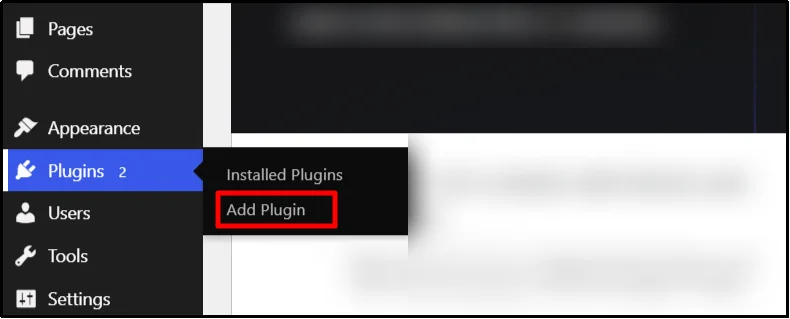
- Enter WP Easy Pay in the search bar.
- On the correct plugin, click Install Now, then click Activate.
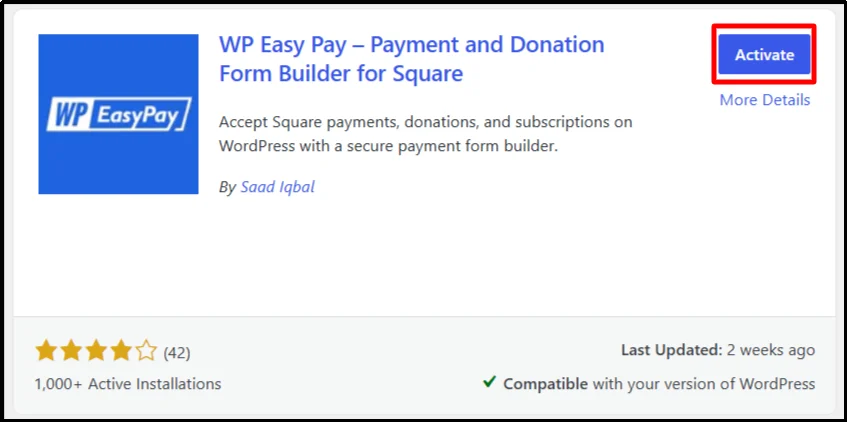
Note: To run WP Easy Pay Pro, you must deactivate WP Easy Pay Free.
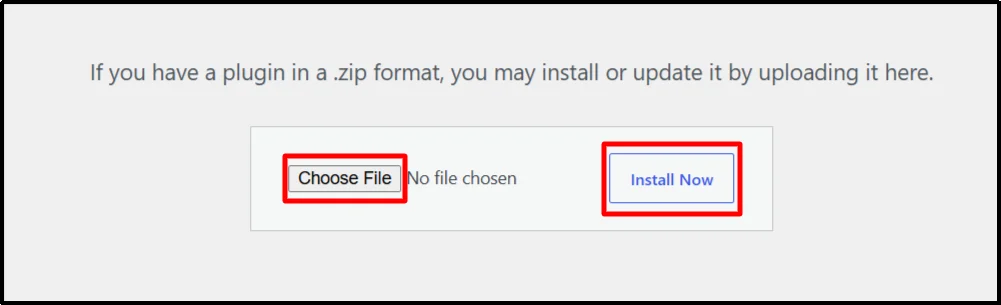
- Go to: Plugins → Add Plugin → Upload Plugin.
- Click Choose File, upload the WP Easy Pay ZIP file, then click Install Now and activate the plugin.
- After activation, you will be redirected to enter your license key.
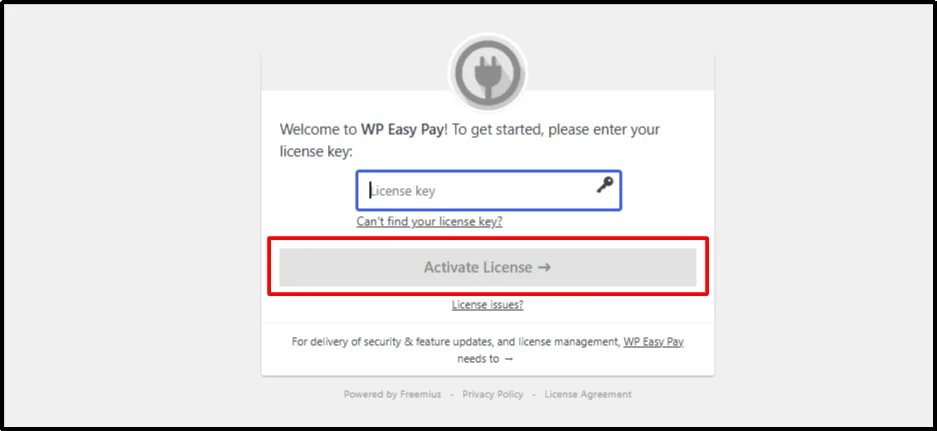
- Paste your license key and select Activate License.
Once the plugin activates successfully, you can connect it to Square.
Step 2: Connect WP Easy Pay to Square
WP Easy Pay uses Square to process payments.
- From your WordPress dashboard, go to: WP Easy Pay → Square Connect.
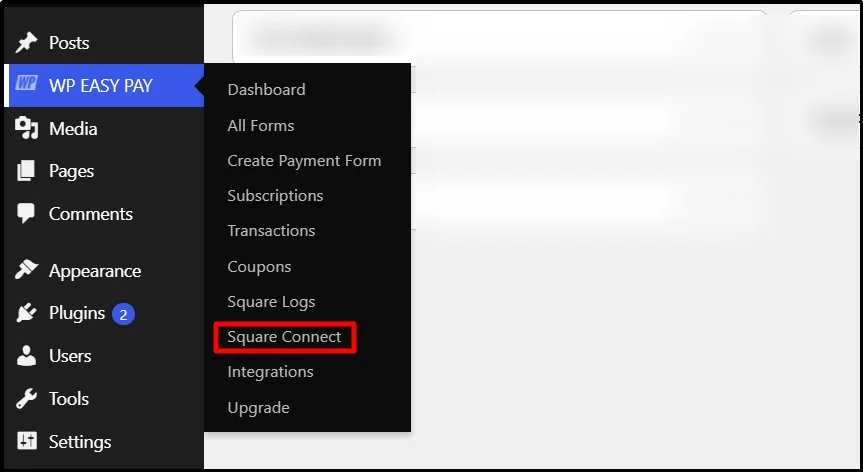
- You’ll see options for Test Mode and Live Mode. For a new setup, test (sandbox) mode gives you a safer place to verify your form and payment workflow before you start accepting real donations.
- Click Connect Square.
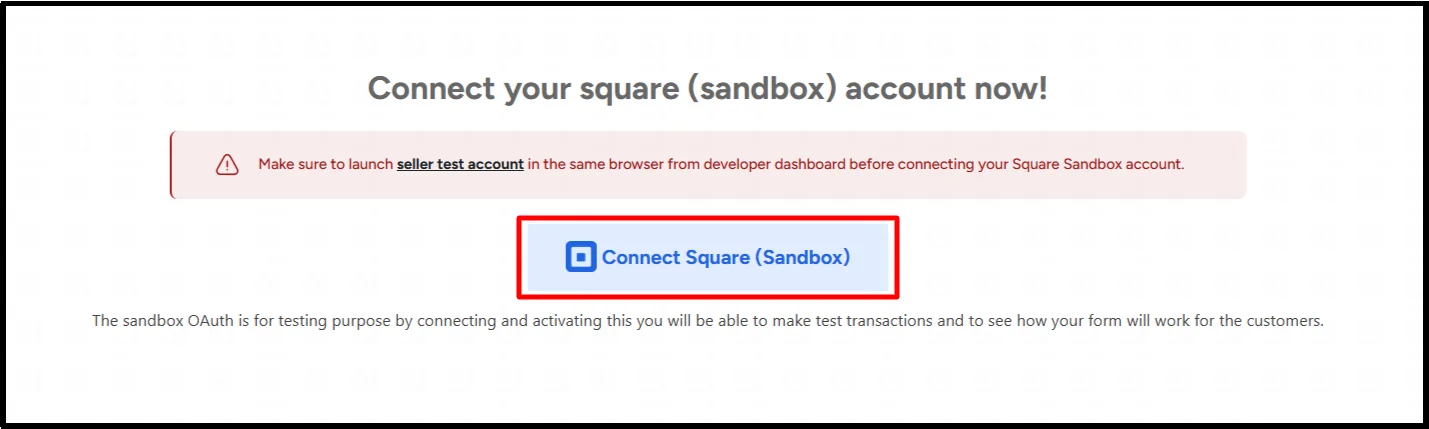
- You’ll then sign in to your Square account and authorize the connection.
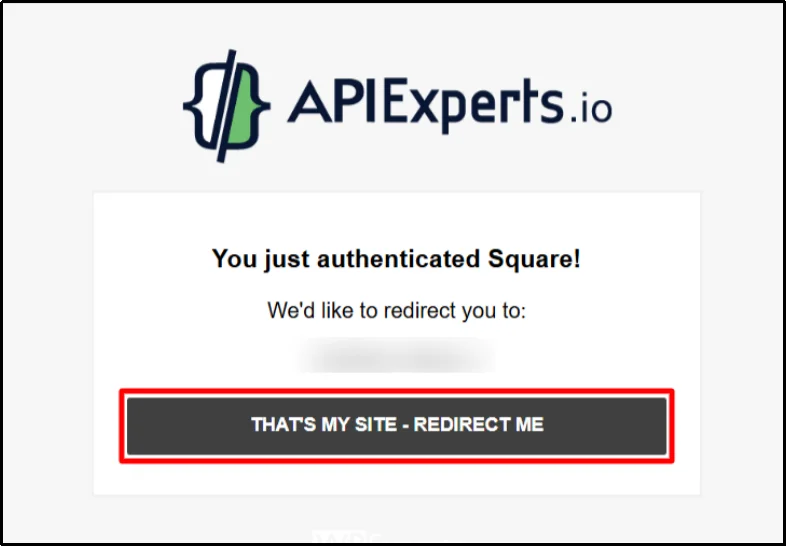
- After Square completes the authorization process, it redirects you back to your WordPress website.
You can then configure the payment options available through your setup.
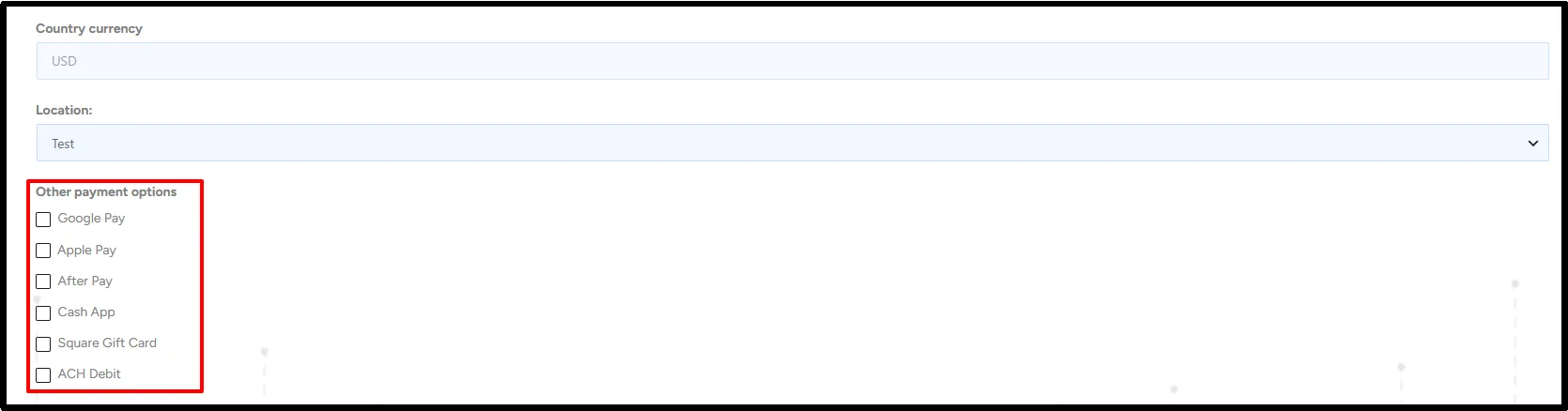
And don’t switch to live payments until you’ve tested the complete donation workflow.
Step 3: Create Your Donation Form
Now create the form donors will use.
- Go to: WP Easy Pay → Create Payment Form.
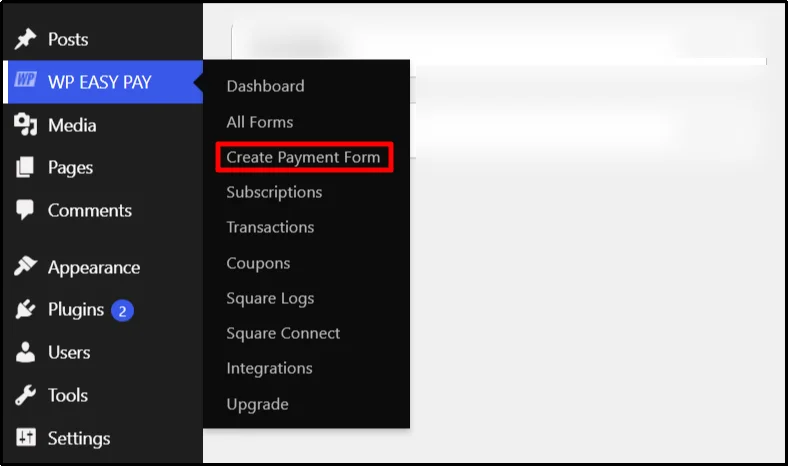
- Give your form a clear name and add a short description that tells visitors what their donation supports.
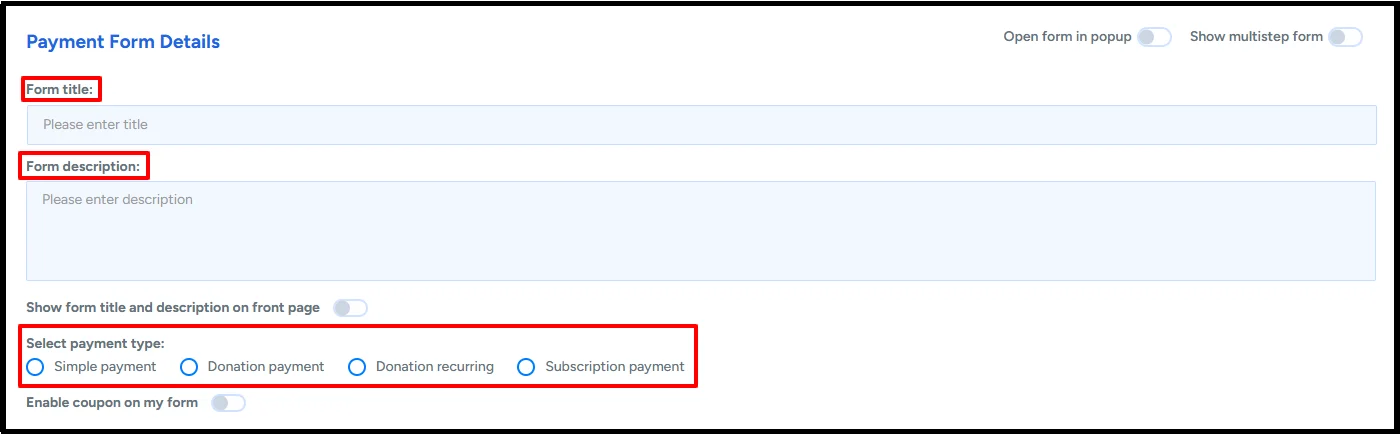
- You can choose two options: Donation Payment and Donation Recurring. Let’s pick Donation Payment first.
- You can also add your organization name and set a donation goal if it fits your campaign.
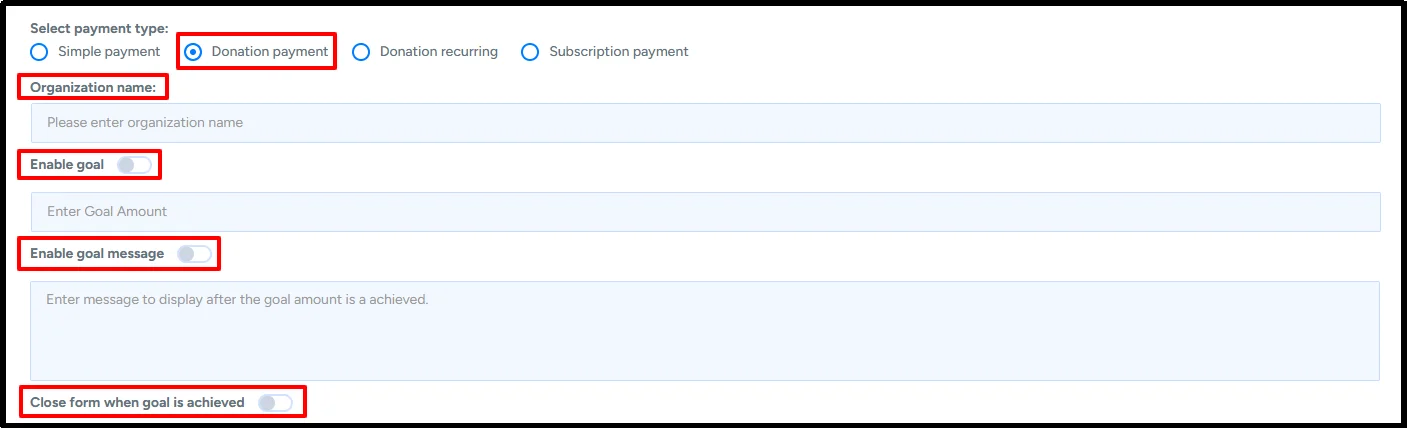
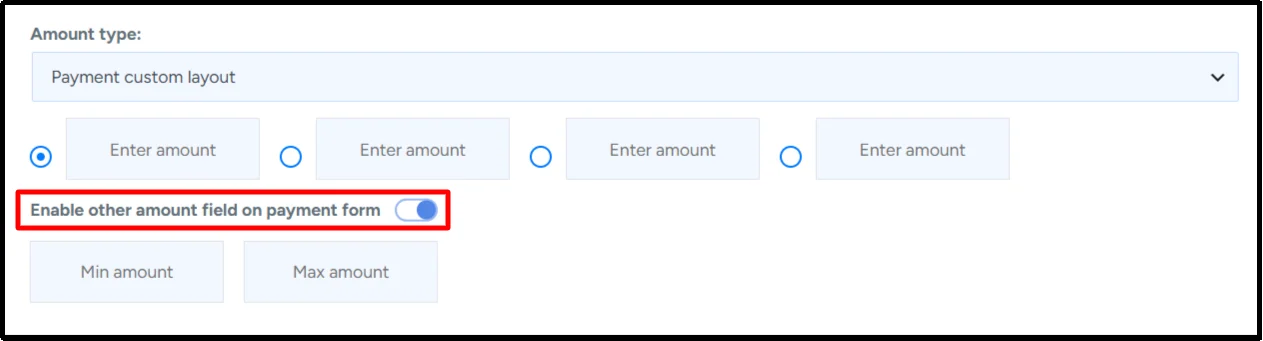
- Next, decide how donors will choose an amount. You can offer fixed donation amounts, a custom amount, or both. You can also set a minimum and maximum donation amount.
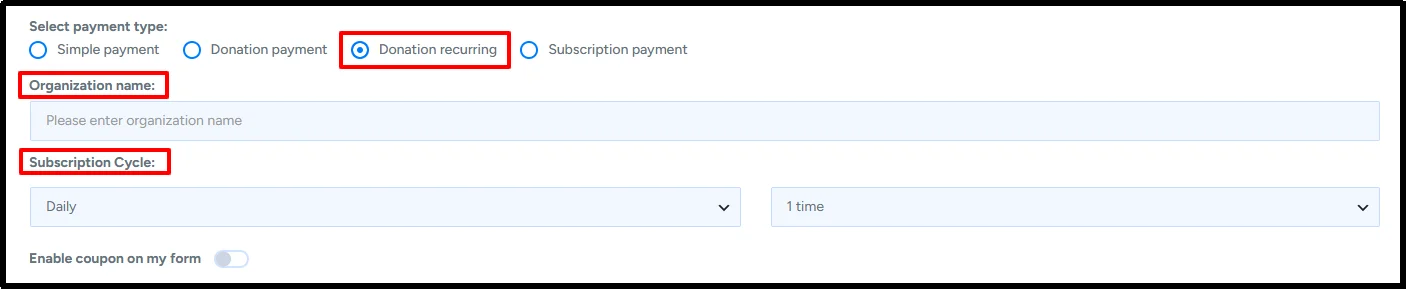
- If you want to collect recurring donations, configure the recurring payment option and choose the available billing cycle and amounts.
Donors should understand the amount and frequency before submitting payment.
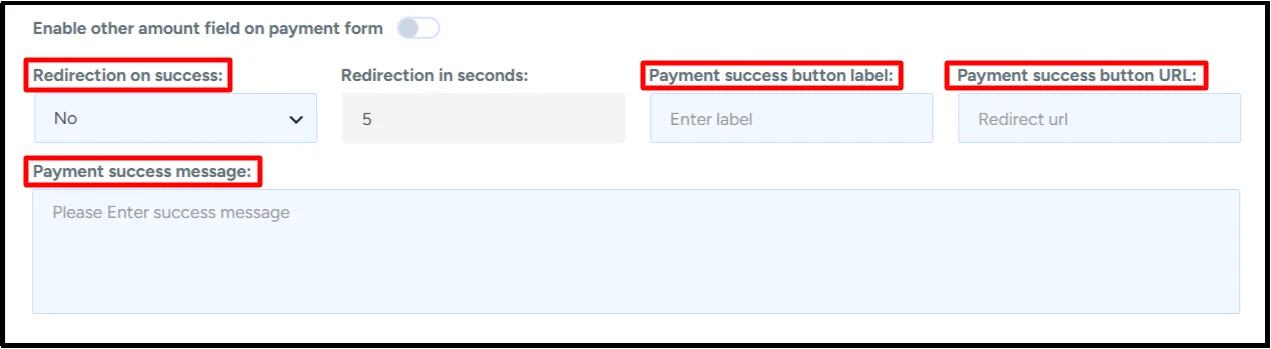
- You can also configure the “Redirection on Success” so donors land on a dedicated thank-you page after the transaction.
- Review the form settings, then publish the form, and copy the shortcode.
You can check out our detailed step-by-step guides:
- How to Set Up a WordPress Crowdfunding Campaign in 2026 [Step-by-Step]
- Create Your First Donation Form
- How to Create a Recurring Donation Form in WordPress [Step-by-Step]
Step 4: Add the Donation Form to Your Website
Once you’ve created the form, place it where visitors can find it.
WP Easy Pay provides a shortcode and a block editor (Gutenberg) to display forms.
You can add the form to a dedicated donation page, campaign landing page, sidebar, or another suitable location.
A dedicated donation page usually gives you more room to explain the cause before asking for payment.
Keep the actual form easy to find.
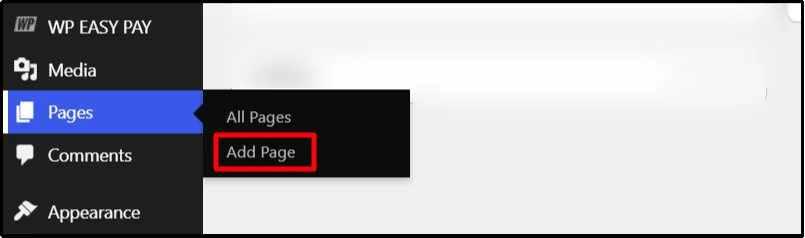
- Go to Pages → Add Page.
- Add the WP Easy Pay block and select your donation form, or add a Shortcode block and paste the form shortcode.
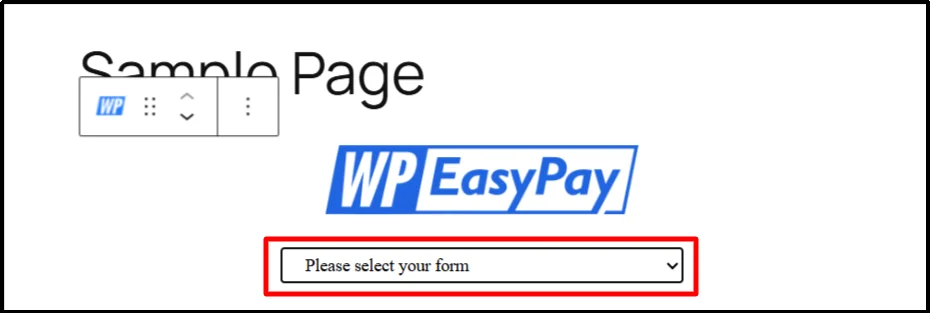
OR
You can just paste the shortcode.
- Click Publish or Save the page if you’re updating an existing donation page.
Your WordPress website can now easily accept donations!
How to Create a High-Converting WordPress Donation Page
A working form doesn’t automatically create a good donation experience.
Tell visitors what their contribution supports, who benefits from it, and what you’re trying to accomplish.
A strong donation page often includes:
- A clear headline
- A short explanation of the cause
- Suggested donation amounts
- A custom amount option
- One-time and recurring choices
- Trust signals
- A visible donation form
- A fundraising goal when appropriate
- A clear thank-you experience
Keep the Donation Form Short
Every extra field creates another decision. The shorter the form, the easier it is to complete, especially on mobile devices.
- Ask only for information you actually need.
- If you don’t need a phone number, leave it out.
- If you don’t need a mailing address, don’t force donors to provide one.
Show Suggested Donation Amounts
Suggested amounts help donors decide quickly.
You can connect those amounts to real outcomes when you have credible figures to back them up.
For example, instead of simply displaying a series of numbers, explain what a particular contribution can help fund.
Don’t invent an impact claim just to make donations feel more compelling.
Make Recurring Donations Easy to Understand
Recurring donations shouldn’t feel like a hidden subscription. Clearly explain how often the payment occurs and what happens after the donor submits the form.
A donor should know whether they’re making a one-time contribution or agreeing to an ongoing payment before they click the final button.
Build for Mobile Visitors
Many people will encounter your donation page on a phone.
So test the entire experience on a small screen.
Check the form fields, buttons, amount selectors, payment interface, confirmation page, and surrounding content.
If someone has to pinch and zoom just to choose a donation amount, you’ve created unnecessary friction.
Set Up Donation Confirmation Emails
The payment itself isn’t the end of the donor experience. After someone donates, they should know what happened.
A useful confirmation email can include:
- Donation amount
- Transaction information
- Donation date
- Organization name
- Payment confirmation
- Thank-you message
- Receipt information, when applicable
- Contact information for questions
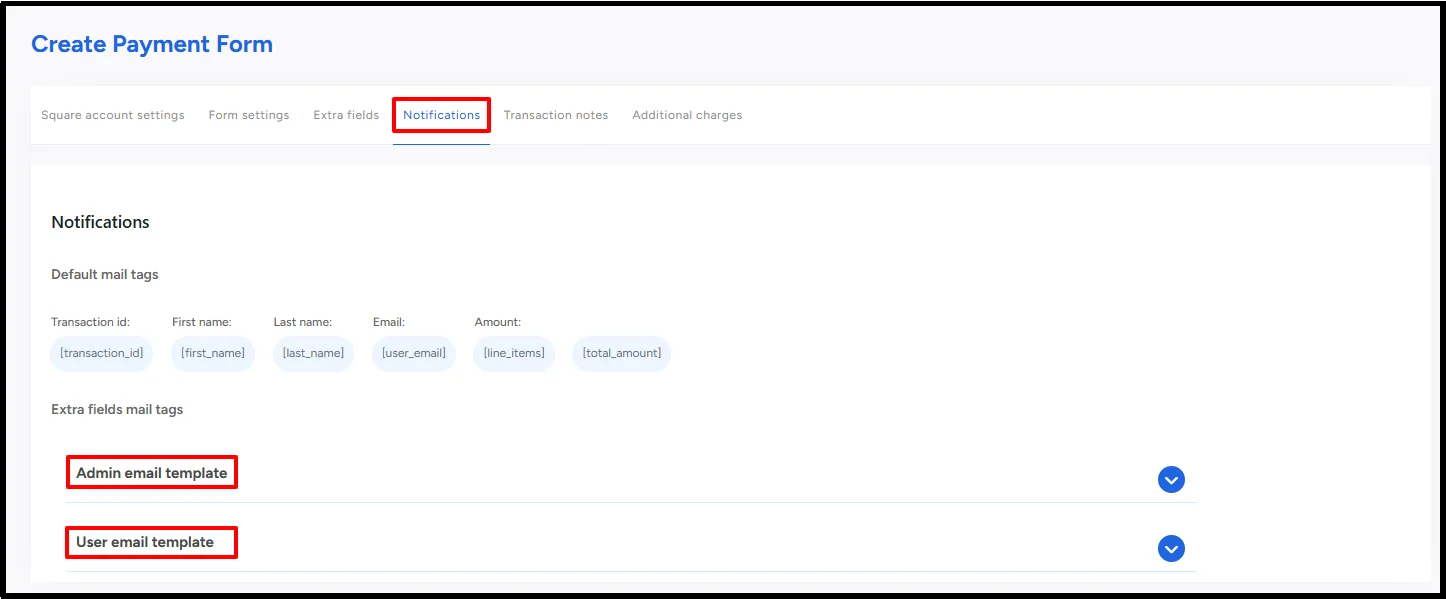
Your administrators may also need notification emails when someone submits a donation.
You can set up donation emails by going to “Notification Settings” while you create a form.
Track Donations and Manage Donor Records
Once donations start coming in, you’ll need a reliable record of what happened.
Depending on your plugin and payment setup, you may track:
- Donation amount
- Donor name
- Donor email
- Transaction date
- Payment Status
This information can help your team reconcile donations, answer donor questions, monitor campaigns, and understand where contributions come from.
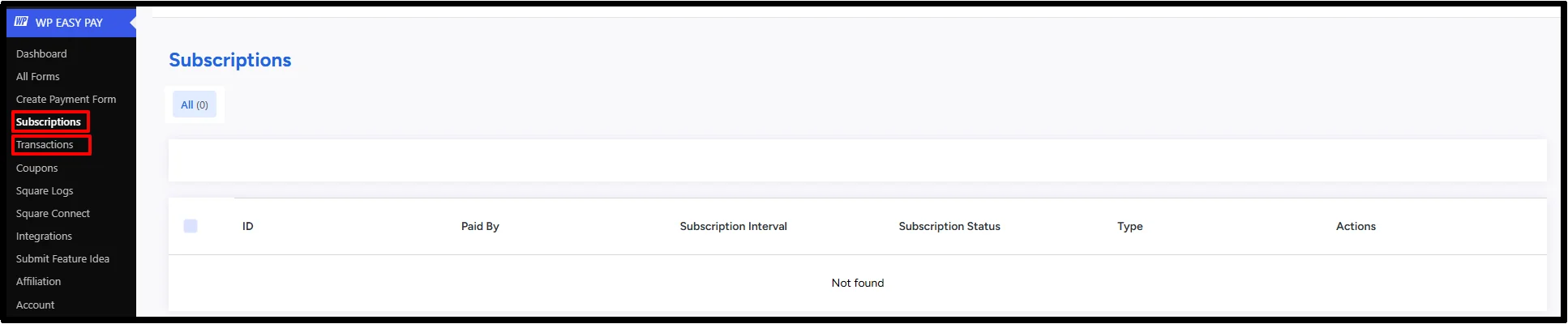
WP Easy Pay offers both transaction and subscription tracking features. You can easily track donor records, whether they’re one-time or recurring donations.
Use Donation Goals and Progress Tracking
A fundraising goal gives visitors a clear target.
You might set a campaign target of $10,000 and show how much you’ve raised so far.
A progress indicator can make that information easier to understand at a glance.
But keep the figures accurate.
If your progress bar says you’ve raised $7,500, make sure the underlying records support that number.
A stale progress indicator can create confusion instead of trust.
This is where fundraising thermometers and progress bars come in handy.
Common WordPress Donation Problems
Donation systems can fail in several places. Here’s where to look first.
1. The Donation Form Doesn’t Submit
Check the form configuration, required fields, JavaScript errors, plugin conflicts, and payment connection.
If the browser console reports an error, investigate that error before changing unrelated settings.
2. The Payment Fails
Check the payment processor connection, account status, credentials, supported payment methods, currency, and test/live mode.
A payment failure doesn’t always originate from WordPress.
The payment processor may reject a transaction for its own reasons.
3. The Donation Succeeds but the Email Doesn’t Arrive
Check your WordPress email configuration first.
Then inspect SMTP logs, the sender address, SPF, DKIM, DMARC, and spam placement.
If your site sends other emails successfully but donation confirmations fail, compare the donation notification settings with the working email configuration.
4. Recurring Donations Don’t Work
Check whether recurring payments are enabled, whether the selected payment method supports the recurring setup, and whether the payment processor account supports the required billing configuration.
Then verify the recurring settings in your form.
5. Donations Don’t Appear in Your Records
Check whether the transaction completed successfully and whether the plugin recorded the payment.
Compare your WordPress records with the payment processor’s transaction history.
That comparison can help you identify whether the problem happened during payment processing or record creation.
6. The Square Connection Fails
Check your account connection, authorization, credentials, environment, and plugin configuration.
If you previously used test mode, confirm that your current account and settings match the mode you’re trying to use.
How to Increase Donations on Your WordPress Website
You don’t need to make your donation page flashy. Make it easy to understand. Explain why you’re asking for support and what the money will help accomplish. Then remove unnecessary friction from the donation process.
- Put the Donation Form Near the Main Message
- Use Clear Donation Amounts
- Offer Recurring Donations
- Build Trust Before Asking for Payment
- Make the CTA Specific
- Don’t Forget the Thank-You Experience
You might want to take a look at: How to Increase Donations on WordPress
Start Accepting Donations in WordPress
Setting up a WordPress donation form doesn’t have to involve a full online store.
Choose a payment method, create the donation form, connect Square, add the form to your website, and test the complete workflow.
Then check everything again.
Verify the payment, transaction record, confirmation email, thank-you page, mobile experience, and administrator notification before you accept real donations.
That’s what turns a basic payment form into a dependable donation workflow.
If you need a WordPress payment and donation form that connects with Square, WP Easy Pay gives you the tools to create one-time and recurring payment forms, manage transactions, and test payments before launch.
Frequently Asked Questions
How Can I Accept Donations in WordPress Without WooCommerce?
You can use a dedicated WordPress payment and donation form plugin that connects directly to a supported payment processor.
WP Easy Pay connects WordPress with Square and lets you create payment, donation, and recurring payment forms without using WooCommerce.
Can I Accept Recurring Donations in WordPress?
Yes. You’ll need a WordPress donation form plugin and payment setup that support recurring billing. The available billing schedules and payment methods depend on your plugin and payment processor.
With WP Easy Pay, recurring donation forms are available through its premium features.
Can I Let Donors Choose Their Own Donation Amount?
Yes. Many WordPress payment and donation plugins support custom amounts. You can combine custom amounts with suggested fixed values so donors can choose whichever option suits them.
WP Easy Pay supports both fixed and custom payment amounts.
Can I Accept Donations Through Square on WordPress?
Yes. A WordPress payment and donation form plugin such as WP Easy Pay can connect your website with Square and let you create donation forms and other payment forms.
Square’s available payment methods and features can vary by account, location, and configuration.
Do I Need HTTPS to Accept Donations on WordPress?
Your donation website should use HTTPS with a valid TLS certificate.
HTTPS encrypts the connection between the visitor’s browser and your website. Your payment processor also applies its own security and compliance requirements.
HTTPS is one part of a secure payment setup, not the entire security model.
How Do I Send Donation Confirmation Emails From WordPress?
Your payment and donation form plugin can send customer confirmation emails after successful payments, depending on its notification features.
WP Easy Pay lets you configure customer and administrator notifications from the form builder.
If your website’s mail configuration causes messages to fail or land in spam, review your WordPress email setup, SMTP configuration, and domain authentication records.
How Do I Stop Spam Donations on WordPress?
Use suitable anti-spam protection on your donation form.
Options can include Google reCAPTCHA, hCaptcha, and Cloudflare Turnstile, depending on your plugin and configuration.
Also monitor suspicious activity instead of relying on a single protection layer.
Can I Test WordPress Donations Before Going Live?
Yes. WP Easy Pay supports testing through Square’s Sandbox environment, allowing you to test payment workflows without processing real payments.
Square provides test payment values for successful and failed scenarios in the Sandbox. Always check the current Square Sandbox documentation before relying on specific test values because Square can change its testing tools and supported scenarios.
Does WP Easy Pay Track Donation Transactions?
WP Easy Pay provides a Transactions screen where you can view payment records, search and filter transactions, and export transaction data.
You can also verify payments through your Square Dashboard.
For recurring payments, WP Easy Pay provides subscription management tools for viewing and managing recurring payment activity.