


If you want to accept Afterpay payments on your WordPress website, you’re in the right place.
In this guide, we’ll show you how to connect Square with WP Easy Pay and enable Afterpay on your WordPress payment forms. We’ll also explain how Afterpay works, what you need before setup, and how to troubleshoot common issues.
Afterpay is a popular buy now, pay later (BNPL) payment option that lets eligible customers split a purchase into four installments. Square currently reports more than 20 million active Afterpay customers worldwide, making BNPL a payment option worth considering for eligible merchants.
Before we walk through the setup, let’s quickly look at how Afterpay works and what you need to accept it on WordPress.
What is Afterpay and How It Works?
Afterpay is a buy now, pay later (BNPL) service that lets eligible customers split a purchase into four installments over six weeks. Customers generally make the first payment at checkout and pay the remaining installments every two weeks. Pay in 4 purchases remain interest-free when customers pay on time, although late fees or other charges may apply in certain circumstances.
Afterpay availability depends on the merchant’s country, Square account, and eligibility. For Square integrations, Square currently lists Afterpay/Clearpay availability for merchants in the United States, Australia, Canada, and the United Kingdom. In the UK, the service operates under the Clearpay name. Also, available in France, Italy, Spain, and New Zealand. The service has over 20 million users globally, and more than 300k merchants worldwide offer Afterpay as a payment option.
Countries Where Afterpay is Available
| Country | Currency | Availability |
| United States | USD | Available |
| Australia | AUD | Available |
| New Zealand | NZD | Available |
| United Kingdom | GBP | Available (as Clearpay) |
| Canada | CAD | Available |
| Spain | EUR | Available |
| Italy | EUR | Available |
| France | EUR | Available |
Why Add Afterpay to Your WordPress Store?
Adding Afterpay to your WordPress payment forms gives eligible shoppers a flexible way to split their purchase into four installments while you receive the payment upfront through Square.
Here’s what you gain:
- Make larger purchases more manageable. Splitting an eligible purchase into smaller installments can make the upfront cost easier for customers to manage. Square also reports that Afterpay customers spend 40% more per transaction than traditional customers.
- Interest-free Pay in 4 options. Eligible customers can use Pay in 4 without interest when they make payments on time. However, Afterpay may charge late fees in applicable situations, so avoid describing the service as completely fee-free.
- Potentially higher order values. Breaking a purchase into installments can make higher-priced products more accessible. Square reports that Afterpay customers spend 40% more per transaction than traditional customers.
- More payment flexibility. Offering a BNPL option gives eligible customers another way to pay at checkout and can help your WordPress site compete with businesses that already offer installment payments.
- More checkout flexibility. Giving customers multiple payment options lets them choose the method that best fits their needs and can create a more flexible payment experience.
How Afterpay Works for Merchants
Understanding the payment flow helps you see why Square is part of the setup:
- An eligible customer selects Afterpay at checkout and applies to pay in four installments.
- Afterpay makes an approval decision based on the customer and order.
- After the transaction completes, you receive the payment upfront through Square, minus the applicable Afterpay processing fee.
- Afterpay manages the customer’s installment repayment schedule.
In other words, the merchant receives the payment upfront, while Afterpay manages the customer’s installment payments and assumes the applicable credit and fraud risk
Requirements for Running Afterpay in WordPress
Before you enable Afterpay in WordPress, make sure you have:
- Latest stable version of WordPress
- WP Easy Pay Premium Version
- Connected Square account (Square Payment Gateway)
- Supported country and currency
- SSL-enabled website (HTTPS)
If your store meets these requirements, you’re ready to proceed. If not, update your WordPress versions first.
Now follow the steps below to integrate Afterpay in WordPress.
Step 1: Install and Activate WP Easy Pay Pro
- Purchase WP Easy Pay Pro by selecting either the Annual or Lifetime plan on the WP Easy Pay Pricing page.
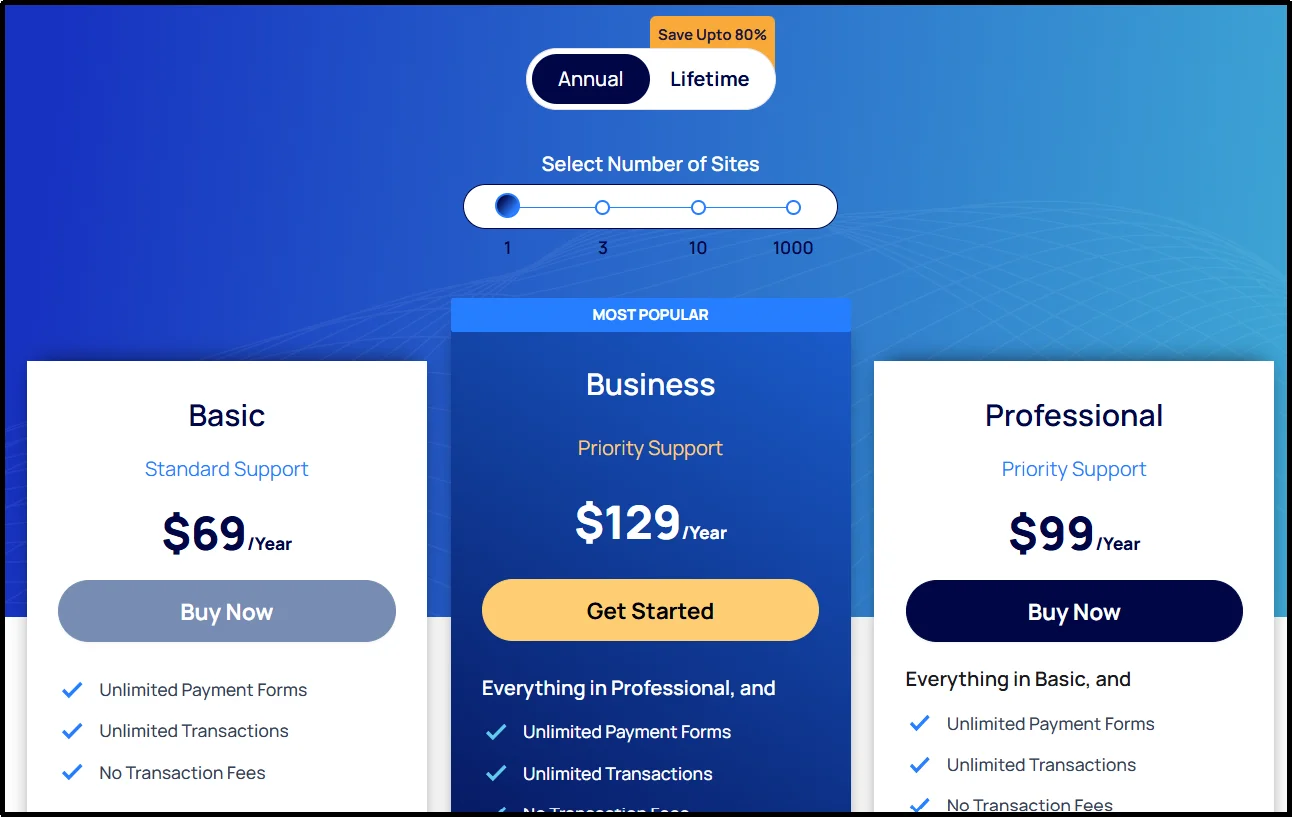
- Enter your personal details and card information. Click Review Order, then Complete Purchase.
- After completing your purchase, check your inbox for the confirmation email containing your download link and license key. If you haven’t received it, click Resend Email.
In your email, you will find:
- The Pro Plugin ZIP file, and
- Your License Key
- Now head to your WordPress dashboard, go to Plugins → Add Plugin.
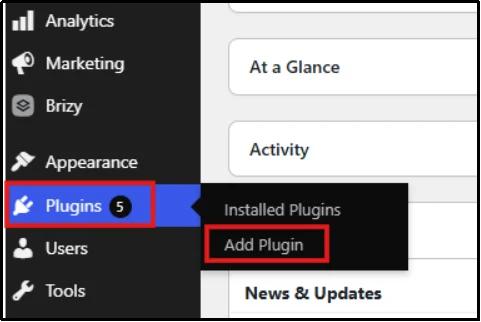
- Select Upload Plugin, click Choose File, select the WP Easy Pay Pro ZIP file, then click Install Now.

- After installation, you will be prompted to Activate License.
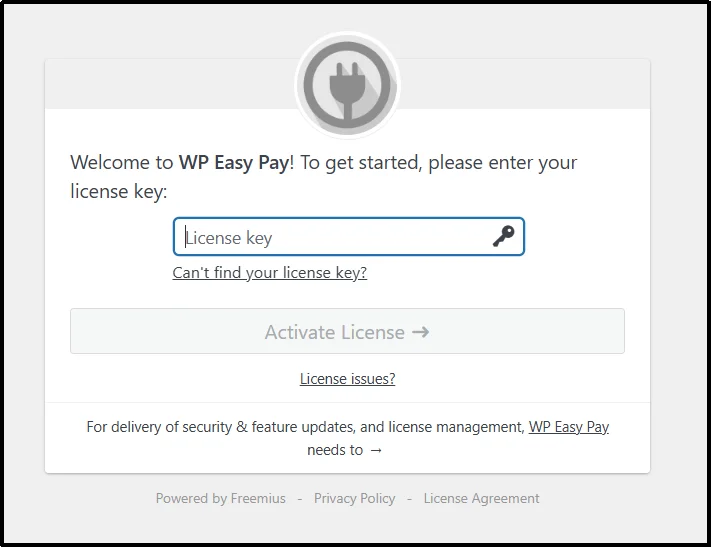
- Paste your License Key into the field. Click Agree & Activate License.
Once activated, WP Easy Pay will appear as a menu item in your admin panel.
Step 2: Connect Square and Enable Afterpay
- Open your WordPress Admin Dashboard in a new tab. Navigate to the WP Easy Pay menu and go to Square Connect.
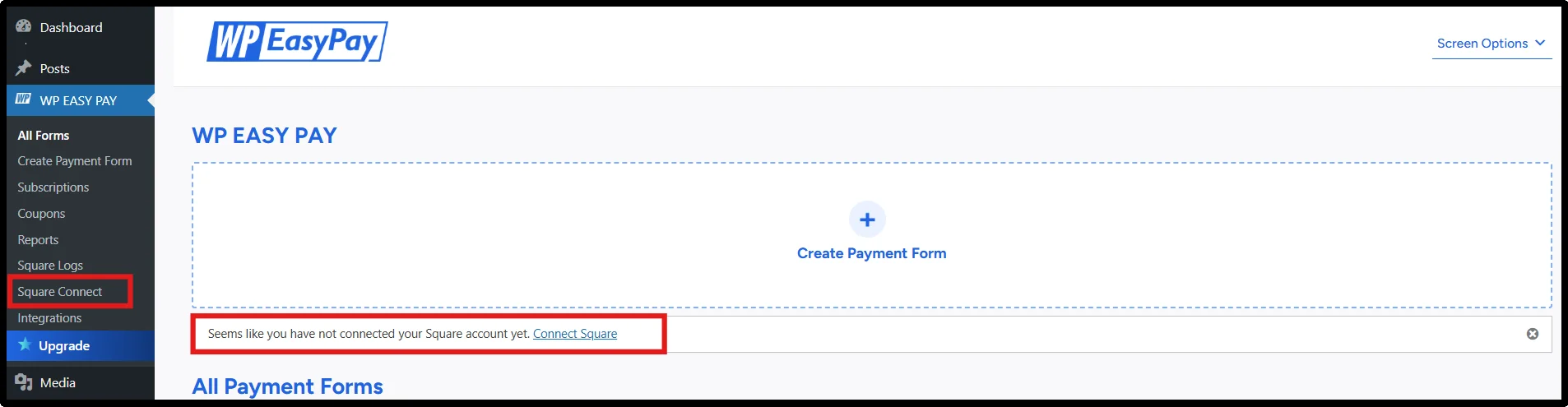
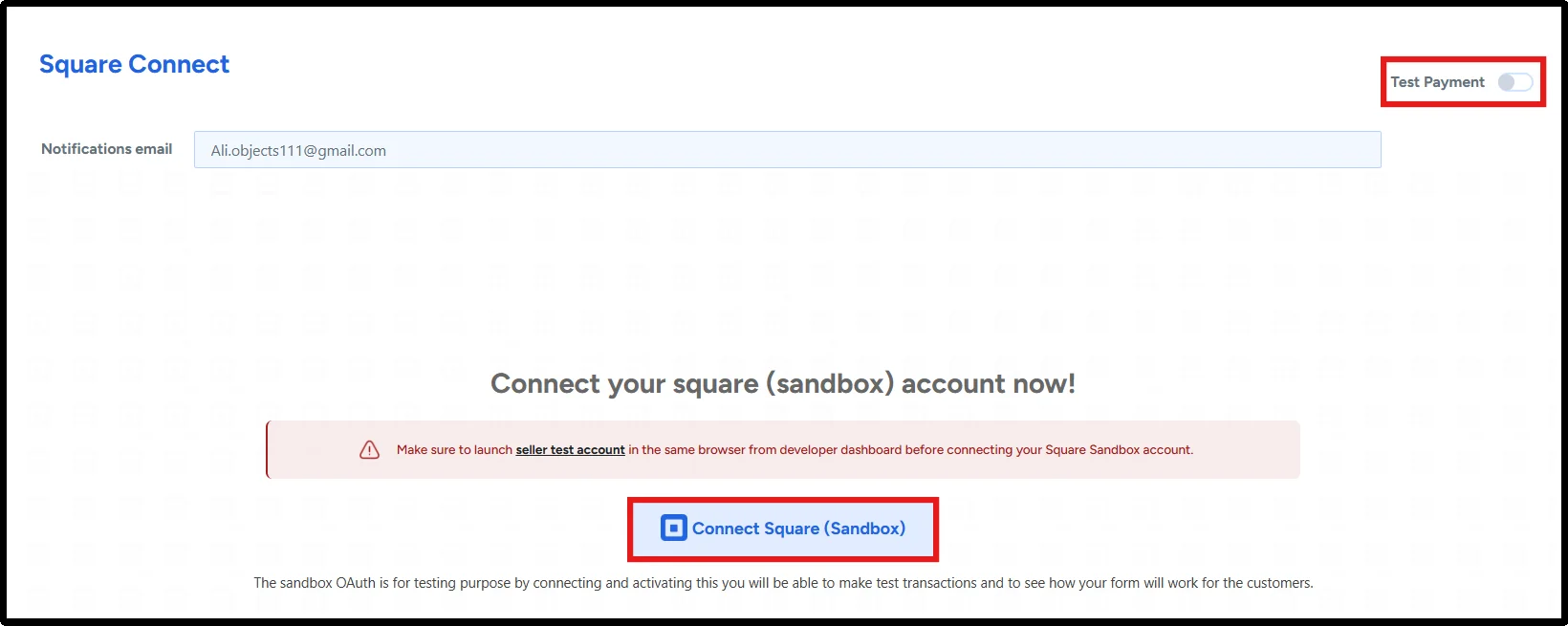
- Switch the Payment Type toggle to Live Payment. Enter your Notification Email and click Connect Square.
- You will be redirected to the Square login panel. Enter your email and password, then click Sign In.
- On the next screen, click “That’s My Site – Redirect Me” to complete the connection.
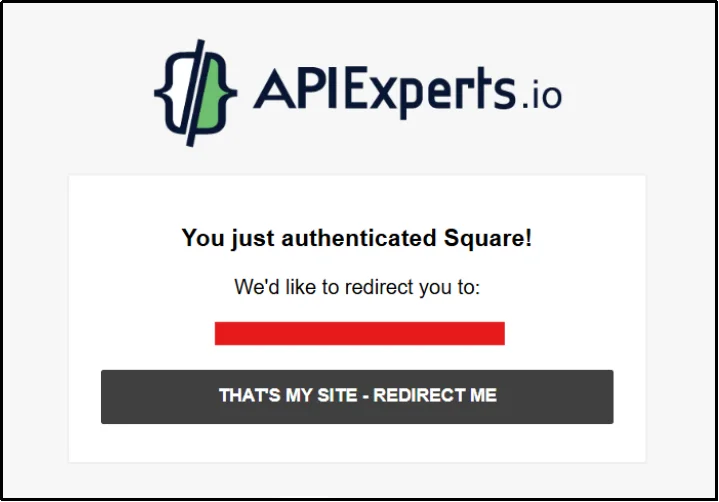
- Your Square account is now successfully connected and ready to process real payments.
- Click on Square Connect, Select the location from the drop-down menu, and check Afterpay.
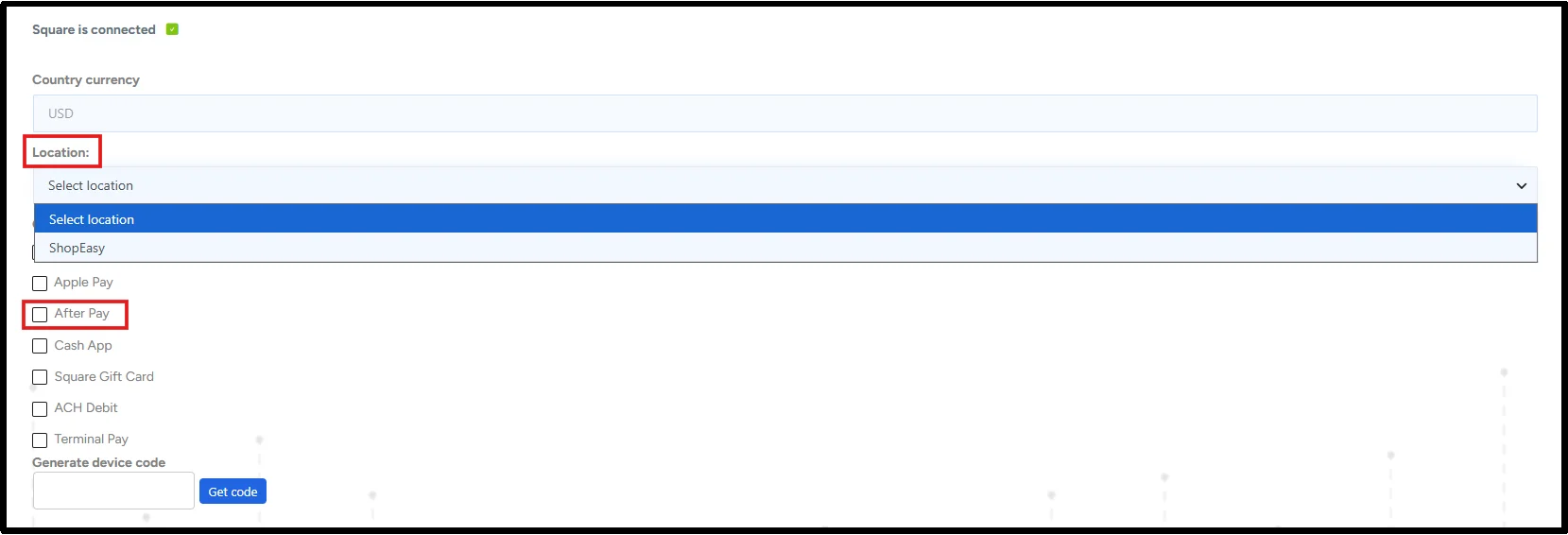
- Now save settings…and there you go!
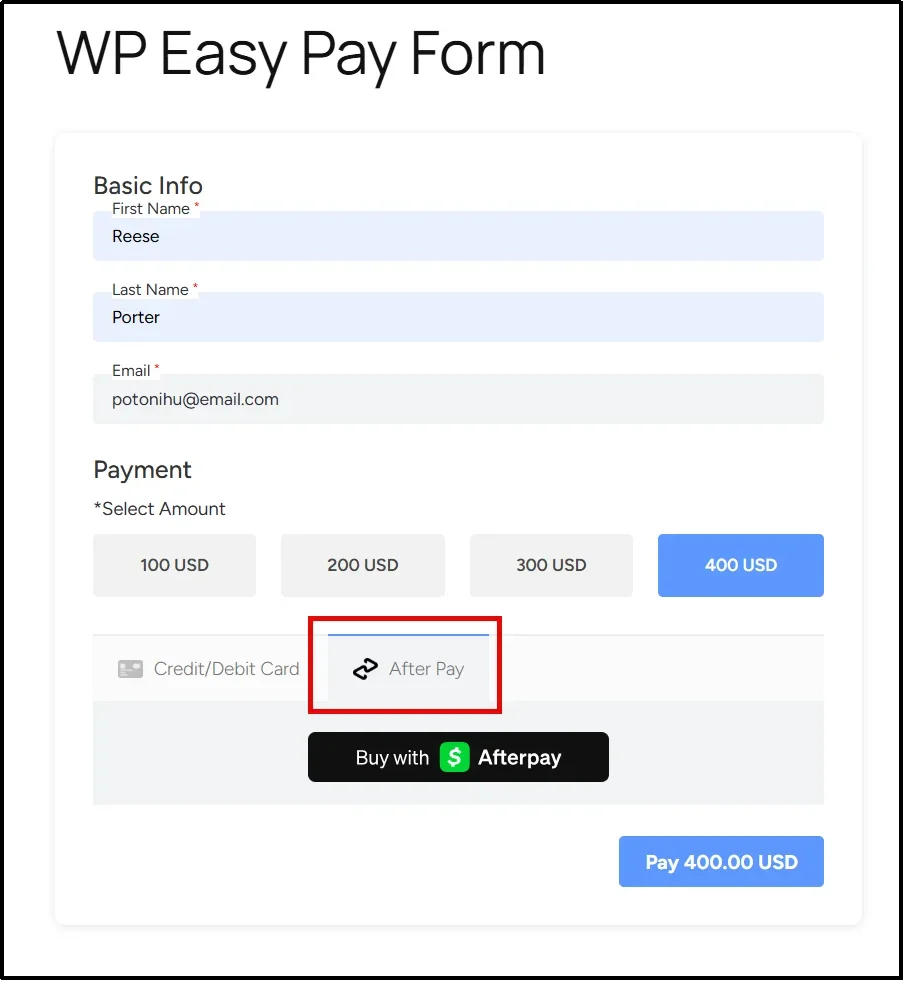
That’s it. Afterpay is now enabled for supported WP Easy Pay payment forms. Open the form on your website and verify that Afterpay appears as a payment option.
You might also want to read: 👉 How to Set up Apple Pay in WordPress [3 Easy Steps]
Common Afterpay Setup Issues
If Afterpay doesn’t appear on your WP Easy Pay payment form after setup, check the following:
- Your Square account isn’t eligible. Afterpay isn’t available to every Square seller. Check your Square Dashboard to confirm that Afterpay appears under your available payment methods.
- Unsupported merchant country. Square’s Afterpay/Clearpay availability currently covers eligible sellers in the United States, Australia, Canada, and the United Kingdom. The UK uses the Clearpay name.
- Unsupported currency or location. Square ties payment processing and supported payment methods to the seller’s country and account configuration. Check that your Square account, business location, and currency meet the requirements for Afterpay.
- You’re testing in Sandbox Mode. Sandbox Mode doesn’t process real payments. Use it to test your form and checkout flow, then switch WP Easy Pay to Live Mode when you’re ready to accept real payments.
- Your site doesn’t use HTTPS. Make sure your WordPress website uses a valid SSL certificate and loads over HTTPS before accepting live payments.
At some point, one of the most common friction reasons is, if Afterpay is Safe?
Afterpay is a widely used, regulated BNPL provider. Payments are processed through Square, which is PCI-compliant and uses industry-standard encryption and fraud protection for every transaction.
Customers also get consumer protections, such as no interest charges when they pay on time, which makes Afterpay a trustworthy option for both merchants and shoppers.
Accept Buy Now, Pay Later Payments with Afterpay
Adding Afterpay to your WordPress payment forms gives eligible customers another way to pay. Because Pay in 4 divides the purchase into four installments, the upfront cost can feel more manageable for customers. Square reports that Afterpay customers spend 40% more per transaction than traditional customers.
Imagine a customer finds a product they want but hesitates when they see the full price at checkout. Without another payment option, they may remove the item or leave the site. With Afterpay available, an eligible customer can choose Pay in 4 and spread the purchase across four scheduled installments.
If Afterpay is available and the customer qualifies, they can select it at checkout and review the installment schedule before completing the purchase.
Ready to accept Afterpay on WordPress? WP Easy Pay connects your WordPress payment forms with Square and supports Afterpay alongside other Square payment methods.
Frequently Asked Questions
What should I do if Afterpay isn’t working on my WordPress site?
First, check that your Square account is eligible for Afterpay and that you’re using a supported merchant country and currency. Then confirm that Afterpay is enabled in WP Easy Pay → Square Connect and that you’ve selected the correct Square business location. If you’re testing the integration, check whether WP Easy Pay is running in Sandbox Mode.
Can I use Afterpay with any WordPress theme?
WP Easy Pay can add Afterpay to supported WordPress payment forms, so your theme doesn’t need built-in Afterpay support. However, the form must use WP Easy Pay and your Square account must meet Afterpay’s eligibility requirements.
How often should I update WP Easy Pay?
WP Easy Pay handles the WordPress-side integration with Square and Afterpay, so keep WP Easy Pay, WordPress, and your other plugins updated. Check your WordPress dashboard regularly for available updates and review the plugin’s changelog before applying major updates. You don’t install a separate “Afterpay plugin” to use Afterpay through WP Easy Pay.
What major brands use Afterpay?
Afterpay is available at thousands of participating brands, including major retailers. However, brand availability changes over time and varies by country, so check Afterpay’s current merchant directory for the latest list rather than relying on a static list in this article.
Does Square support Afterpay for WordPress websites?
Yes. WP Easy Pay connects your WordPress payment forms to Square and supports Afterpay for eligible Square merchants. After connecting Square in WP Easy Pay → Square Connect, you can enable Afterpay from the available payment methods.
Do I get paid upfront when a customer uses Afterpay?
Yes. For eligible Afterpay transactions, Square says merchants receive the payment in full upfront, minus the applicable Afterpay processing fee. Afterpay then manages the customer’s installment payments.