

Do you want to accept credit card payments on your WordPress site? If so, then you have landed on the right page.
Cash payments are becoming less common, especially with the rise of contactless options. The pandemic in 2020 accelerated this trend even further, making digital payments more popular than ever.
Many website owners have difficulty figuring out all of the payment alternatives available. Also, by default, WordPress doesn’t offer credit card payment options.
But don’t worry, there is a solution! 🙂
In this article, we will show you how to easily accept credit card payments on your WordPress site using the WP EasyPay plugin in just three simple steps.
Ready? Let’s get started!
The Benefits of Accepting Credit Card Payments
As per Square’s Future of Commerce report for 2024, 47% of retailers accept traditional credit card payments, but 48% of customers prefer contactless payment methods.
Accepting credit card payments on your WordPress site can give you the following advantages:
- Enhanced Trust and Credibility: Displaying the logos of major credit cards on your website can boost your business’s credibility. Customers are more likely to trust and shop with businesses that accept widely recognized credit cards, which can lead to increased sales.
- Increased Customer Preference: Many customers prefer paying by card. According to the Federal Reserve Bank of San Francisco, credit card usage has been on the rise and was the most popular payment method in 2022. Offering credit card payments can cater to a larger audience and meet customer expectations.
- Convenience and Flexibility: Allowing credit card payments gives your customers a convenient payment option. Many customers enjoy the flexibility of paying by card and appreciate the ease of not having to carry cash. Additionally, they can benefit from rewards programs associated with their credit cards.
- Increased Sales: Accepting credit cards can lead to higher sales. Customers who pay with credit cards often spend more per transaction compared to those who pay with cash. This can result in increased revenue for your business.
- Contactless Payment Options: Credit cards offer contactless payment options, which have become increasingly popular. With the lingering effects of the pandemic, many customers and staff prefer contactless payments for hygiene reasons, making it a crucial feature for businesses to offer.
There is no doubt that by integrating credit card payments on your WordPress site, you can significantly improve the shopping experience for your customers and improve your business’s overall performance.
What Kinds of Businesses Should Accept Credit Card Payments on a Website?
In the past few years, businesses such as e-commerce retailers and software-as-a-service (SaaS) companies—needed to accept online payments. However, as digital payment technology has advanced, a wide variety of businesses now benefit from accepting payments online.
Here are some types of businesses that should accept credit card payments on their websites:
- Nonprofit Organizations: Nonprofits benefit from accepting online donations, which broadens their fundraising reach and simplifies the donation process for contributors.
- E-commerce Retailers: Businesses selling physical goods, such as clothing or electronics, must accept online payments. This capability allows for immediate transactions and can facilitate international sales, expanding their customer base.
- Food Delivery and Grocery Services: Online payment systems are essential for food delivery and online grocery services. These systems ensure transactions are completed swiftly and securely, enhancing customer satisfaction.
- Subscription Services: Businesses offering subscription services, including streaming platforms, online magazines, and membership sites, depend on automated recurring payments. Accepting credit card payments simplifies this process and enhances customer retention.
- Travel and Hospitality: Hotels, airlines, and other travel-related businesses use online payment systems to streamline booking processes. This integration provides a more efficient and user-friendly experience for customers.
- Digital Products and Services: Companies offering digital products or services—like software, music, e-books, or online courses—rely heavily on online payment processing. This feature is crucial for delivering a seamless customer experience and ensuring quick access to purchased content.
- Real Estate Agencies: Real estate businesses accepting rental and purchase payments online can significantly reduce paperwork and expedite transactions. This improvement leads to a smoother process for clients and agents alike.
- Event Organizers: Companies that organize events, such as concerts, theater performances, and sports events, use online payments to simplify ticket sales. This convenience can lead to increased attendance and better event management.
- Professional Service Providers: Consultants, freelancers, and educators can benefit from accepting online payments for their services. This capability reduces the hassle of manual invoicing and ensures timely payments.
Each of these business types has unique needs for online payment systems, but they all require secure, efficient, and user-friendly methods to accept payments from customers and donors.
3 Easy Steps to Accept Credit Card Payments on WordPress
WP EasyPay offers a straightforward, secure, and efficient way to add the Square payment gateway to WordPress. The plugin has a free and paid version. For now, we are going with the free version.
To set up credit card payments on WordPress via WP EasyPay, follow the steps below:
IMPORTANT: To accept credit card payments on WordPress, we are going to use the Square Payment Gateway, so you must have a Square account set up beforehand. If you don’t have one, click here to create one and then follow the steps below.
Step #1: Install and Activate the WP EasyPay Plugin
- Sign in to your WordPress dashboard.
- Navigate to ‘Plugins’ → ‘Add New Plugin’ button.
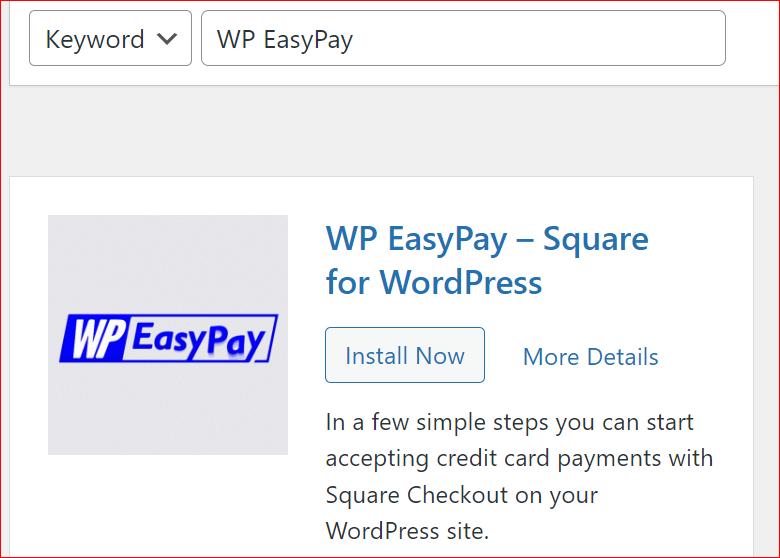
- Here, type ‘WP EasyPay’ into the search bar located in the top right corner.
- Next, look for ‘Wp EasyPay –Square for WordPress.’
- Click on ‘Install Now’ and then ‘Activate.’
After the plugin’s activation, you need to connect your Square account which we are going to show you in the next step.
Step #2: Connect Your Square Account
To connect your Square account, follow the steps below:
- Navigate to ‘WP EasyPay’ → ‘Square Connect’ from the left-hand side menu on your WordPress dashboard.
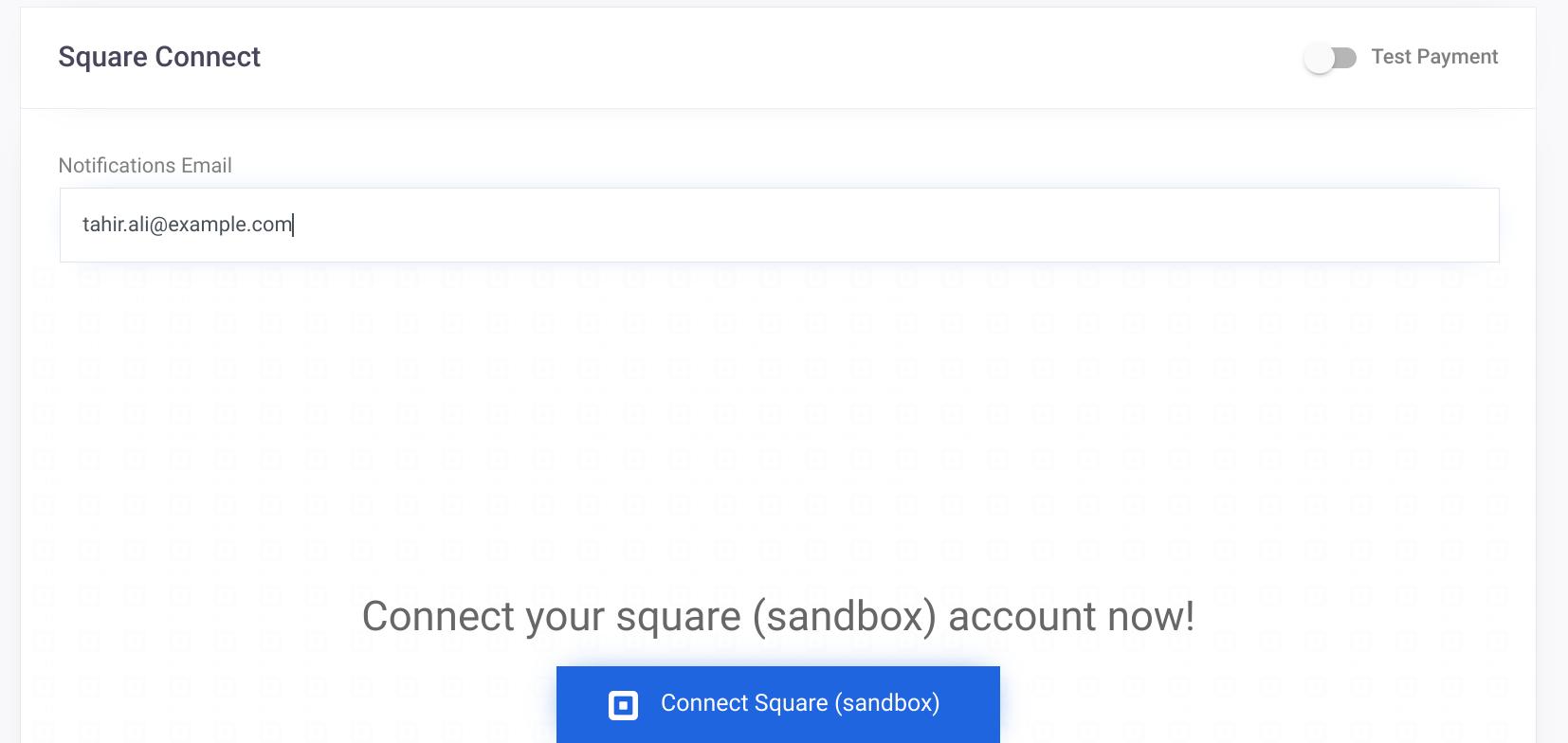
- Here, you can see the button called ‘Connect Square’ click on it.
NOTE: If you want to receive email alerts on a different email, then you can change the email address in the ‘Notification Email’ field.
- On the subsequent screen, enter your Square login credentials.
- Upon successful authentication of your Square account, you’ll be asked to redirect. Simply select the ‘THAT’S MY SITE – REDIRECT ME’ button.

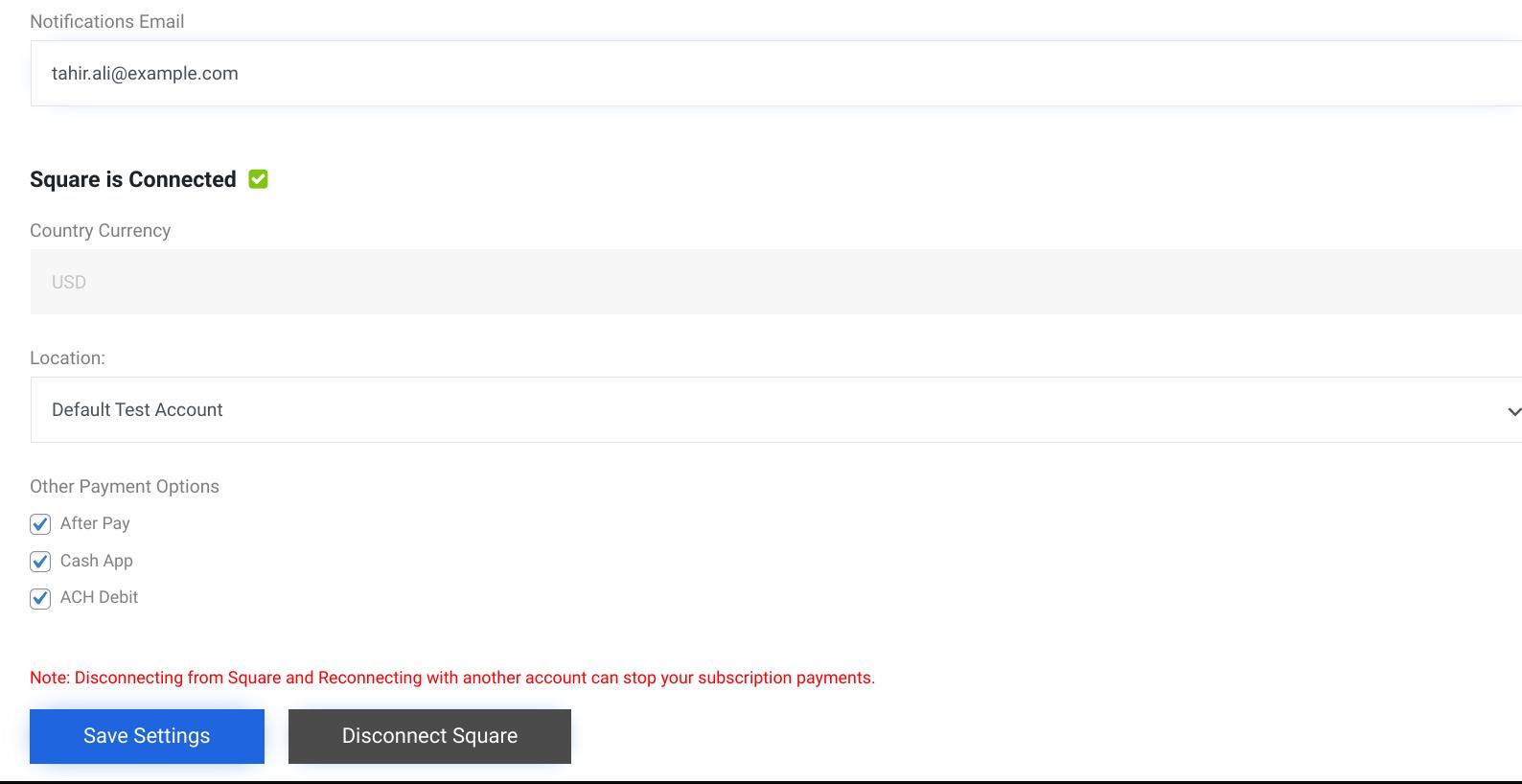
At this moment, you’ve successfully connected your Square account with WordPress.
- If you want to offer extra payment options, tick them under the ‘Other Payment Options’ section and hit ‘Save Settings.’
Next, we will show you how to create the payment form using the plugin.
Step #3: Create and Publish The Payment Form
Here’s the step-by-step process to create your custom payment form:
- Go to ‘WP EasyPay’ → Create Payment Form.’
- Here, in the ‘Form Settings’, define all the settings about your Payment form such as Form Title, Description, Payment Type, Amount Type, Payment Success Message, etc.
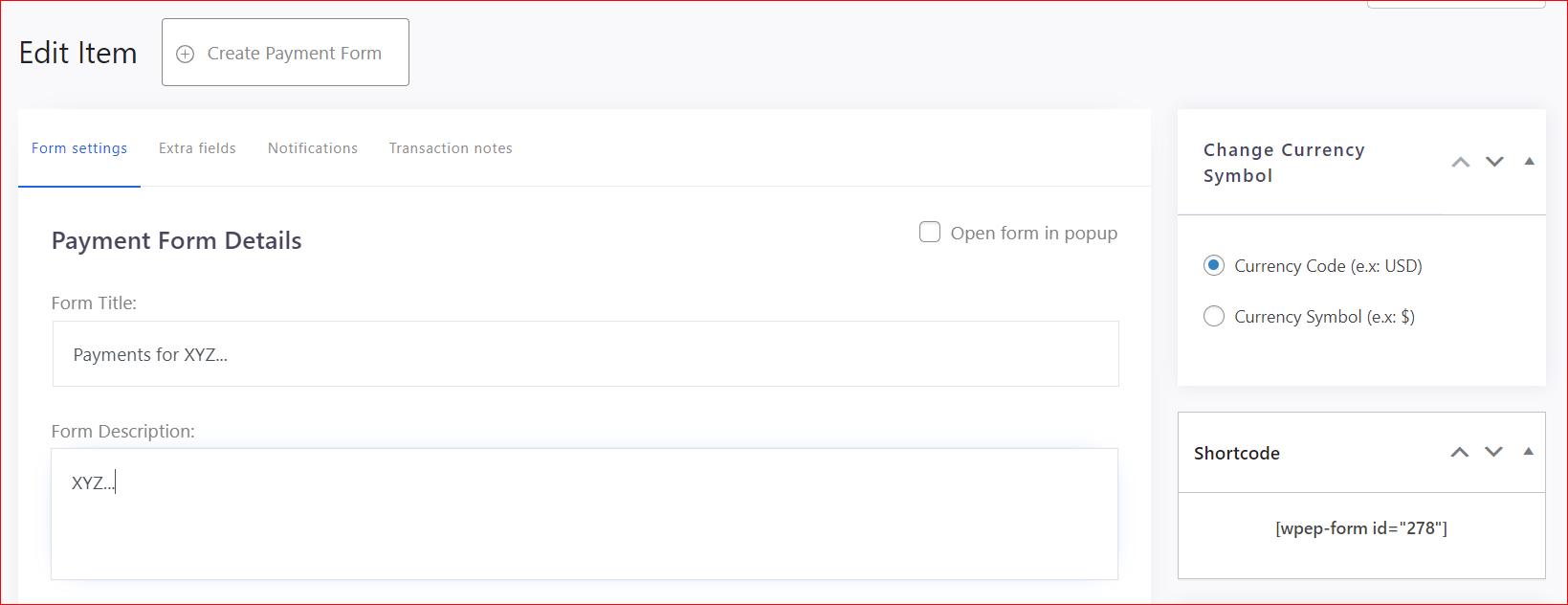
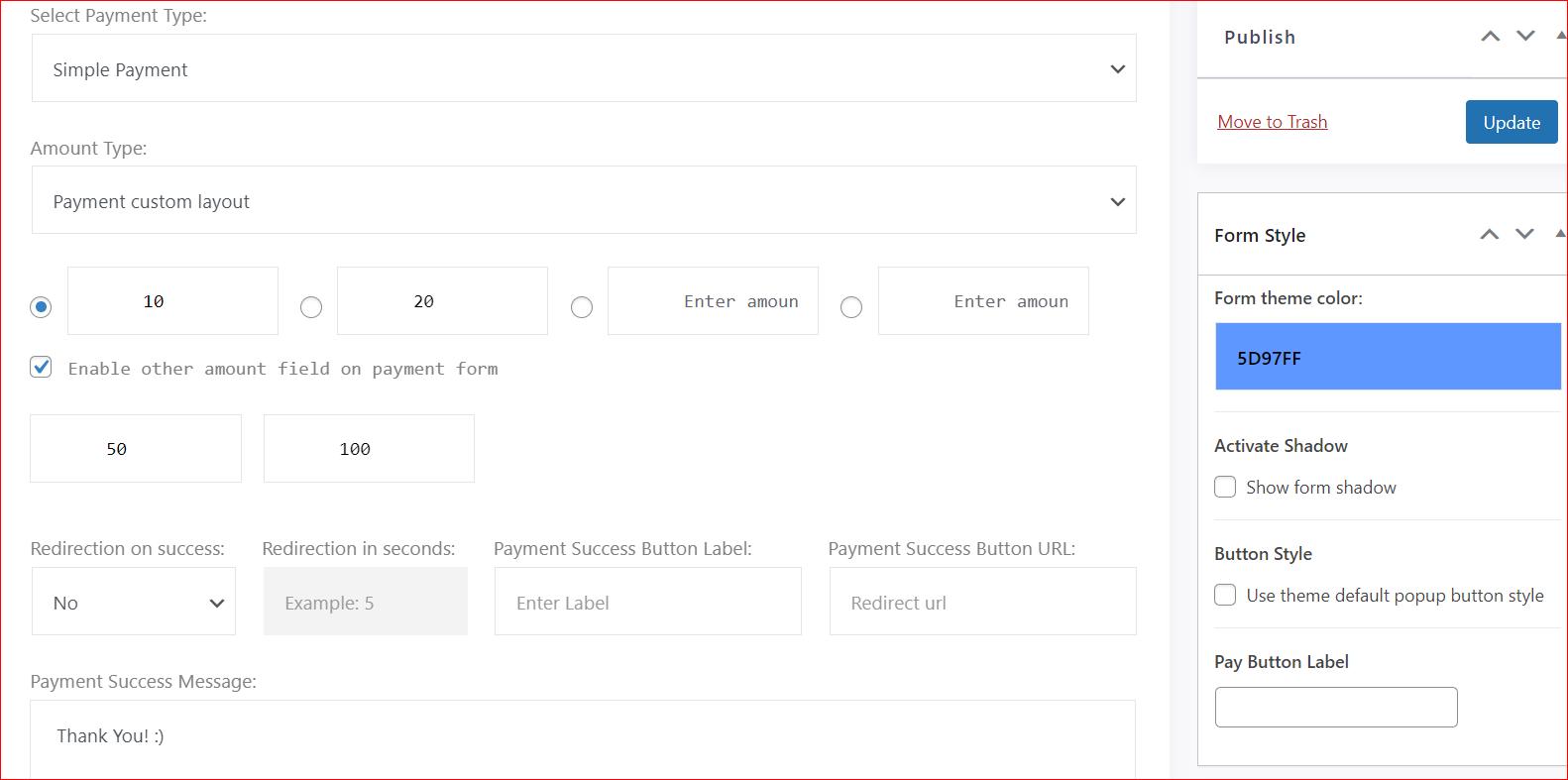
- In the ‘Select Payment Type,’ you have two options: Simple Payment and Donation Payment.’ In this example, we have chosen Simple payment.
- After that, specify the amount type and enable the minimum and maximum amount if you want.
- You can add additional fields using the ‘Extra Fields’ tab, but remember, it’s for premium users only.
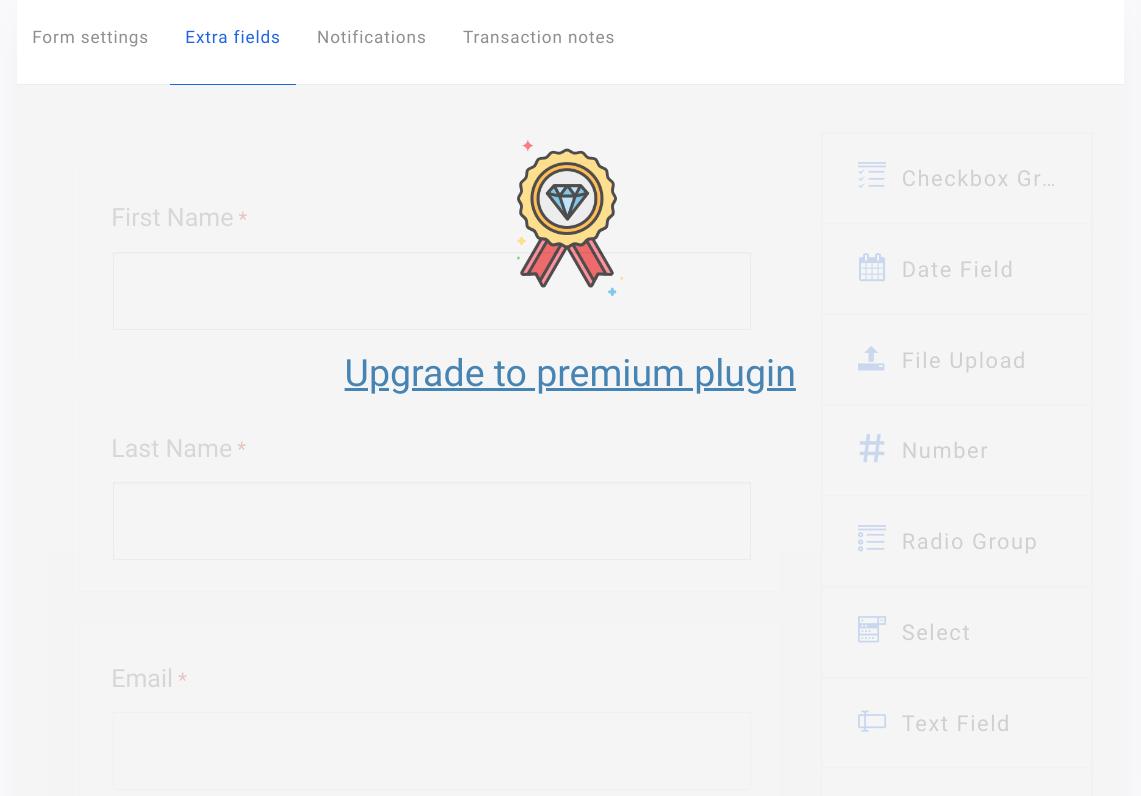
If you want to try it out, then click here to check out the WP EasyPay pricing plan.
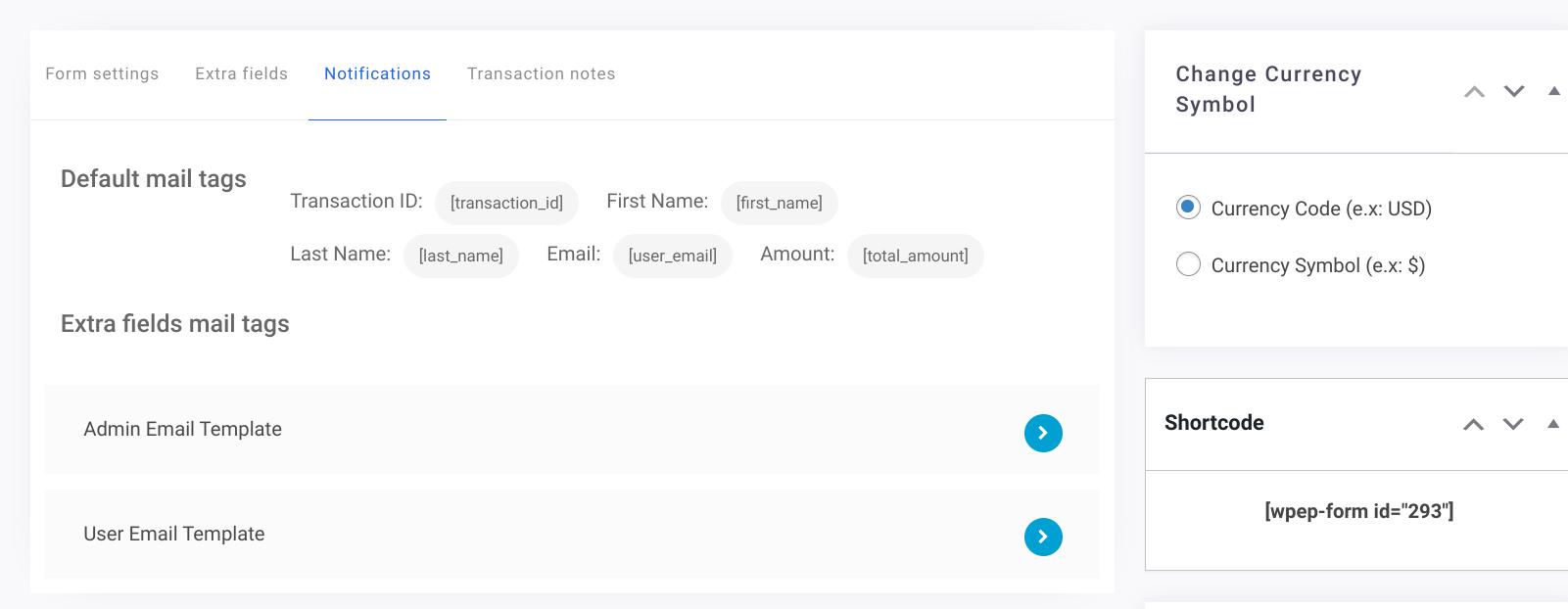
- Next, if you don’t want to default notifications settings, then you can edit them under the ‘Notifications’ tab.
- Now, set up the Transaction note (it’s optional).
- Finally, to save the payment form hit the ‘Publish’ button from the right-hand side menu.
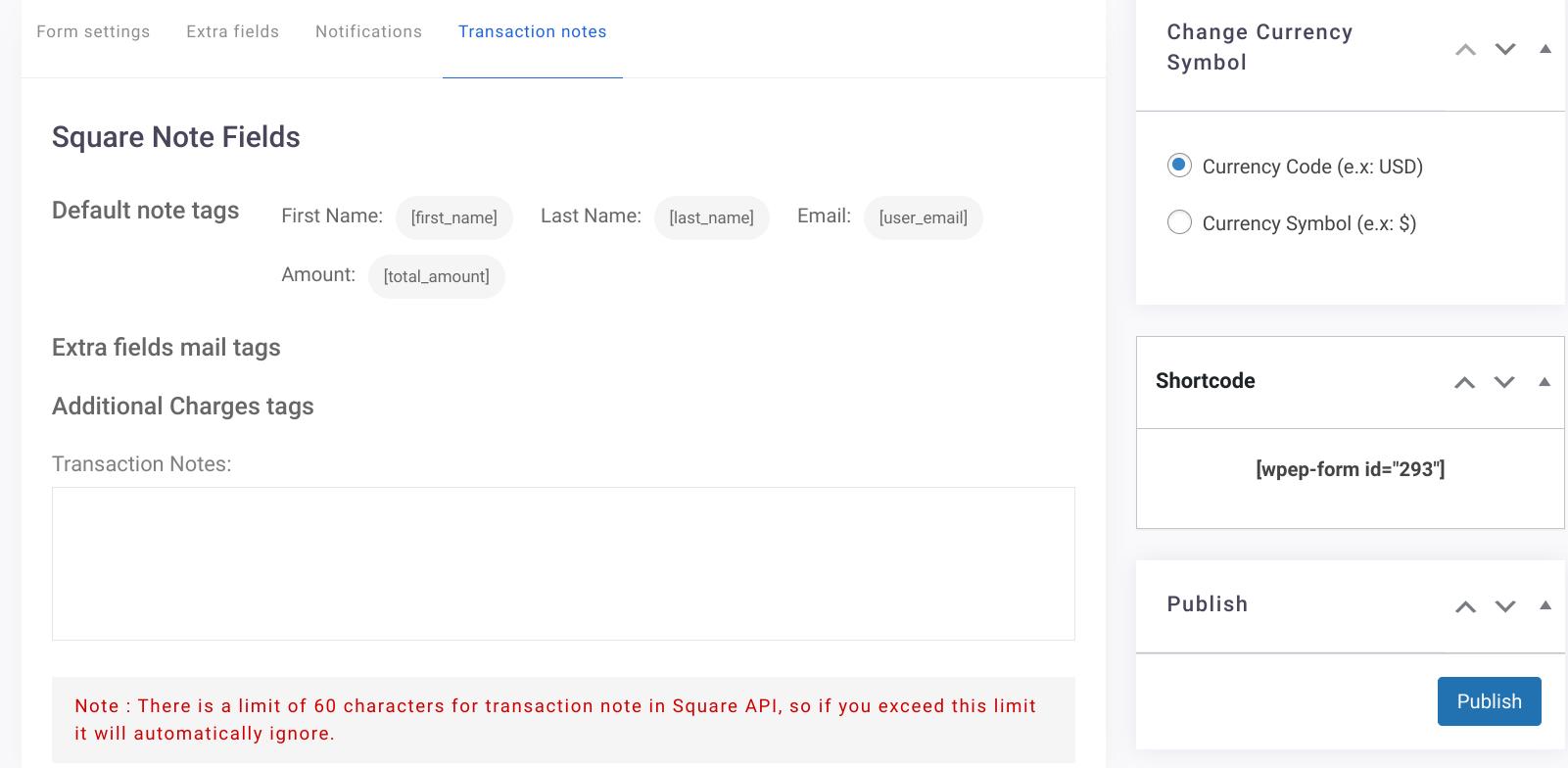
After successfully publishing the form, you now need to place it on your WordPress page. To do so, follow the steps below.
- Go to ‘WP EasyPay’ → ‘All Forms.’
- Here, you’ll see all the payment forms you have created. Copy the ‘Shortcode’ of the form you want to place on your WordPress page.
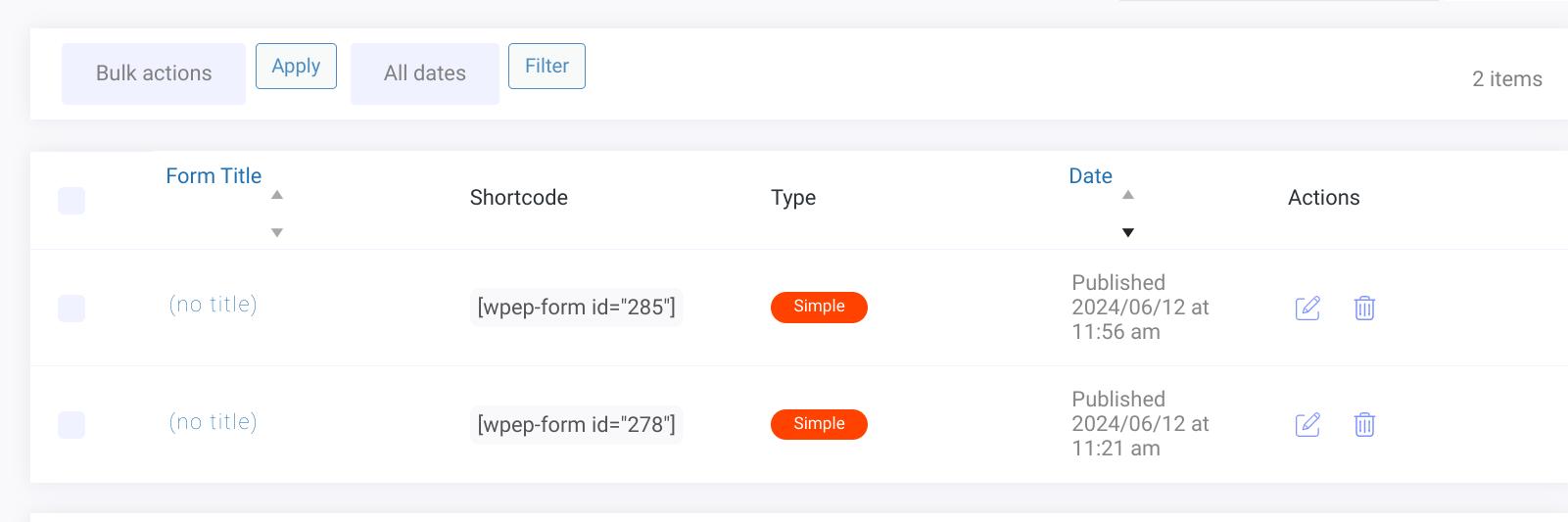
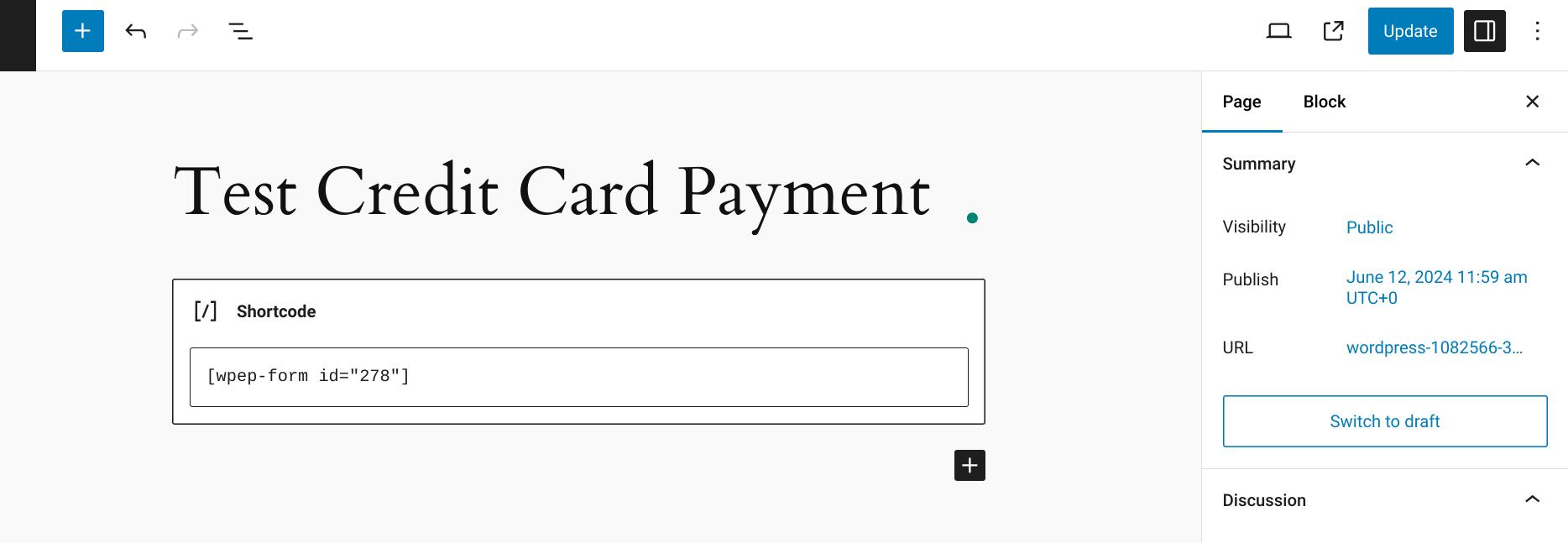
- Next, go to the WordPress page and add the ‘Shortcode’ you just copied where you want to add the payment form on the page.
- Don’t forget to update the page.
- Now, view your page and you’ll see the Payment Form similar as shown in the screenshot below.
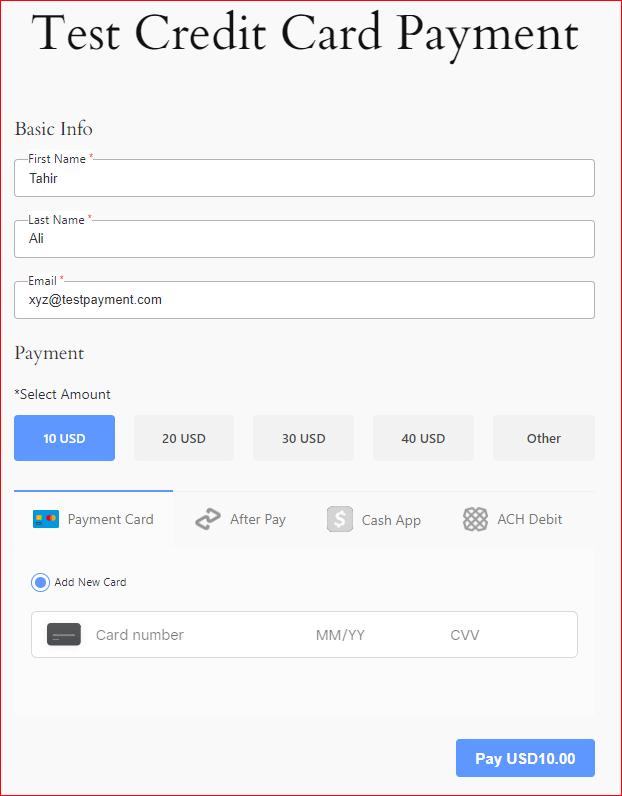
- Upon successful submission of the payment form, the user will see the ‘Payment Success Message’ that you’ve set up during the payment form creation.

Congratulations! Now, you can easily accept credit card payments on your WordPress site.
Wrapping Up
Nowadays, accepting credit card payments on your WordPress site is kind of a necessity for modern businesses. You can easily do it using the WP EasyPay plugin, which makes this process very simple and efficient:
- Install and activate the WP EasyPay plugin.
- Connect your Square account to enable payment processing.
- Create and publish your custom payment form.
After completing these steps, you can securely accept credit card payments, which can significantly improve your site’s functionality and customer experience.
So, what’s holding you back? Download WP EasyPay today and start streamlining your payment processes.