



Many WordPress donation forms let you offer preset amounts such as $25, $50, and $100 while also allowing donors to enter a custom amount.
You can set a minimum donation amount, a maximum donation amount, or both. These settings give your donation form a defined range while still letting donors choose an amount that works for them.
And you don’t have to build the form from scratch.
In this guide, you’ll learn how to set minimum and maximum donation amounts in WordPress with WP Easy Pay. You’ll connect Square, create a donation form with preset and custom amounts, configure the allowed range, and publish the form on your site.
What Are Minimum and Maximum Donation Amounts?
When you create a WordPress donation form, you can control how much flexibility donors have when choosing an amount.
You can offer preset donation amounts, let donors enter a custom amount, or define a minimum and maximum amount for custom donations. These options can work together on the same donation form.
Minimum Donation Amount
A minimum donation amount defines the lowest custom amount a donor can enter and submit through the donation form.
Organizations may use a minimum amount to reduce very small donations when payment processing fees would take up a significant share of the contribution. The actual impact depends on the payment processor, payment method, currency, and fee structure.
For example, if your campaign accepts donations through a payment method where small transactions create a poor cost-to-donation ratio, you might set a minimum amount that fits your payment setup.
Maximum Donation Amount
A maximum donation amount defines the highest custom amount a donor can submit through a particular donation form.
Organizations may use a maximum donation amount to reduce accidental large entries or keep donations within a campaign’s intended range. A form-level donation limit doesn’t replace the payment processor’s own transaction rules or fraud controls.
For example, a campaign might accept custom donations up to $1,000 if that limit matches its fundraising requirements.
The right limit depends on your campaign.
Suggested Donation Amounts
Suggested donation amounts give donors preset choices instead of requiring them to enter an amount from scratch.
For example, a donation form might offer:
- $25
- $50
- $100
- Other amount
Preset amounts make the donation process faster for visitors who already know roughly how much they want to give.
Custom Donation Amount
A custom donation amount field lets donors enter an amount that differs from your preset options while staying within the configured minimum and maximum limits.
For example, you could offer $25, $50, and $100 as preset amounts while allowing donors to enter $75, $150, or another amount within your configured range.
That gives donors a choice.
Why Set Donation Amount Limits in WordPress?
Setting minimum and maximum donation amounts gives your WordPress donation form a defined range while making the allowed contribution amounts clear to donors.
Here are some practical reasons to configure these controls:
- Limit unusually large donations: A maximum donation amount can prevent the form from accepting a custom amount above your configured limit and can reduce accidental data-entry errors.
- Set a practical minimum: A minimum donation amount can reduce very small donations when payment processing fees would take up a significant share of the contribution.
- Guide donor choices: Preset donation amounts give donors clear starting points instead of making them choose an amount from scratch.
- Create campaign-specific limits: Different campaigns may need different donation ranges, so you can create separate donation forms with settings that match each campaign.
- Make donation forms easier to use: Clear amount ranges help donors understand what they can enter before they submit the form.
- Handle different donation types: If your donation setup supports one-time and recurring donations, check the appropriate amount settings for each instead of assuming the same rules apply to both.
Choose the Right Donation Amount Strategy
Your donation amount strategy depends on whether you want to guide donors, allow flexibility, or restrict the amount they can submit.
- Use preset amounts when you want to give donors quick options such as $25, $50, and $100.
- Use a custom amount field when donors may want to contribute an amount outside your preset options.
- Set a minimum amount when you want to prevent custom donations below a specific threshold.
- Set a maximum amount when you need to limit the custom amount a donor can submit through a single form.
For many donation forms, preset amounts and a custom amount field work well together. Donors get quick choices, but they aren’t locked into those choices.
Before You Start
Before you configure donation limits, have these items ready:
- A WordPress website with WP Easy Pay installed.
- A connected Square account.
- The preset donation amounts you want to offer.
- A minimum and maximum amount for custom donations.
- Access to a suitable test environment if you want to test the form before accepting live payments.
Testing comes first.
It gives you a chance to verify the amount validation, payment total, confirmation message, and payment flow before real donors use the form.
How to Set Minimum and Maximum Donation Amounts in WordPress
You can create this type of WordPress fundraising form without custom development by using a donation form builder that supports custom donation amounts and configurable limits.
In this guide, we’ll use WP Easy Pay because its payment form settings let you offer fixed amounts and a custom amount field with minimum and maximum values.
Step 1: Install and Activate WP Easy Pay
First, install and activate WP Easy Pay on your WordPress website.
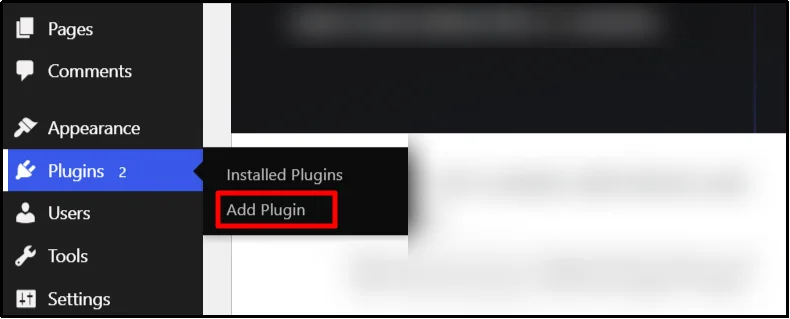
- Log in to your WordPress dashboard and go to Plugins → Add Plugin.
- Search for WP Easy Pay.
- Click Install Now, then click Activate.
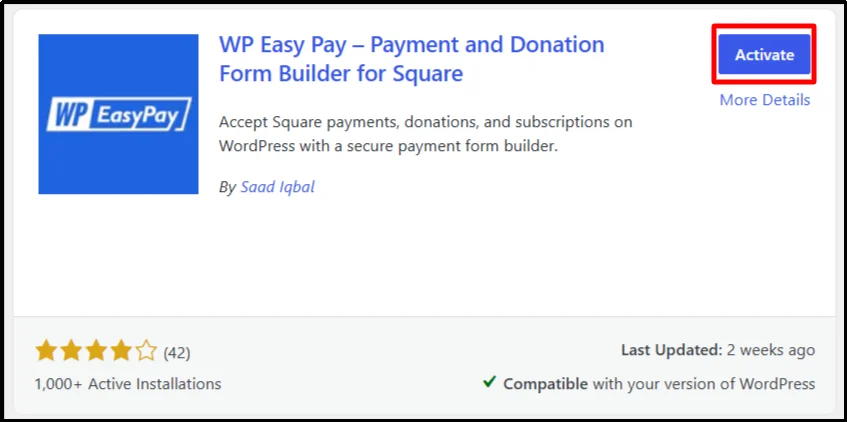
Once WordPress activates the plugin, you can connect Square and create your donation form.
Step 2: Connect Your Square Account
Next, connect WP Easy Pay to your Square account.
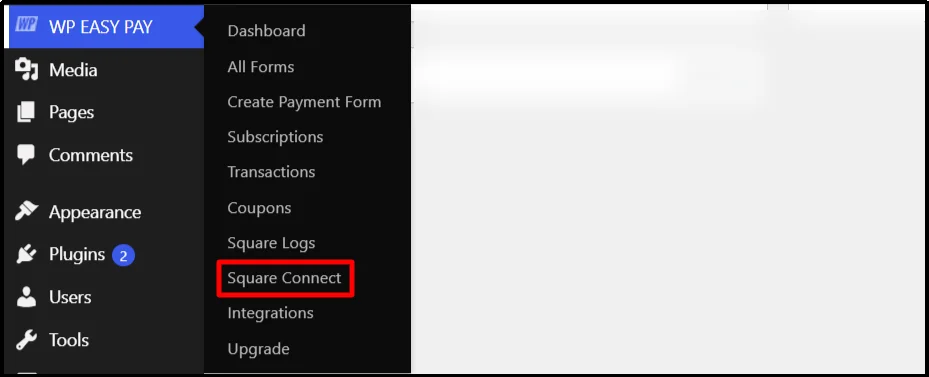
- Go to WP Easy Pay → Square Connect.
- Open the Square connection settings and choose the option to connect your Square account.
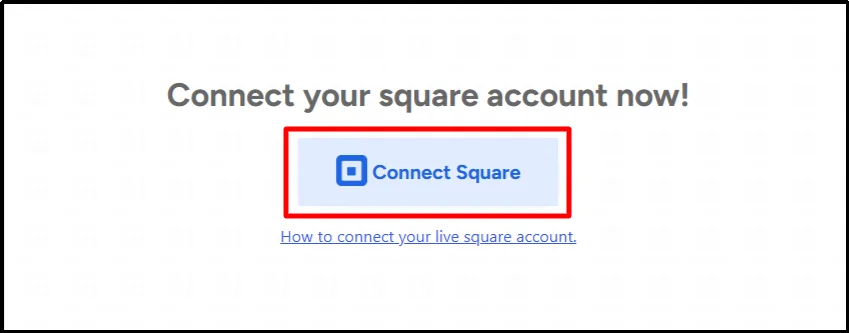
- Sign in to your Square account when prompted.
- Complete the connection process and return to your WordPress dashboard.
- Complete the connection process, click on “That’s My Site – Redirect Me”, and return to your WordPress dashboard.
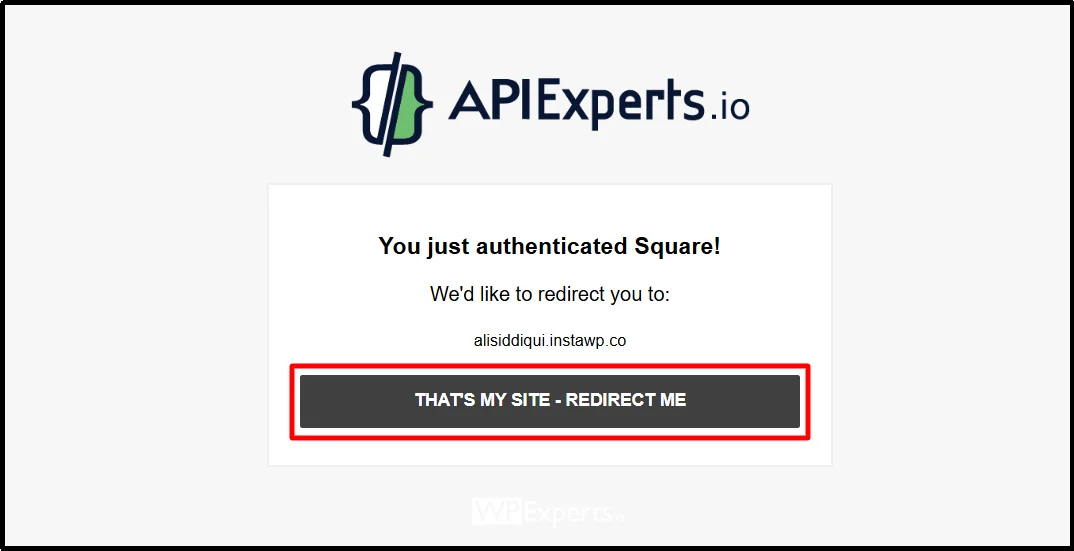
- Confirm that the Square connection shows as active.
If you haven’t tested your donation form yet, use the available test or sandbox environment before switching to live payments.

Square’s Sandbox provides an isolated environment for testing Square payment flows without charging real cards. It requires Sandbox test values rather than real payment cards, and Square notes that some Sandbox features can differ from production. Always check Square’s current Sandbox documentation when you test a Square payment flow.
For a complete walkthrough, see our guide on how to test Square Payments.
Step 3: Create a Donation Form With Minimum and Maximum Amounts
Now create your donation form and configure the amount options.
- Go to WP Easy Pay → Create a Payment Form.

- Enter a donation form title and description.
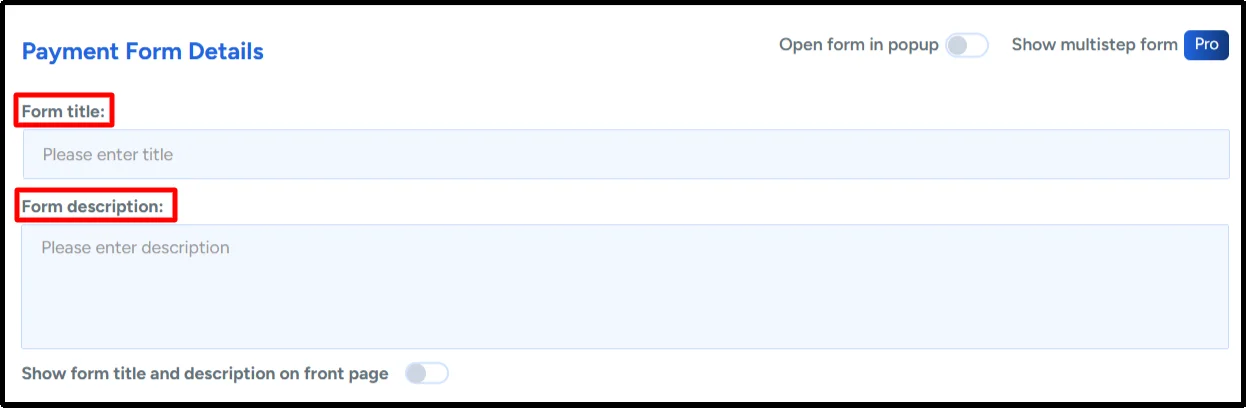
- Select Donation Payment as the payment type.
- Enter your organization name.
- If needed, enable Goal, Goal Message, and the option to close the form when the goal is achieved.
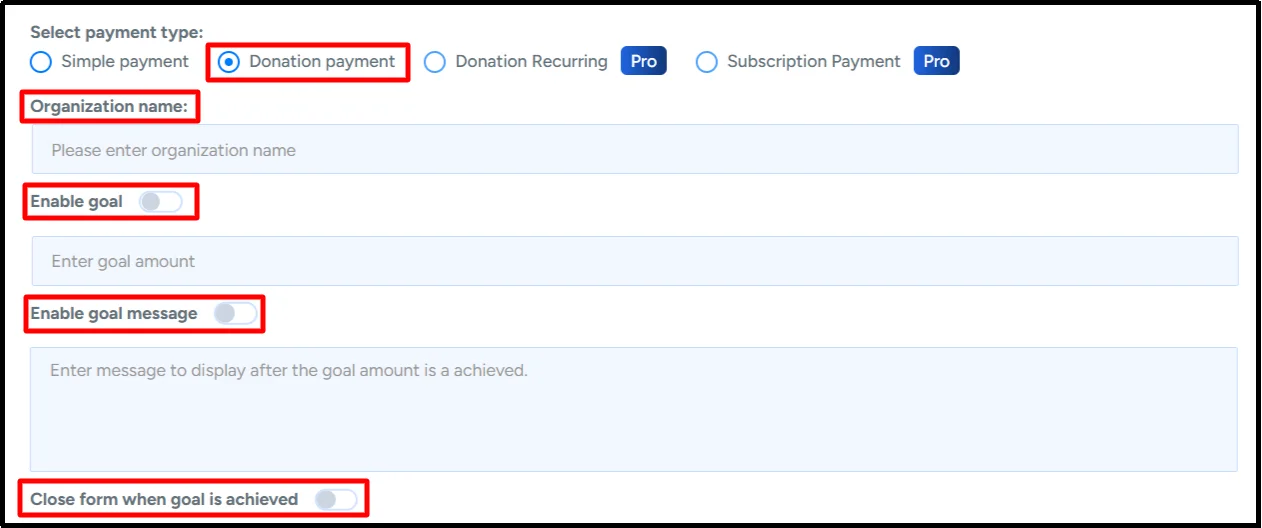
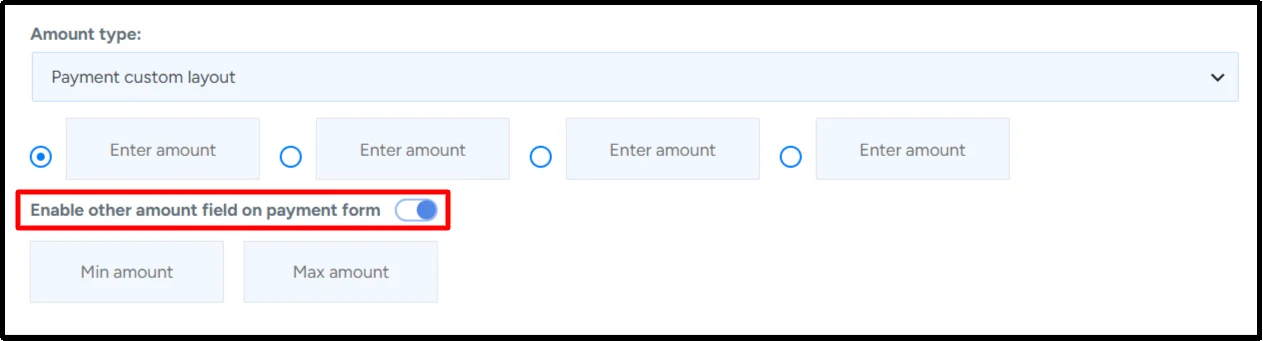
- Enter the preset donation amounts you want to offer, such as $25, $50, and $100.
- Enable the Other Amount field to let donors enter a custom donation amount. Then enter the Min Amount and Max Amount values for the allowed range.
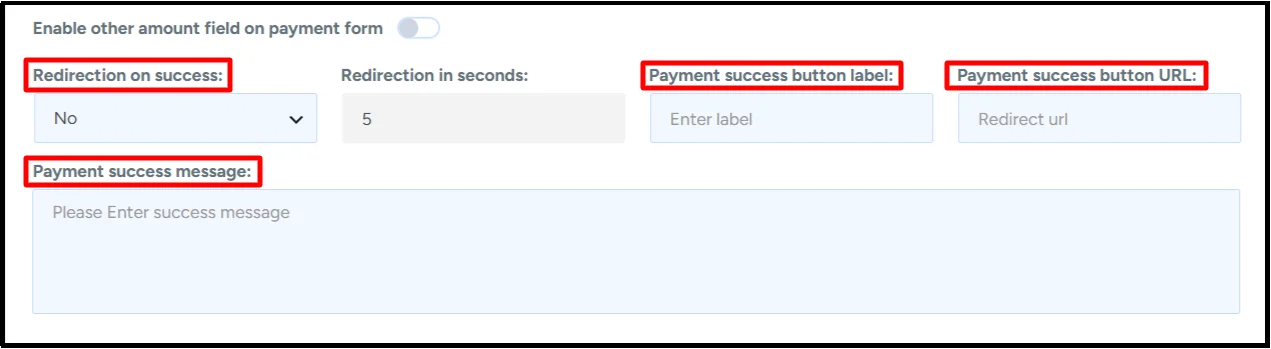
- If needed, enable Redirection on Success to send donors to a specific page after payment.
- Add a custom message through Payment Success Message if required.
- Click Publish to create the form.
Your donation form now offers preset amounts and a custom amount field with the minimum and maximum values you’ve configured.
Step 4: Add the Donation Form to Your WordPress Page
After you create the form, add it to the page where you want donors to contribute.
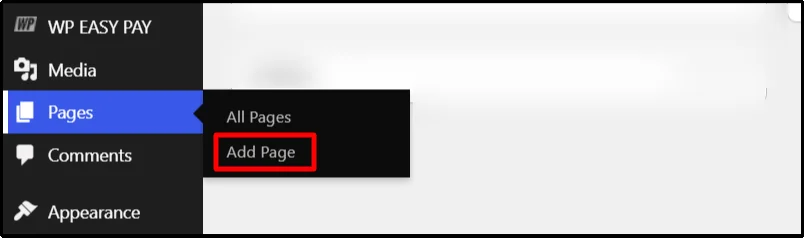
- In your WordPress dashboard, go to Pages → Add Page.
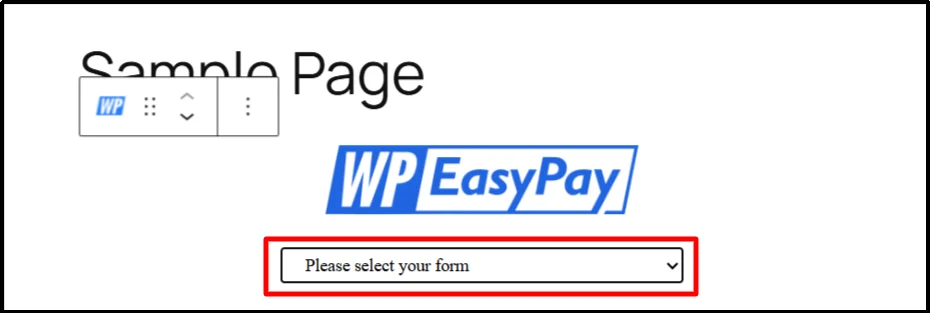
- Add the WP Easy Pay block and select your donation form, or add a Shortcode block and paste the form shortcode.
- Add supporting content that helps donors understand the campaign, such as what their contribution supports or how the funds will be used.
- Click Publish or Save the page if you’re updating an existing donation page.
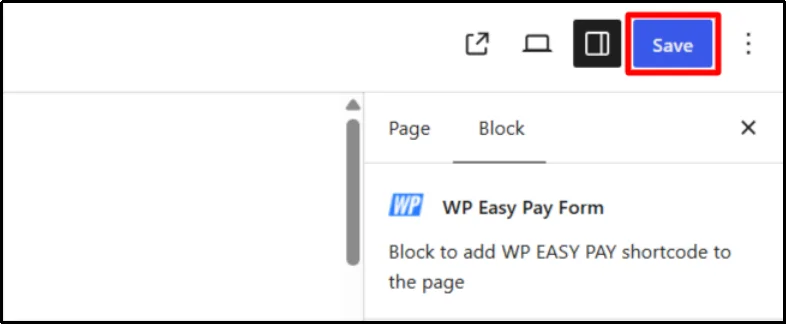
Your WordPress online donation form is now ready for testing.
Before accepting live donations, test the exact minimum, exact maximum, and values just below and above both limits.
Suggested Donation Amounts vs. Donation Limits
Suggested donation amounts and donation limits often appear together, but they serve different purposes.
A suggested donation amount gives donors a preset choice, while a minimum and maximum donation amount define the allowed range for a custom donation.
For example:
- Suggested amounts: $25, $50, and $100. Donors can select one or enter another amount if you enable the custom amount field.
- Minimum: $5. Donors shouldn’t be able to submit a custom amount below the configured minimum.
- Maximum: $5,000. Donors shouldn’t be able to submit a custom amount above the configured maximum.
Think of suggested amounts as choices and minimum and maximum values as boundaries.
How to Choose Minimum and Maximum Donation Amounts
There isn’t one minimum or maximum amount that works for every organization.
Your limits should match your campaign, typical donation amounts, payment processing fees, currency, and payment setup.
1. Set a Minimum That Fits Your Payment Setup
Consider how payment processing fees affect small donations before choosing a minimum amount.
A minimum should still allow donors to contribute an amount that makes sense for your campaign.
For example, a campaign that relies on many small gifts may choose a different minimum from one that usually receives larger contributions.
2. Set a Maximum That Fits Your Campaign
Choose a maximum that your organization can reasonably accept through the donation form.
Don’t set the limit so low that legitimate donors can’t contribute an amount your campaign can accept.
At the same time, a donation form maximum shouldn’t be treated as a substitute for your payment processor’s transaction rules.
3. Offer Preset Amounts
Preset donation amounts can help donors choose quickly.
Offer a small set of meaningful options rather than overwhelming visitors with too many choices.
You might use $25, $50, $100, and $250 for one campaign, while another campaign could use a completely different set.
4. Keep a Custom Amount Option
A custom donation amount field gives donors flexibility when none of your preset amounts match what they want to contribute.
It also works naturally with minimum and maximum values because you can define the range for the amount donors enter themselves.
5. Test Your Limits
Don’t assume the configured values work correctly.
Test the exact minimum, exact maximum, and values outside the allowed range before you publish the form for real donations; then verify that the amount shown to the donor matches the amount submitted for payment.
Best Practices for Donation Amount Limits
Use these practices when configuring minimum and maximum donation amounts on your WordPress donation form.
- Choose limits that match your campaign: Set the minimum and maximum based on typical donation amounts, campaign requirements, currency, and payment setup.
- Make the allowed range clear: Display the minimum and maximum near the amount field when your form design allows it, so donors don’t discover the restriction only after submitting.
- Offer preset amounts alongside a custom option: This gives donors quick choices while still allowing them to enter a different amount.
- Test boundary values before accepting real donations: Submit the exact minimum, exact maximum, and values just below and above both limits in your test environment.
- Use understandable validation messages: Tell donors what the minimum or maximum amount is instead of displaying a vague message such as “Invalid amount.”
- Review recurring donation settings separately: If your plugin supports recurring donations, verify whether the same amount rules apply to recurring and one-time donations before using identical limits.
- Review donation patterns regularly: If your campaign starts receiving significantly different donation amounts, consider adjusting the limits to match your current needs.
Common Problems With Donation Amount Limits
Even after you configure your donation form, amount validation may not behave as expected.
Here are some common problems and practical ways to troubleshoot them.
“My Custom Donation Amount Is Being Rejected”
This can happen when the entered amount falls outside the configured minimum and maximum or when the form doesn’t accept the entered number format.
Check the:
- Minimum donation amount
- Maximum donation amount
- Currency
- Custom amount field
- Number format
Then test the form again with an amount that falls inside the configured range.
“The Maximum Amount Isn’t Working”
The maximum amount configured in your donation form and any limits applied by the payment processor serve different purposes.
If a payment fails near the upper limit, check the donation form settings and the payment processor’s current requirements separately.
A payment processor may apply additional rules that exist independently of your WordPress form.
“Donors Can Enter $0”
Check the custom amount field and verify that the configured minimum matches the range you want to accept.
Then test the form with several values around that minimum.
If the form accepts an amount you don’t expect, review the current WP Easy Pay settings and test the behavior before accepting live donations.
“The Form Accepts an Amount Above My Maximum”
If the form accepts a custom amount above the configured maximum, first check whether the plugin correctly validates the amount before sending the payment request.
Frontend validation alone shouldn’t serve as a security boundary because users can modify client-side code or requests.
Test the behavior in a safe environment and confirm that the final payment amount matches the configured limit before you accept live donations.
“The Donation Amount Doesn’t Match the Payment Total”
A mismatch can occur if the custom donation amount doesn’t match the amount submitted for payment.
Check the:
- Custom amount field
- Form configuration
- Payment total
- Plugin version
- Transaction details in your test environment
Run another test payment and confirm that the amount entered in the donation form matches the amount sent for payment.
“The Limit Works on Desktop but Not on Mobile”
If the amount limit works on desktop but behaves differently on mobile, test the donation form on multiple devices and browsers.
Check for:
- JavaScript errors
- Caching issues
- Theme conflicts
- Responsive layout problems
- Custom scripts affecting the amount field
Testing the form across devices before launch can catch problems before donors encounter them.
Which WordPress Donation Amount Method Should You Use?
Different WordPress donation forms may need different ways to control donation amounts.
| Donation goal | Recommended amount setting |
| Offer quick donation options | Preset donation amounts |
| Let donors choose their amount | Custom donation amount |
| Prevent very small custom donations | Minimum donation amount |
| Restrict large custom donations | Maximum donation amount |
| Use different limits for different campaigns | Separate donation forms |
| Apply complex amount rules | Plugin-specific settings or custom validation |
No single donation setup fits every organization.
A small campaign collecting one-time gifts might use preset amounts and a minimum. An organization running several campaigns may create separate donation forms with different amount settings for each one.
Test Your Donation Form Before Going Live
Testing your donation form helps you verify that the amount settings and payment flow work as expected.
Before accepting real donations, test:
- An amount below the minimum.
- The exact minimum amount.
- An amount between the minimum and maximum.
- The exact maximum amount.
- An amount above the maximum.
- The success message and redirect, if enabled.
- The final payment amount in your payment system.
- The form on desktop and mobile devices.
- The donation record in WP Easy Pay and the corresponding payment in Square.
If your setup supports test payments, use them before switching to live payments.
For Square Sandbox testing, use Square’s current test values rather than real card details. Square states that the Sandbox doesn’t accept valid credit cards and provides specific test values for successful and failed payment scenarios.
Square can change its Sandbox test values, developer tools, and supported testing features, so check its current Sandbox Payments documentation before relying on specific test values.
Set Donation Amounts That Fit Your Campaign
Minimum and maximum donation amounts define the range donors can submit through your WordPress donation form.
Preset donation amounts give donors quick choices, while a custom amount field lets them enter an amount that fits their preference.
The right setup depends on your campaign requirements, typical donation amounts, payment processing fees, currency, and payment setup.
WP Easy Pay lets you create Square-powered payment and donation forms with fixed or custom payment amounts. You can create a donation form, configure its amount settings, connect Square, and publish the form on your WordPress site.
Before you accept live donations, test the exact minimum, exact maximum, and values outside the allowed range. Then check the final payment amount and transaction record so you know the form behaves as expected.
Frequently Asked Questions
What is a good minimum donation amount for a WordPress donation form?
There isn’t a universal minimum donation amount for WordPress forms.
Choose a minimum based on your payment processing fees, typical donation size, campaign requirements, currency, and the amount you want donors to be able to contribute.
Can I let donors choose their own donation amount?
Yes.
WP Easy Pay lets you add a custom amount field alongside preset donation amounts. You can also configure minimum and maximum values for the custom amount.
Can I set both minimum and maximum donation amounts?
Yes. WP Easy Pay lets you configure minimum and maximum values for the custom amount field.
Other WordPress donation plugins may use different settings or validation rules, so check the documentation for the plugin you’re using.
How do I limit a donation amount in WordPress?
In WP Easy Pay, enable the custom amount field and enter the minimum and maximum values for the allowed range.
The form then uses those settings to control the custom donation amount.
Can I use different donation limits for different campaigns?
Yes. You can create separate WP Easy Pay forms for different campaigns and configure the amount settings for each form according to the campaign’s requirements.
This approach also lets you use different preset amounts, donation ranges, descriptions, and payment settings for separate campaigns.
Can donors enter any custom donation amount?
Donors can enter a custom amount when you enable the custom amount field.
The minimum and maximum settings define the allowed range for that custom amount, so the donor isn’t limited to your preset choices but still follows the boundaries you’ve configured.
Can I set different donation amounts for different forms?
Yes. You can create separate payment forms and configure their amount settings independently.
That can help when one campaign needs smaller preset amounts while another campaign targets larger contributions.
How do I test a donation limit before going live?
Test the exact minimum, exact maximum, and values just below and above both limits.
Then verify the final payment amount, success message, redirect, and transaction record before accepting live donations.
If you’re using Square Sandbox, use Square’s current Sandbox test values rather than real payment cards.
What happens if someone enters an amount above the maximum?
The donation form should reject a custom amount above its configured maximum.
If it accepts the value, check the form settings and test the payment flow before accepting live donations. You should also verify that the final payment amount matches the amount the donor entered.
Can I set only a minimum donation amount?
WP Easy Pay provides minimum and maximum values for the custom amount field.
Configure the values that match the range you want to accept, and verify the behavior in your test environment before launching the form.
Do minimum and maximum amounts apply to preset donations?
The minimum and maximum settings are associated with the custom amount functionality in WP Easy Pay.
If you use preset donation amounts as well, review those preset values separately and test the complete form so donors don’t see choices that conflict with the range you intend to accept.