



Before accepting real payments, test your Square integration in the Sandbox environment. A successful test confirms that your payment form can process a transaction, while declined and invalid-payment tests help you verify how your site handles errors. You can also confirm that the payment record, customer confirmation, and Square dashboard show the expected results.
This guide shows you how to test Square payments on WordPress. You’ll learn how to create a Square Sandbox test account, connect it to WordPress with WP Easy Pay, create a payment form, use Square test card numbers, test declined payments and SCA scenarios, troubleshoot common errors, and switch to live payments.
TL;DR: To test Square payments on WordPress, create a Square Sandbox test account, connect it to your WordPress payment form, and submit a transaction using Square’s official Sandbox test card numbers. Test both successful and failed payments, verify the results in WordPress and the Square Sandbox Dashboard, and switch to your production Square account only after your payment flow works correctly. Square Sandbox uses test values and does not process real payments.
What Is Square Sandbox Testing?
Square Sandbox is an isolated testing environment for Square APIs and payment flows. It uses Sandbox credentials, test payment values, and Sandbox test accounts, so you can test your checkout flow without processing real payments or using real customer card numbers.
Square provides a Sandbox environment for each application in the Developer Console. Each Sandbox test account also has its own Sandbox Square Dashboard, where you can review test transactions.
Important: Square Sandbox does not accept valid real credit card numbers. Use Square’s official Sandbox test values instead. Square also does not support card-present testing in the Sandbox.
Sandbox vs. Production
| Feature | Square Sandbox | Square Production |
| Purpose | Test payments and integrations | Accept real payments |
| Transactions | Test transactions | Real transactions |
| Card numbers | Sandbox test values | Real customer cards |
| Money movement | No real money | Real payments |
| Account | Sandbox test account | Production Square account |
| Dashboard | Sandbox Square Dashboard | Production Square Dashboard |
| Recommended use | Development and testing | Live customers |
Sandbox and production use separate credentials and resources. Sandbox credentials and test values do not work in production.
Don’t test with a real card. Square Sandbox does not accept valid real credit card numbers. Use Square’s official Sandbox test values instead. When you switch to production, use your live Square account and production credentials.
What You Need to Test Square Payments
Before you start, make sure you have:
- A WordPress website
- A Square Developer account
- A Square Sandbox test account
- WP Easy Pay installed on your WordPress site
- A Square payment form
- Access to Square’s Sandbox test card numbers
You don’t need a real customer card or real payment funds because Square Sandbox uses test payment values.
How to Test Square Payments on WordPress: 6 Easy Steps
The steps below cover the full process, from creating a Square Sandbox test account to submitting your first test payment on WordPress with WP Easy Pay.
Step 1: Create a Square Sandbox Test Account
- Go to Square Developers and sign in to your Square account.
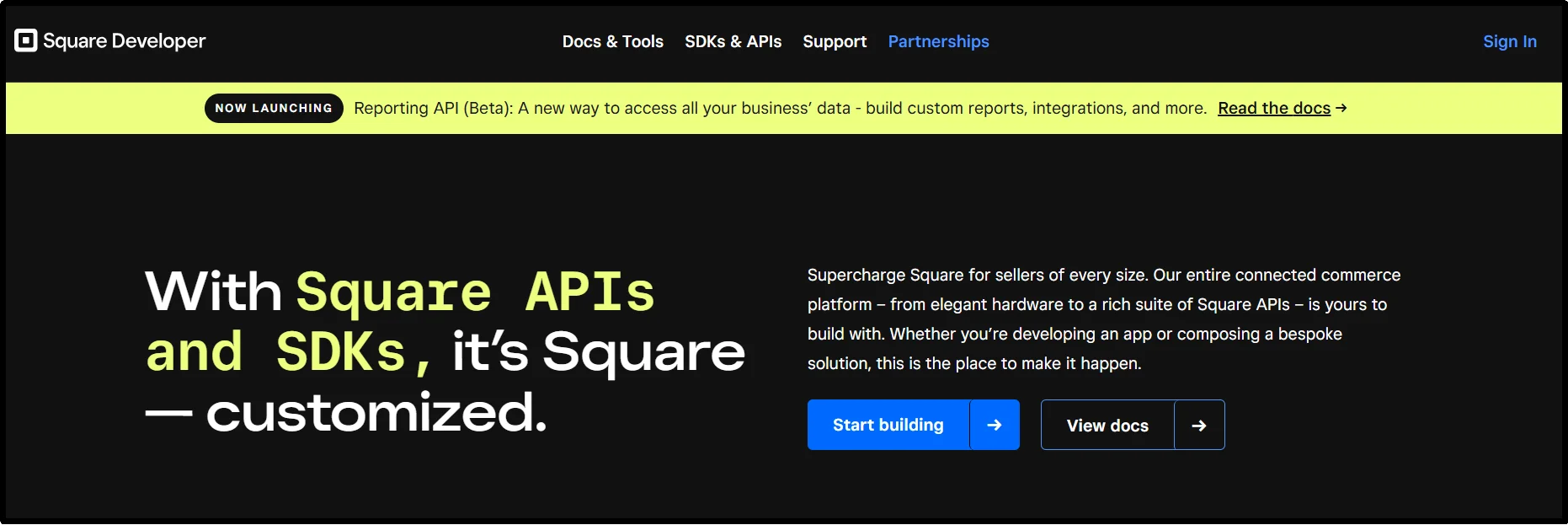
- Open the Developer Console.
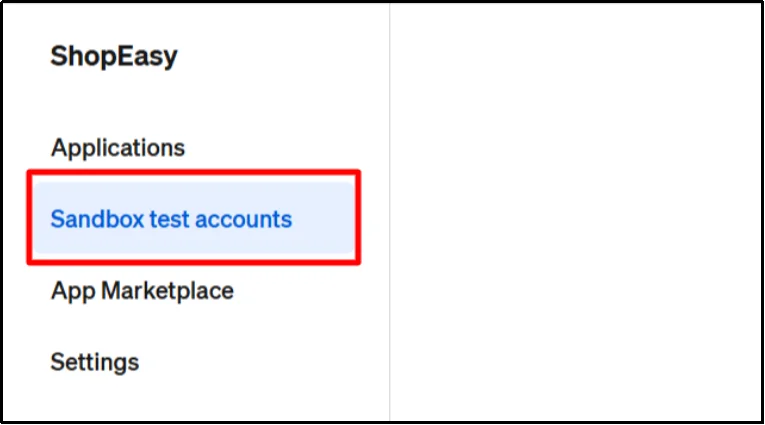
- In the left sidebar, click Sandbox test accounts.
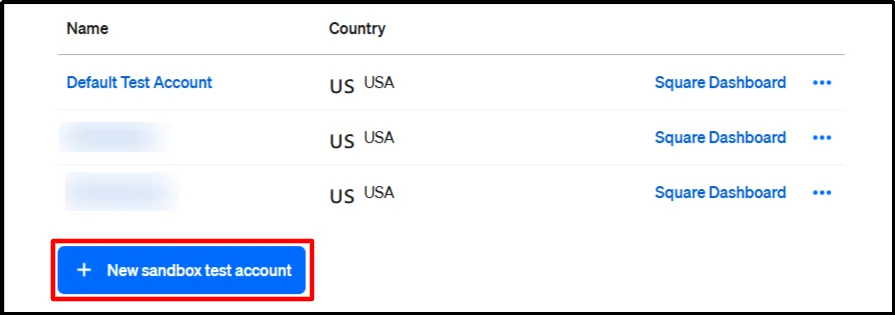
- Square provides a default test account. If you want to create another one, click New sandbox test account.
- Enter an account name and select a country. Then click Create.
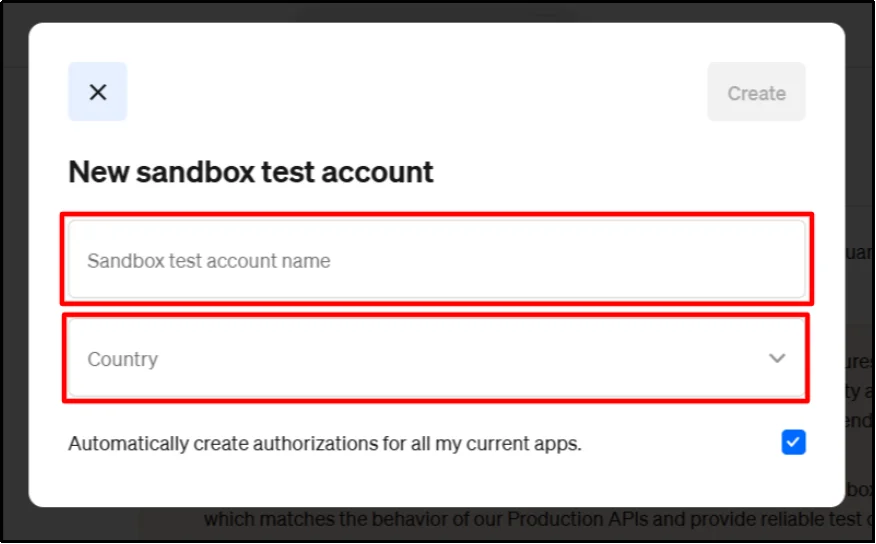
Your Sandbox test account should now appear in your Sandbox test account list. Square allows you to create additional Sandbox test accounts for testing different seller environments.

Important: Before connecting the Sandbox account to WP Easy Pay, open the Square Dashboard for your Sandbox test account in another browser tab. You can access the Sandbox Square Dashboard from the Developer Console.
Step 2: Install and Activate WP Easy Pay on WordPress
- Log in to your WordPress dashboard.
- Go to Plugins → Add Plugin.
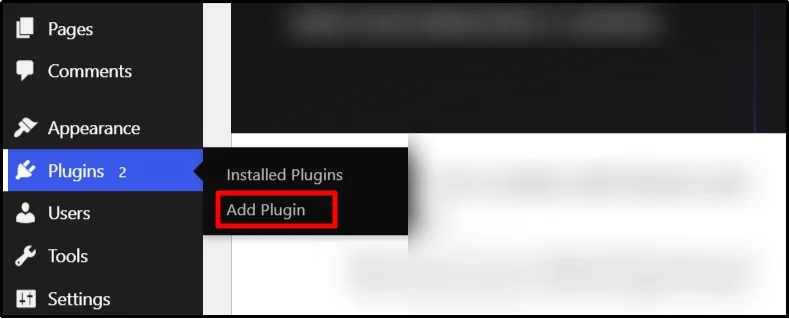
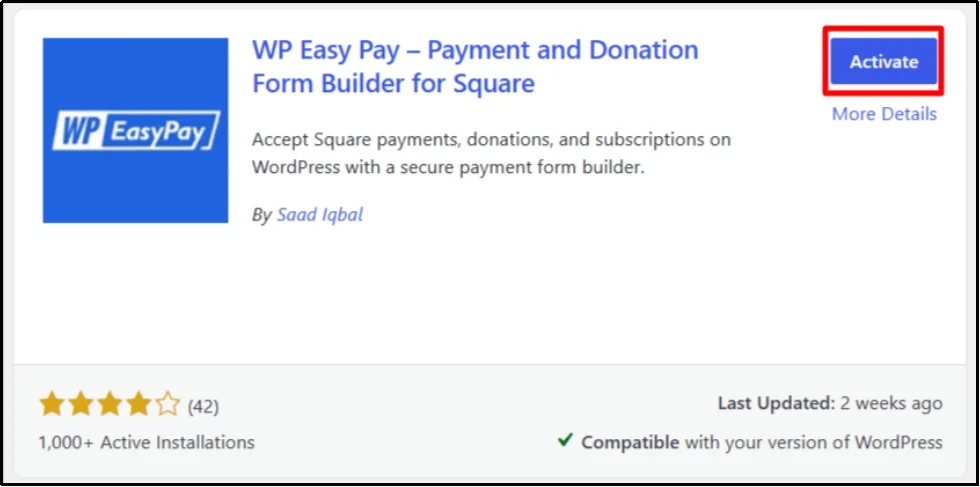
- Search for WP Easy Pay.
- Click Install Now, then click Activate.
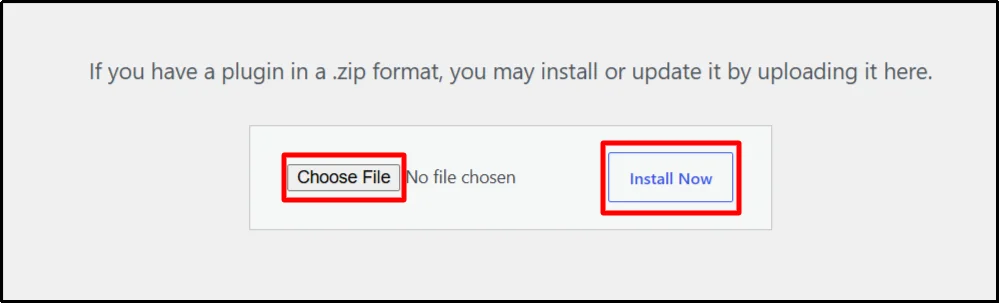
- If you purchased the premium version, click Upload Plugin and upload the plugin ZIP file from your computer.
- After installation, activate your license when prompted.
- Enter your license key and click Activate License →.
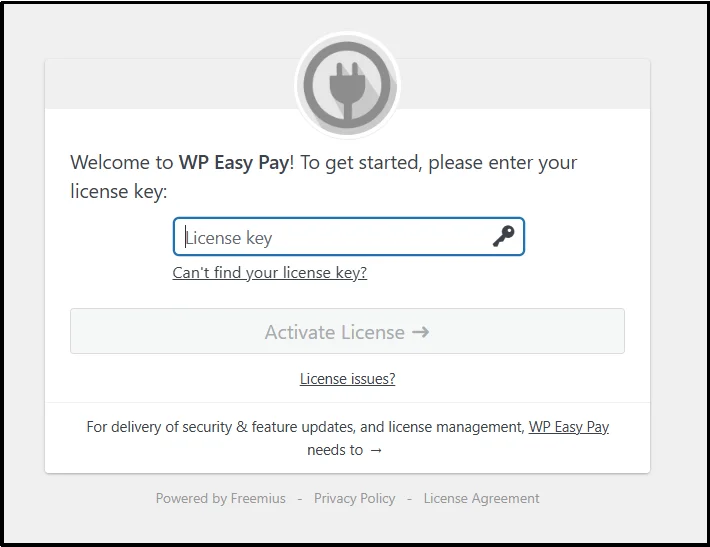
WP Easy Pay is now installed and activated on your WordPress website.
Step 3: Connect Square Sandbox to WP Easy Pay
- In your WordPress dashboard, go to WP Easy Pay → Square Connect.
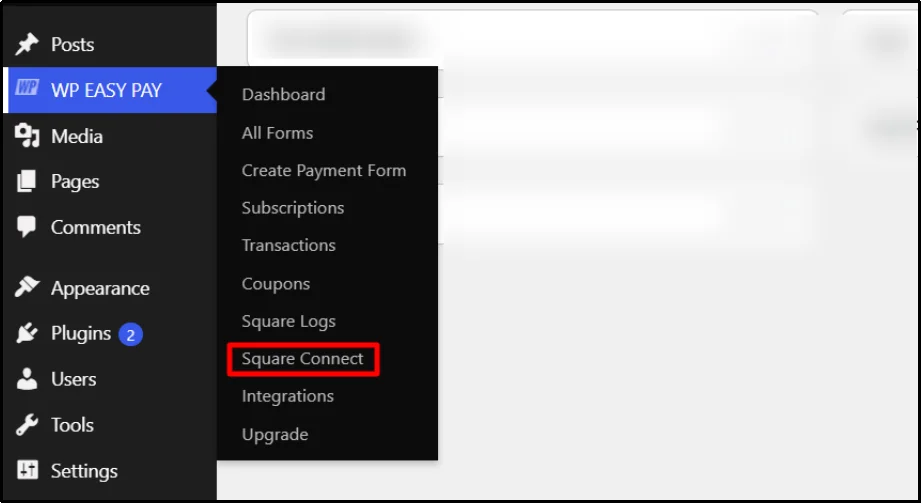
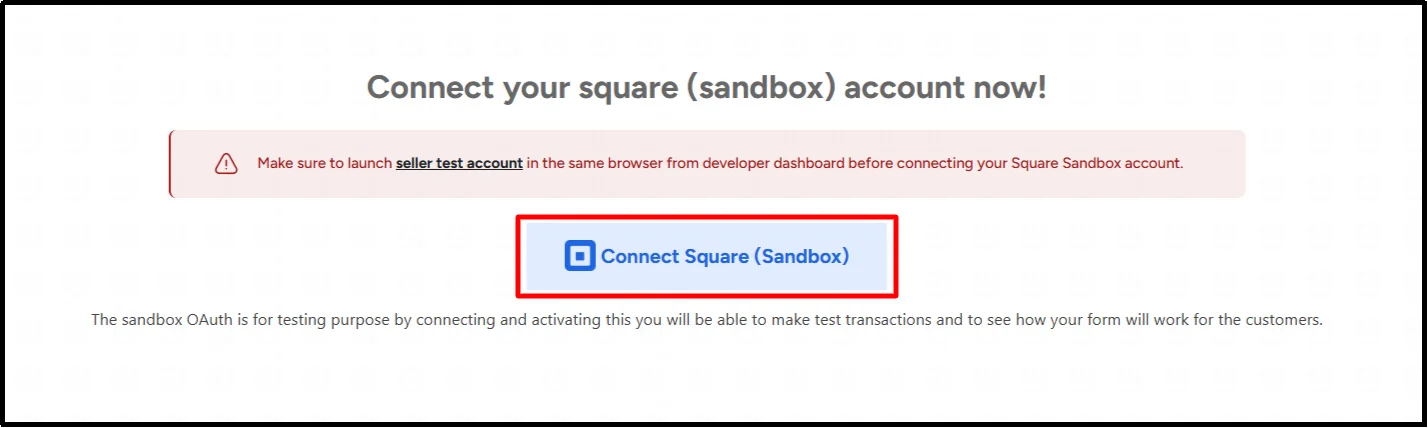
- Click Connect Square (Sandbox) to authorize your WordPress site to use the Sandbox Square account for testing.
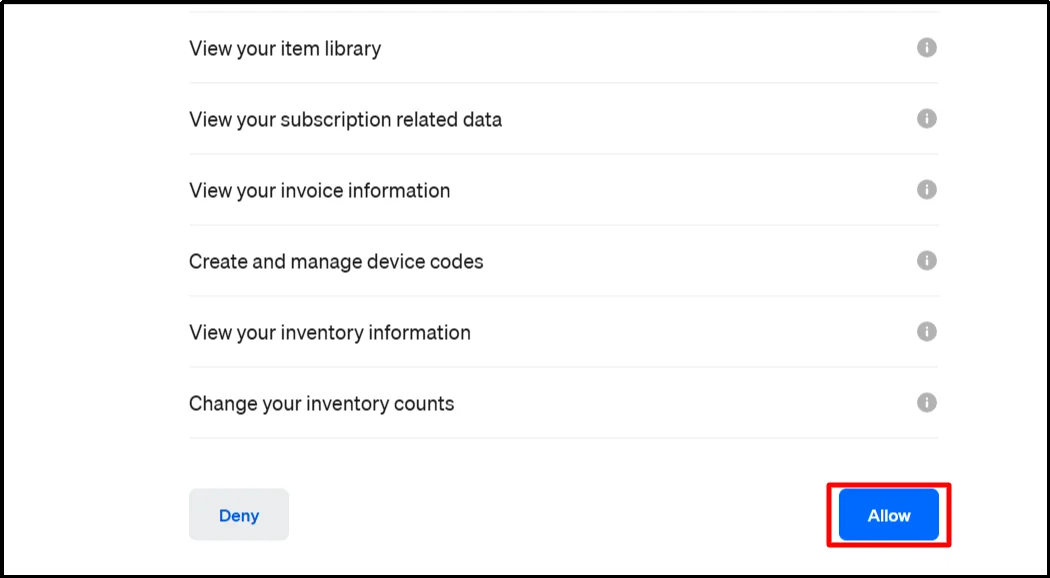
- When Square opens the permissions page, review the requested permissions and click Allow.
- Click That’s My Site – Redirect Me to return to your WordPress dashboard.
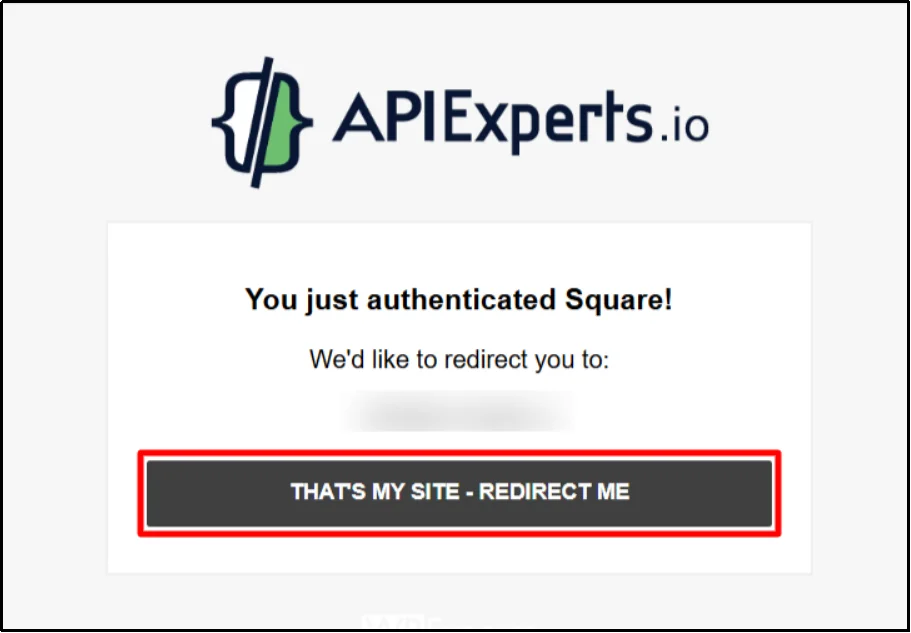
Your Sandbox Square account is now connected to your WordPress site.
Important: Launch the Sandbox seller account from the Square Developer Console before starting the authorization flow. Square requires the Sandbox test account to be launched for this OAuth flow.
Step 4: Create a Square Payment Form
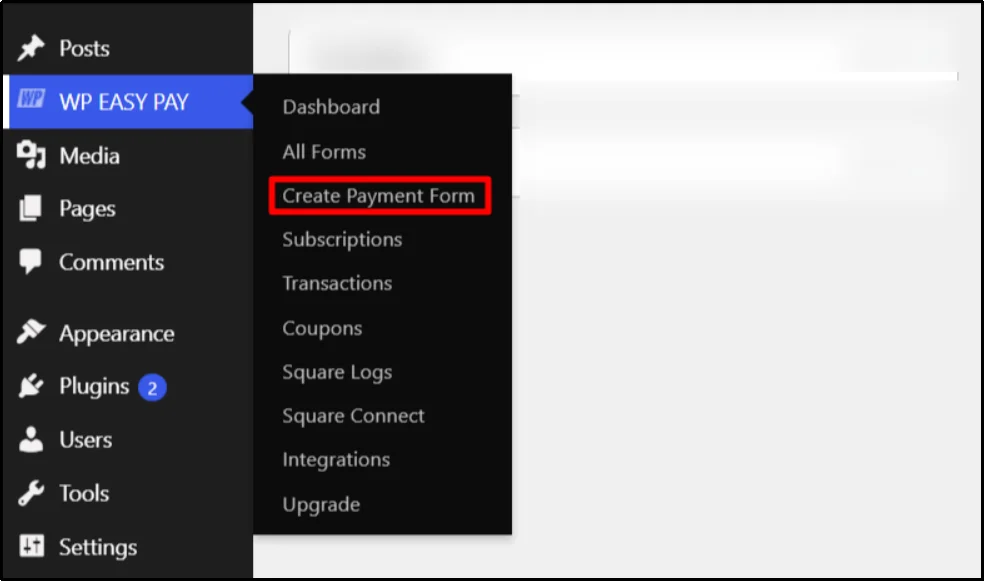
- Go to WP Easy Pay → Create Payment Form.
- Enter a form title and description based on the product or service you want to test. Then choose a payment type.
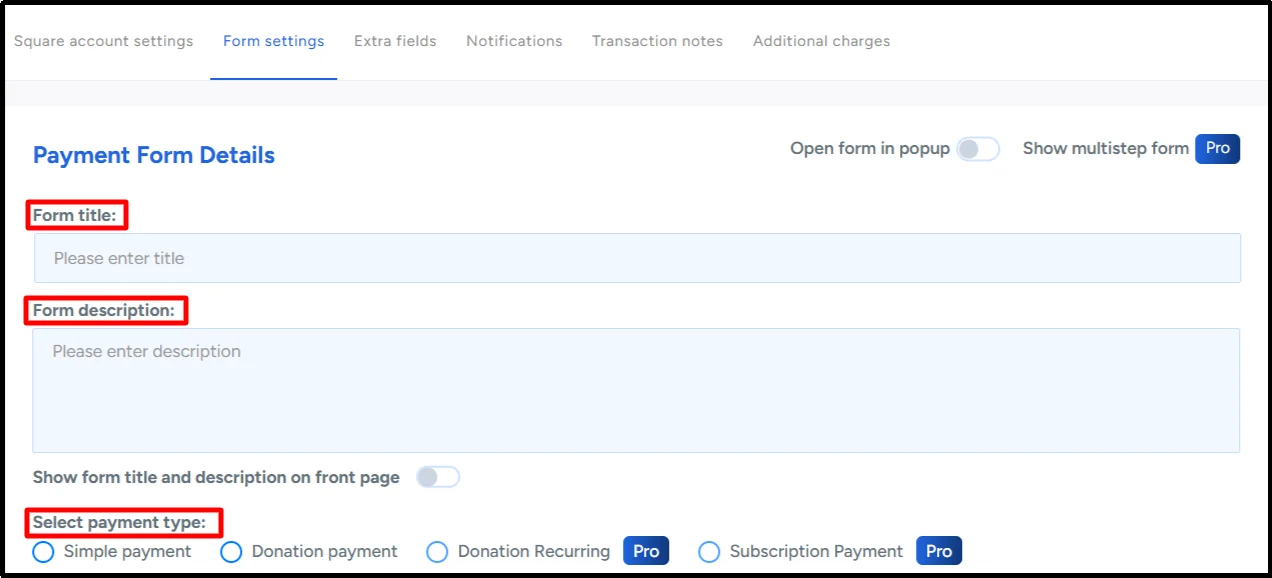
WP Easy Pay provides four payment types:
- Simple Payment: A one-time payment option for products or services.
- Donation Payment: A one-time payment that lets customers enter a donation amount.
- Donation Recurring: A recurring donation option for scheduled contributions.
- Subscription Payment: A recurring payment option for ongoing products or services.
The most common choices are Simple Payment for one-time charges and Subscription Payment for recurring charges. If you want to learn more about recurring billing, read our guide on how to grow your business using WordPress subscription payments.
- Choose an Amount Type and enter the amount you want to test. You can add multiple prices if needed.

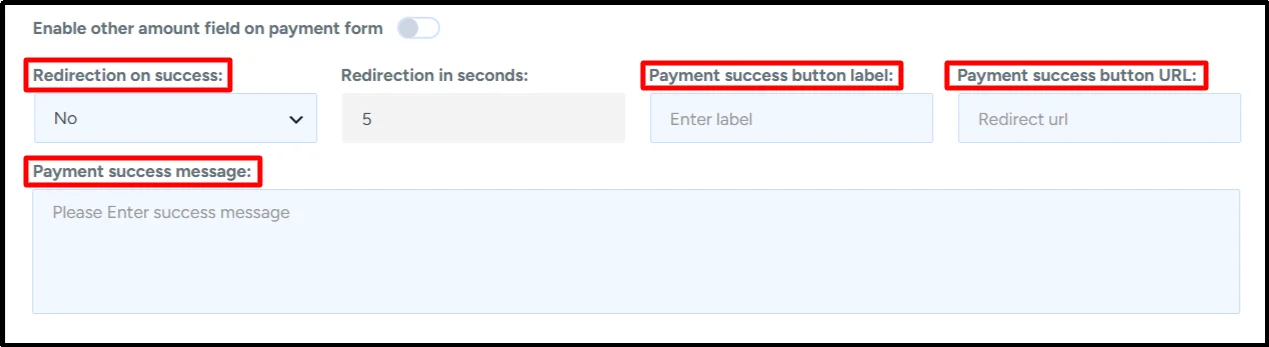
- Enable the success redirect if you want to send customers to a specific page after payment.
- Add a custom success message if required.
- Click Publish and copy the form shortcode.
Your Square payment form is ready. You now need to add it to a WordPress page before you can submit a Sandbox payment.
💡 To learn more about creating payment forms in WordPress, check out our guide on How to Create a WordPress Payment Form [Step-by-Step]
Step 5: Add the Payment Form to a WordPress Page
- Go to Pages → Add Page.
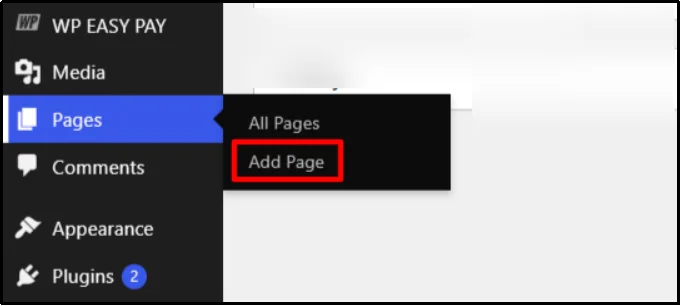
- Enter a title for the page.
- Choose one of these options to add the payment form:
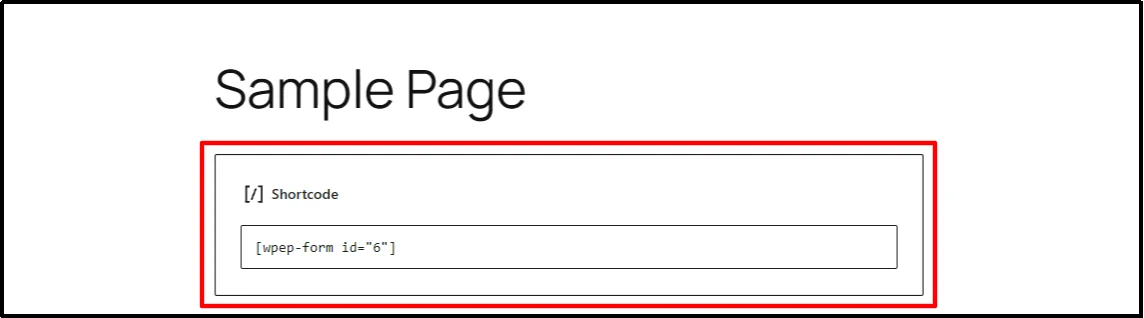
- Paste the WP Easy Pay shortcode into the page.
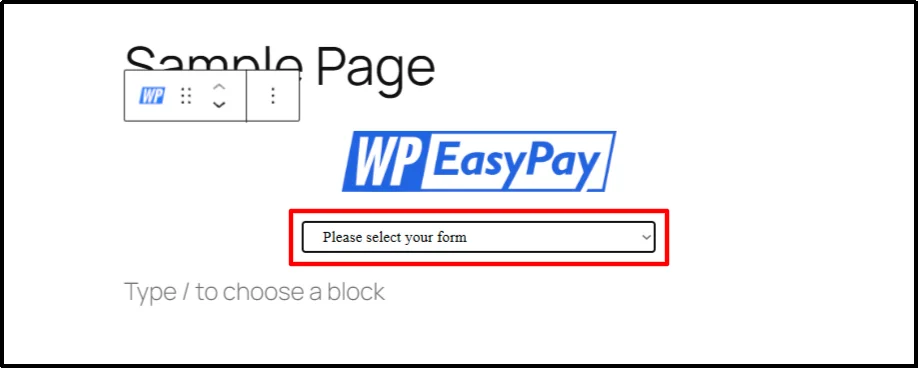
- Type /WP Easy Pay in the WordPress editor and select your payment form from the dropdown.
- Click Publish.
Your Square payment form is now available on the WordPress page.
Step 6: Submit a Sandbox Test Payment
- Open the page containing your payment form in an incognito window or a new browser tab.
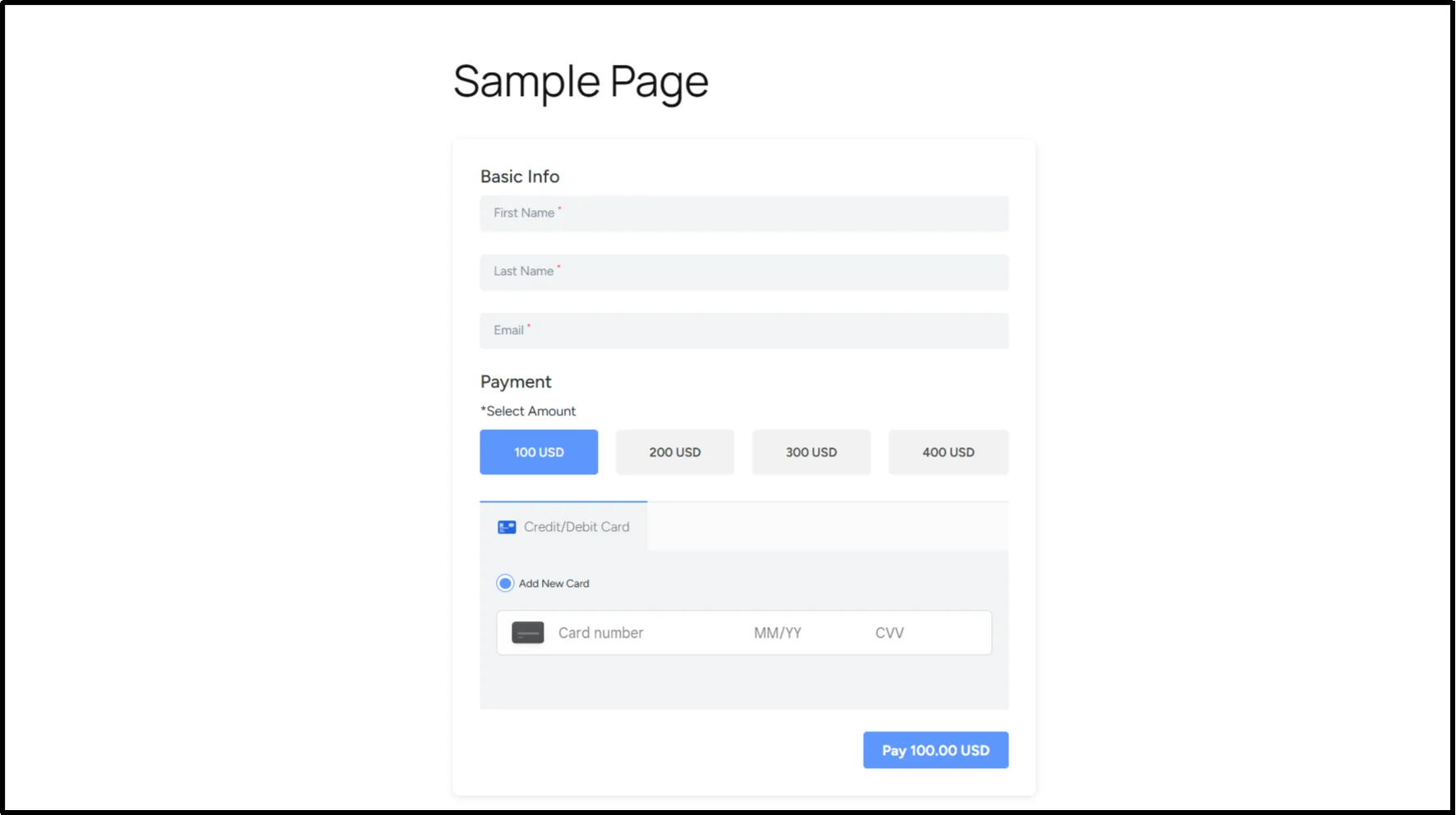
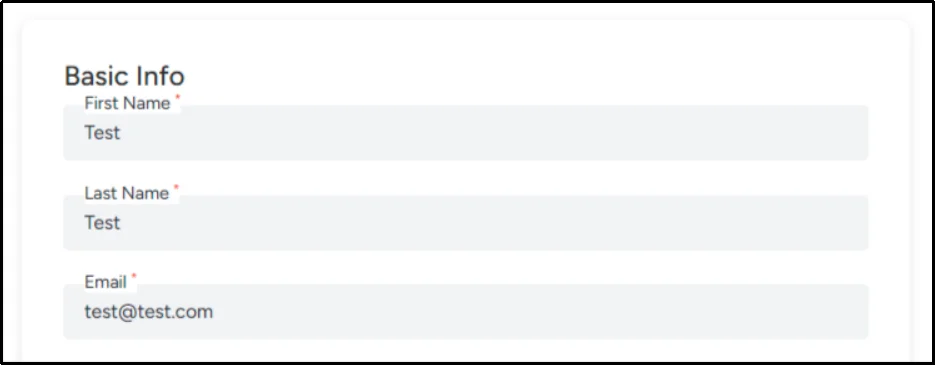
- Enter the required customer and payment details.
- Use one of Square’s official Sandbox test card numbers from the tables below.
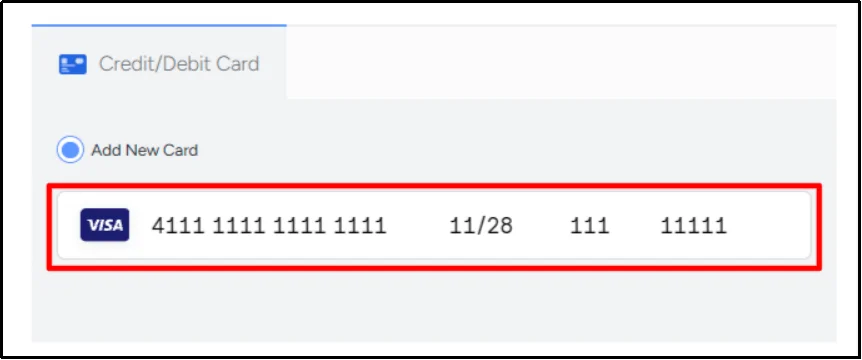
- Enter the required CVV, expiration date, and postal code.
- Click Pay.
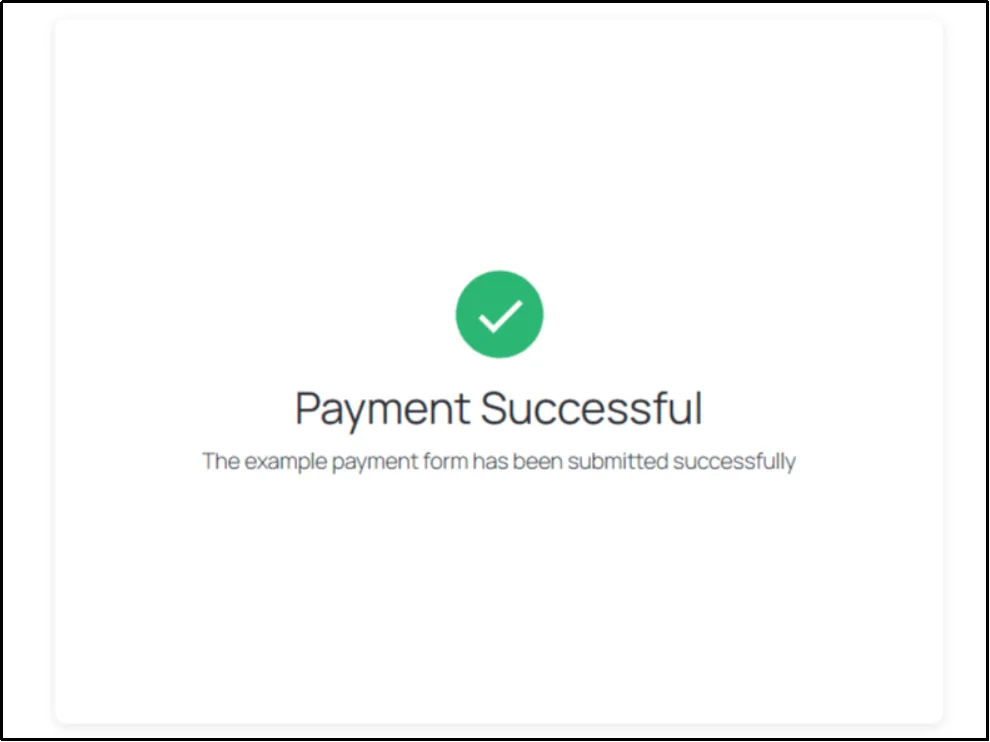
If you use a successful Sandbox test value, the payment should complete according to the expected test scenario.
Your WordPress form now runs a Square Sandbox payment flow without processing a real customer payment. You can also test declined payments and other error scenarios using Square’s dedicated test values.
Square Test Card Numbers and Test Values
Square provides official Sandbox test values for card-not-present payment testing. These values help you simulate successful payments, payment errors, and SCA verification scenarios.
Note: Square can update its Sandbox test values, Developer Console interface, and supported testing features. Check Square’s official Sandbox Payments documentation before relying on a specific test value or API testing workflow.
Square documents these values for client-side testing with the Web Payments SDK and In-App Payments SDK. If your WordPress integration uses a different Square integration method, verify that the relevant test values apply to your specific payment flow.
Successful Square Test Cards
| Brand | Card Number | CVV |
| Visa | 4111 1111 1111 1111 | 111 |
| Mastercard | 5105 1051 0510 5100 | 111 |
| Discover | 6011 0000 0000 0004 | 111 |
| Diners Club | 3000 000000 0004 | 111 |
| JCB | 3569 9900 1009 5841 | 111 |
| American Express | 3400 000000 00009 | 1111 |
| China UnionPay | 6222 9888 1234 0000 | 123 |
| Square Gift Card | 7783 3200 0000 0000 | N/A |
Square lets you use any future expiration month and year with these test cards. Payments in USD, CAD, and GBP require a valid postal code. Payments in Japan do not support postal codes.
Note: These card numbers are for Square Sandbox testing. Do not use them for live transactions.
Square Test Cards for SCA Verification
If your payment flow uses the Web Payments SDK and you need to test Strong Customer Authentication (SCA), Square provides dedicated Sandbox card numbers for different verification scenarios.
| Brand | Card Number | CVV | Challenge Type | Verification Code |
| Visa | 4800 0000 0000 0004 | 111 | No Challenge | N/A |
| Mastercard | 5222 2200 0000 0005 | 111 | No Challenge | N/A |
| Discover EU | 6011 0000 0020 1016 | 111 | No Challenge | N/A |
| JCB | 3569 9900 0000 0017 | 111 | No Challenge | N/A |
| Visa EU | 4310 0000 0020 1019 | 111 | Modal with Verification Code | 123456 |
| Mastercard | 5248 4800 0021 0026 | 111 | Modal with Verification Code | 123456 |
| Mastercard EU | 5500 0000 0020 1016 | 111 | Modal with Verification Code | 123456 |
| American Express EU | 3700 000002 01014 | 1111 | Modal with Verification Code | 123456 |
| JCB | 3569 9900 0000 0009 | 111 | Modal with Verification Code | 123456 |
| Visa | 4811 1100 0000 0008 | 111 | No Challenge with Failed Verification | N/A |
Square notes that JCB SCA testing in this Web Payments SDK table supports sellers in Australia, Canada, and Japan. In the Sandbox, the verifyBuyer flow can create a buyer challenge across regions, while production only presents a challenge where required.
Important: These SCA test values apply to the Web Payments SDK testing flow documented by Square. Do not assume that every WordPress payment form uses this exact flow.
Square Test Values for Failed Payments
Testing a successful Square payment only confirms one outcome. Square also provides dedicated test values that reproduce common payment failures.
| Test Value | Simulated Error |
| CVV: 911 | Incorrect CVV |
| Postal code: 99999 | Incorrect postal code |
| Expiration date: 01/40 | Incorrect expiration date |
| Card number: 4000000000000002 | Card declined |
| PAN: 4000000000000010 | Card-on-file authorization declined |
These values generate specific errors when Square processes the resulting payment token through the CreatePayment endpoint.
Square API Test Values
If you’re testing the Square Payments API directly, Square also provides Sandbox source_id test values.
For example:
- cnon:card-nonce-ok simulates a successful card payment.
- cnon:card-nonce-declined simulates a declined card.
- cnon:card-nonce-rejected-cvv simulates a bad CVV.
- cnon:card-nonce-rejected-postalcode simulates a bad postal code.
- cnon:card-nonce-rejected-expiration simulates an invalid expiration date.
These values apply to API-level testing rather than normal customer checkout testing. You normally do not enter them into a WordPress card-number field.
What Square Payment Scenarios Should You Test?
A full Square payment test should cover more than one successful transaction. Run through the scenarios that apply to your payment form before switching to production.
1. Successful Payment
Confirm that:
- The payment completes.
- The amount is correct.
- The currency is correct.
- The payment record shows the expected status.
- Your success message appears.
- The customer reaches the correct confirmation or thank-you page.
2. Declined Payment
Use Square’s declined-payment test value and confirm that:
- Square rejects the payment.
- Your form displays a clear error.
- Your WordPress payment record does not mark the transaction as paid.
- The customer receives useful instructions instead of a generic failure message.
3. Incorrect Card Details
Test the CVV, postal code, and expiration date scenarios separately.
Confirm that your payment form displays a clear error for each invalid value rather than showing the same generic payment failure for every scenario.
4. SCA Verification
If your payment flow supports SCA testing, use the appropriate Square Sandbox test card.
Confirm that:
- The verification challenge appears when expected.
- The test verification code works.
- A successful verification allows the payment flow to continue.
- A failed verification produces the expected error.
5. Recurring Payments
If your WordPress payment integration supports recurring billing, test the subscription flow separately.
Confirm that:
- The initial payment succeeds.
- The subscription record has the expected status.
- The billing schedule matches your configuration.
- Your confirmation and customer notifications work correctly.
Only test recurring billing if your current Square and WP Easy Pay configuration supports it.
How to Verify Your Square Test Payment Worked
A success message alone doesn’t confirm that your entire payment integration works. Check the transaction at each important stage.
- WordPress payment record: Does WP Easy Pay record the transaction with the expected payment status, amount, currency, and customer information?
- Square Sandbox Dashboard: Does the transaction appear in the Sandbox Square Dashboard for the same test account?
- Customer-facing result: Did the confirmation email send? Did the customer reach the correct redirect or thank-you page?
Square provides a Sandbox Square Dashboard for each Sandbox test account, allowing you to review the results of Sandbox activity.
Square Payment Testing Checklist
Use this checklist to confirm that your Square payment flow works before you move to production.
- Sandbox connection works
- Successful test payment completes
- Declined payment is rejected with a clear message
- Invalid CVV produces the expected error
- Invalid postal code produces the expected error
- Invalid expiration date produces the expected error
- Correct payment amount appears
- Correct currency appears
- Payment record is created in WordPress
- Transaction appears in the Square Sandbox Dashboard
- Confirmation email is sent
- Customer redirect or thank-you page works
- SCA flow works, if applicable
- Recurring payment works, if applicable
- Test content remains separate from live content
- Production Square account is ready for the live connection
How to Switch Square from Sandbox to Live Payments
Once your required Sandbox scenarios pass, you can move your payment integration to production.
Before accepting real payments:
- Complete your successful, declined, and invalid-payment tests.
- Test SCA if your payment flow requires it.
- Verify payment records in WordPress.
- Verify transactions in the Square Sandbox Dashboard.
- Confirm your emails, redirects, success messages, and error messages.
- Go to WP Easy Pay → Connect Square.
- Toggle on the button in the top-left to switch to Live Payments.

- Review your currency, payment amounts, payment form, redirects, and other production settings.
- Submit a final review of the live configuration before accepting customer payments.
Sandbox and production use separate environments and credentials. Sandbox access tokens cannot be used in production, and Sandbox test values cannot be used for live payments.
A successful Sandbox test gives you confidence in your integration, but you should still review the production configuration before launching.
Common Square Sandbox Testing Errors and How to Fix Them
1. “To start the OAuth flow for a sandbox account, first launch the seller test account from the Developer Dashboard”
This error can appear when you try to connect Square to WordPress before launching the Sandbox seller test account.
Open the Sandbox test account from the Square Developer Console, launch its Square Dashboard, keep it open in another browser tab, and then start the Square connection from WP Easy Pay.
2. “Tokenization of the payment card failed”
One common cause is entering a real card number into a Sandbox-connected form. Square Sandbox does not accept valid real credit card numbers.
If you’re already using a Sandbox test card, check:
- The card number
- The CVV
- The expiration date
- The postal code
- The Sandbox account connection
- Whether your payment integration supports the test flow you’re using
3. My Test Payment Was Declined, and I Didn’t Expect It
Check that you used a successful Sandbox test card rather than a failure-state value such as 4000000000000002.
If you intentionally used a declined test value, the decline is expected and confirms that your integration can handle that payment scenario.
4. My Test Transaction Isn’t Showing in Square
Confirm that your WordPress site connects to the same Sandbox test account and application that you are viewing in Square.
Also check that you are viewing the Sandbox Square Dashboard, not the production Square Dashboard.
Different Sandbox accounts have separate test data, so a transaction from one account won’t appear in another account’s dashboard.
5. Square Test Mode Isn’t Connecting to WordPress
Reconnect the account from WP Easy Pay and make sure you launch the Sandbox seller account before starting the authorization flow.
If the problem continues, disconnect and reconnect the integration using the current WP Easy Pay connection process.
Ready to Test Square Payments on WordPress?
Square Sandbox lets you test your WordPress payment form before accepting real customer payments. Start with a successful test card, then test declined payments, invalid CVV and postal codes, expiration errors, and SCA flows when applicable.
After each test, verify the payment status in WordPress, check the transaction in your Square Sandbox Dashboard, and confirm that your success and error messages work as expected.
Once every required scenario passes, connect your live Square account and run one final review of your payment amount, currency, checkout flow, emails, and redirects before accepting real payments.
If you need a WordPress payment form for Square, you can explore WP Easy Pay and use it to build your Square payment forms.
Frequently Asked Questions
Can I do a test payment on Square in WordPress?
Yes. Create a Square Sandbox test account, connect it to WordPress using a Square-compatible payment integration such as WP Easy Pay, create a payment form, and submit a transaction using Square’s Sandbox test values. Square Sandbox keeps these test transactions separate from production payments.
What card number can I use to test Square payments?
For a successful Sandbox card payment, Square lists 4111 1111 1111 1111 as a Visa test card with CVV 111. Use a future expiration date and a valid postal code where Square requires one. Square also provides Sandbox test numbers for Mastercard, Discover, JCB, American Express, China UnionPay, and other supported payment methods.
Can I use a real credit card in Square Sandbox?
No. Square Sandbox does not accept valid real credit card numbers. Use Square’s official Sandbox test values instead.
How do I test a declined Square payment?
Use Square’s Sandbox decline test value 4000000000000002 in a supported card-not-present test flow. Square documents this value as a card-declined test value.
Why is my Square test card being declined?
You may be using a failure-state test value, entering the card details incorrectly, or using a test value that doesn’t apply to your specific payment flow.
Check the card number, CVV, expiration date, and postal code against Square’s current Sandbox documentation.
Why does Square show a tokenization error during testing?
One common cause is entering a real card number into a Sandbox-connected form. Square Sandbox accepts only its test payment values. If you already use a test value, check the payment details and your Sandbox connection.
How do I fix the Sandbox OAuth connection error in WordPress?
Launch the Sandbox seller test account from the Square Developer Console before connecting Square to WordPress. Open the Sandbox Square Dashboard in another browser tab and then start the authorization flow from WP Easy Pay.
How do I switch Square from test mode to live mode?
After completing your Sandbox tests, use WP Easy Pay’s current production connection process to connect your live Square account and switch your payment form to live payments. Review your payment amount, currency, redirects, emails, and other production settings before accepting real payments.