

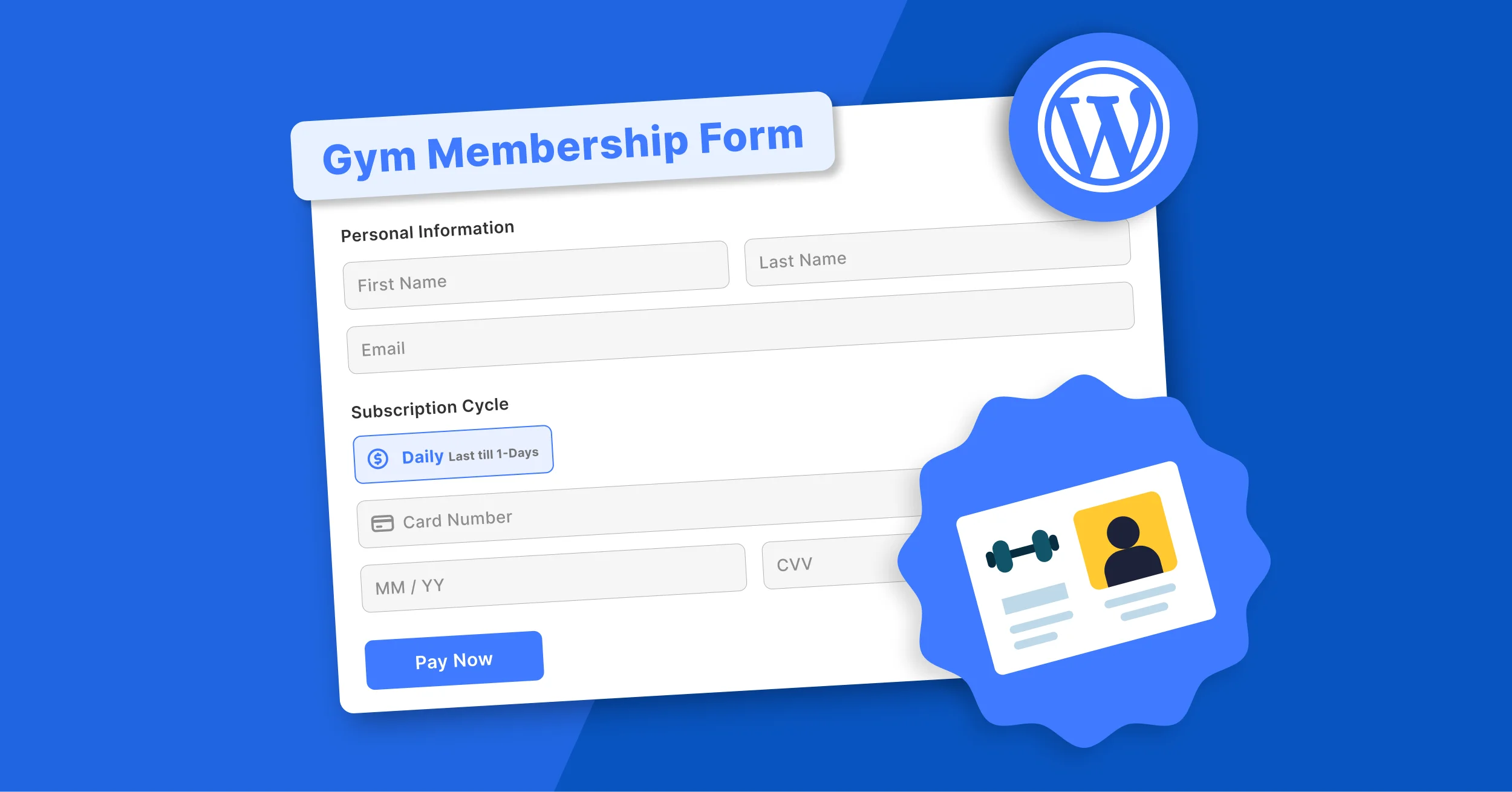


Managing gym registrations through paper forms, spreadsheets, or phone calls can quickly become inefficient. To streamline the process, many gym owners now create a gym membership form in WordPress that automatically collects member details, processes payments securely, and sends instant confirmations.
In this step-by-step tutorial, you’ll learn how to build a gym membership registration form in WordPress that supports recurring billing, automated emails, and secure online payments.
Let’s get started!
What Is a Gym Membership Form in WordPress?
A gym membership form in WordPress is an online registration form that collects member details, membership plan selections, waivers, and payment information from new gym members. Unlike a basic contact form, a WordPress gym registration form handles:
- Member onboarding
- Payment processing
- Recurring subscriptions
- Automated confirmations
A well-designed online gym registration form improves data accuracy, reduces administrative work, and creates a professional signup experience for new members.
Why Your Gym Needs an Online Membership Form in WordPress
If your gym relies on memberships or training programs, a digital system is essential. Here’s why you need one too:
- Self-Service Registration: Members sign up anytime.
- 24/7 Enrollment: Your staff does not need to get involved, which eliminates the need for manual member onboarding software.
- Automated Payments: Process membership fees online and accept credit card payments on your WordPress site.
- Reduced Admin Work: No spreadsheets or manual follow-ups.
- Mobile-Friendly Access: Most users register via phone.
Instead of relying on a generic WordPress membership form plugin, using a specialized solution gives you better subscription control and secure processing.
Why Choose WP Easy Pay?
There are many WordPress payment plugins available, but not all of them support recurring memberships, secure payment processing, and simple subscription management out of the box. WP Easy Pay combines these features with native Square integration, making it easy for gym owners to collect membership fees and manage subscriptions from one place.
With WP Easy Pay, you can:
- Seamlessly integrate Square with WordPress
- Set up recurring payments in WordPress
- Manage subscriptions
- Customize multi-step forms
- Securely save customer cards
- Send automated email notifications
If you’re researching the best form plugin for gym membership WordPress websites, the key advantage here is native Square integration and simplified subscription management.
How to Choose the Right Gym Membership Plan
The right membership plan can increase sign-ups, improve member retention, and create a predictable revenue stream for your gym. Before creating your gym membership form, decide how you want to charge members and what benefits each plan will include.
Here are some common pricing models for gyms and fitness centers:
- Monthly Membership: Ideal for members who want flexibility with automatic recurring payments.
- Quarterly Membership: Offers a balance between commitment and affordability while reducing payment processing frequency.
- Annual Membership: Encourages long-term commitment and often includes discounted pricing compared to monthly plans.
- Pay-As-You-Go: Suitable for fitness classes or members who prefer paying per visit instead of committing to a subscription.
When presenting your plans, clearly display the following information:
- Membership price
- Billing frequency
- Included facilities or classes
- Cancellation policy
- Renewal terms
Providing clear pricing and billing information helps members choose the right plan with confidence while reducing billing-related questions later.
Now that you’ve decided how you’ll structure your gym memberships, it’s time to build a registration form that lets members choose the right plan and complete their payment securely. Here’s what every effective gym membership form should include.
What Makes a Good WordPress Gym Membership Form?
A high-performing WordPress gym membership form should include the following elements:
- Essential Fields: Full Name, Email, Phone Number, Membership Plan Selection, and Payment Details – collect only what’s necessary while keeping the process smooth.
- Built-In Payment Collection: Members should be able to pay with a credit card directly within the form on your WordPress site.
- Recurring Billing Support: Allow monthly or annual plans and enable recurring billing through Square.
- Clear Plan Details: Use precise labels like “Select Your Membership Plan” or “Choose Billing Cycle” to help users understand exactly what they’re signing up for.
- Mobile-Friendly Design: Automatically adapt to desktops, tablets, and smartphones since many members will register from mobile devices.
- Spam & Security Protection: Add CAPTCHA to your payment form to prevent fake submissions and follow secure online payment processing practices to protect customer payment data.
- Instant Notifications: Receive real-time email alerts whenever a new membership is submitted or payment is completed.
- Confirmation Messages: Display a clear success message and send a payment receipt so members know their registration was successful.
- Terms & Liability Waiver: Include a required checkbox that asks members to accept your gym’s terms, cancellation policy, or liability waiver before completing their registration.
Step-by-Step Guide to Create a Gym Membership Form in WordPress
You can turn website visitors into paying gym members by creating a secure and mobile-friendly gym membership form in WordPress that supports online payments and recurring subscriptions.
Follow the step-by-step guide below to create your gym membership form and start accepting registrations online.
Step 1: Install and Activate Your Form Plugin: WP Easy Pay
Follow the steps below to install and activate your WP Easy Pay plugin:
- Log in to your site’s WordPress dashboard
- Head to Plugins → Add Plugin
- Search for “WP Easy Pay” in the top-right search bar.
- Click Install Now, then Activate

After activation, WP Easy Pay will appear in the WordPress dashboard sidebar.

Key Note: You can create a functional gym membership form in WordPress using WP Easy Pay’s core features. Upgrading to the Premium version unlocks advanced capabilities such as recurring billing, enhanced payment options, custom fields, and more. You will get greater flexibility and control over membership registrations and subscription payments.
To unlock the plugin’s full capabilities, upgrade to the WP Easy Pay Pro version and follow these steps:
- Visit the WP Easy Pay pricing page and purchase the plan that fits your needs.
- After purchasing successfully, you will receive an email with the plugin ZIP file and its license key.
- Download the WP Easy Pay Pro’s ZIP file and copy your license key
- Navigate to Plugins → Add Plugin → Upload Plugin

- Click to Choose File, select the WP Easy Pay Pro ZIP file, and then click Install Now button.

- After it is installed, click Activate Plugin.
- You will be redirected to the ACTIVATE LICENCE pop-up. Paste your license key, and click Activate License.

🎊 Great news! All Pro features in WP Easy Pay are now activated for your WordPress site.
Step 2: Connect Your Square Account to WP Easy Pay
As your WP Easy Pay Pro plugin has been activated, you can now connect your Square account to collect gym membership fees.
Here’s how you can connect your Square account with WP Easy Pay:
- In your WordPress dashboard, click Square Connect from the WP Easy Pay menu.

- On the top right, you can choose your environment:
- Turn ON for Live payments
- Leave OFF for Sandbox (testing mode)
💡 It’s recommended to test everything in Sandbox mode before going live.
- Click Connect Square (Sandbox or Live)

- Log in using your Square credentials
- Authorize the connection by clicking “THAT’S MY SITE – REDIRECT ME”
- Click Save Settings
Once connected:
- WP Easy Pay securely retrieves your Square Location ID.
- All membership payments will be processed directly in your Square dashboard.
- The connection is encrypted and secure.
Now you’re ready to create your gym membership form.
Step 3: Create Your Gym Membership Form
- In your WordPress dashboard, go to WP Easy Pay → Create Payment Form.

- You will come across the following layout. Select the Form Settings tab.

- Enter the appropriate form title and description. In this case, “Gym Membership Form”, and a brief description about the purpose of the form.

- WP Easy Pay supports 4 payment types:
→ Simple Payment
→ Donation Payment
→ Donation Recurring
→ Subscription Payment
In this case, select Subscription Payment for the Payment Type.

- Set Subscription Cycle according to your gym membership plans. Usually, it is monthly, quarterly, biannual, or annual. And choose how many times it should prompt.

- Now, select the amount type – WP Easy Pay has 4 payment layouts for the Subscription Payment Type. For the gym membership form, select Payment Layout in radio listing or Payment Layout in dropdown.

- Create a custom Payment Success Message to welcome new members or thank returning ones.

- Now, click on the Extra Fields tab and add all the required fields for your gym membership form, such as name, number, checkbox group, etc.

- Click the ‘Publish’ button to save and publish your form. A shortcode will be visible that you can copy with a click on it and use anywhere on the website.
Step 4: Add the Gym Membership Form to Your WordPress Site
Now it’s time to make your gym membership form live. Create a new page for your gym membership registration form to make it easy for visitors to find and sign up.
- Go to Pages → Add Page, then create a page titled Gym Registration.
- Just paste the Shortcode or insert the block, then paste it.

- Before publishing, you can test out the form by clicking the preview button.
- After testing the form, click Publish to make your gym membership form live.

That’s it! Your gym membership form is now live and ready to accept online registrations 24/7.

Common Mistakes to Avoid When Creating a Gym Membership Form
Now that your form is up and running, it’s important to make sure it works effectively for both you and your members. Avoiding these common mistakes will help ensure a smooth registration process and a professional, user-friendly experience:
- Asking for Too Many Fields Upfront
- Choosing the Wrong Payment Type
- Not Clearly Displaying Membership Plans
- Not Setting Up a Confirmation Message or Redirect
- Forgetting to Enable Recurring Billing Properly
- No Spam Protection
- Not Connecting Payments Before Publishing
- Skipping Testing Before Going Live
- Not Optimizing for Mobile
Build Smarter Gym Membership Forms with WP Easy Pay
By now, you have studied how to build a membership form in WordPress, integrate secure payments, set up recurring subscriptions, and prevent the most common errors. One of the best additions to your gym site that will have a high ROI is adding a high-converting gym membership form.
Ready to grow your gym business with WP Easy Pay?
Get WP Easy Pay and start building your gym membership form in WordPress today and begin accepting recurring membership payments automatically.
Frequently Asked Questions
What fields should a gym membership form include?
Your gym membership form should have the following fields: full name, email, phone number, date of birth, emergency contact, and membership plan. It is better to keep the form concise.
Is it possible to create recurring membership payments?
Yes absolutely! With WP Easy Pay, you can set up recurring payments for monthly, quarterly, annual, or custom memberships. This helps in charging members automatically without manual follow-ups.
How can I accept online payments through my gym membership form?
You can accept online payments by integrating your form with a secure payment mode like Square. Payments are processed safely, and you can manage all transactions directly from your dashboard.
How do I prevent spam submissions on my gym form?
To prevent spam submissions, integrate CAPTCHA, use required email verification, and keep your WordPress site and plugins updated.
How do I automatically send confirmation emails after form submission?
You have to configure your membership form’s notification settings to send instant confirmation emails after submission.
How do I prevent spam submissions on my gym form?
To prevent spam submissions, integrate CAPTCHA, use required email verification, and keep your WordPress site and plugins updated.
Can I customize the design of my gym membership form?
Yes. You can customize the layout and the fields via the drag-and-drop feature; meanwhile, you can change the text of the buttons and success messages under Form Settings. Thus, you can make a professional membership form with an easy-to-use user experience.
Can I offer multiple gym membership plans in one form?
Yes. WP Easy Pay lets you create multiple membership options, such as monthly, quarterly, and annual plans, allowing members to choose the option that best fits their needs during registration.
Can I charge a one-time joining fee along with recurring membership payments?
Yes. Many gyms charge an initial registration or joining fee before starting recurring membership billing. You can configure your payment setup based on your pricing structure.
Does the gym membership form work on mobile devices?
Yes. WP Easy Pay forms are responsive, allowing members to complete registrations and make payments from desktops, tablets, and smartphones.
Is it safe to collect payments through a gym membership form?
Yes. When you connect WP Easy Pay with Square, payments are processed through Square’s secure payment infrastructure instead of being stored on your WordPress website, helping protect sensitive payment information.