


A Buy Now button sends customers straight to payment, eliminating friction in the buying process. Shoppers complete their purchases with just one or two clicks instead of navigating multiple checkout steps. This streamlined experience drives more conversions.
Baymard Institute’s checkout research reveals that a complicated, lengthy checkout process causes an average cart abandonment rate of nearly 70%.
A Buy Now button eliminates unnecessary steps by routing customers directly to a secure checkout popup or dedicated payment page. Whether you sell physical products, digital product sales, or limited-time deals, adding a Buy Now button accelerates the purchasing process.
In this guide, you will learn how to add a Buy Now button in WordPress that keeps visitors on your site and boosts your WordPress e-commerce conversion rate.
Why Use a Buy Now Button in WordPress? (Benefits and Limitations)
A Buy Now button excels at three key functions:
- Fewer steps to payment: Customers click once and land directly in a payment form, bypassing the traditional Add to Cart → View Cart → Checkout sequence. This enables a true one-click checkout WordPress experience.
- Stronger impulse purchases: On sales pages, landing pages, and single-product pages, removing the cart step captures buyers who decide quickly and demand zero friction.
- A cleaner mobile experience: Fewer screens and fewer taps matter immensely on mobile devices, where WordPress checkout optimization is critical because abandonment rates consistently exceed desktop rates.
When a Buy Now button isn’t the right thing
Honesty builds trust. You must know when not to use this feature to deploy it effectively:
- Multi-item shopping: If customers regularly buy multiple items per visit, they need a traditional shopping cart. A Buy Now button that bypasses the cart will frustrate them.
- Subscription flows with plan selection: If buyers must choose a tier, billing cycle, or add-ons before paying, a single-click button removes necessary decision-making steps.
- Stores built around upsells and coupons: If cart-stage upsells or promo codes drive your revenue strategy, skipping the cart means you skip that revenue.
If none of these scenarios apply to your business, a Buy Now button fits perfectly. Manage your expectations regarding conversion-rate lifts: no credible, verifiable data guarantees a specific percentage increase, and any guide quoting an exact number is guessing. What a Buy Now button reliably does is remove steps and reduce cart-stage exits. Your offer, price, and traffic quality determine the rest.
Where Should You Use a Buy Now Button?
A Buy Now button works best when customers make a single purchasing decision. Instead of forcing them to add items to a cart and navigate multiple checkout pages, it routes them straight to payment. Here are the best places to implement a WordPress payment gateway integration for a Buy Now button:
- Single-product landing pages: Ideal for businesses selling one featured product to encourage immediate purchases.
- Digital products: Speed up the checkout process for ebooks, templates, software, online courses, and other downloadable assets.
- Service bookings: Allow clients to pay for consultations, appointments, or professional services directly from your website.
- Donation pages: Make it easier for supporters to contribute by reducing the steps required to complete a donation.
- Event registrations: Let attendees reserve their spot and pay immediately for webinars, workshops, or conferences.
- Limited-time promotions: Encourage quick decisions during flash sales by directing shoppers straight to a secure payment form.
A Buy Now button offers a faster, more convenient checkout flow that can help reduce cart abandonment and improve the overall customer experience.
Before You Start: What You Actually Need
Verify these requirements to prevent technical errors:
- A self-hosted WordPress.org site: WordPress.com’s free plan restricts plugin installations.
- SSL/HTTPS enabled: This is mandatory for secure payment processing. Square will not connect without it.
- A payment processor account: Have your Square (or alternative) credentials ready.
- A recent site backup: Always back up your site before installing new plugins. Consider this your primary insurance policy.
Square Geographic Limitations
Square does not operate globally. As of 2026, Square’s payment processing service serves sellers in the US, Canada, Australia, Japan, the UK, the Republic of Ireland, France, and Spain. If your business operates outside these countries, skip to Method B (PayPal) or Method C (WooCommerce with a region-specific gateway). Square will not connect to your account otherwise.
Pro Tip: The free version of WP Easy Pay supports a simple payment form and Buy Now button and sandbox testing options with limited features. The Pro version adds advanced multi-step forms, recurring payments and donations, detailed reporting, Square terminal support, and much more, which becomes essential once you outgrow a single one-time payment button.
Step-by-Step Process to Add a Buy Now Button in WordPress
If you want a professional Buy Now button that opens a secure checkout popup without redirecting customers to an external website, this is your best option. WP Easy Pay lets you accept Square payments directly on your WordPress site, accelerating checkout and helping you reduce cart abandonment.
Follow these steps to install the plugin, connect your Square account, create a Buy Now payment form, and embed the button on any page or post using a shortcode.
Step 1: Install and Activate WP Easy Pay
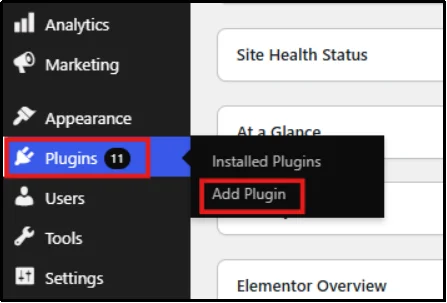
- From your WordPress admin dashboard, go to Plugins → Add New.
- Enter WP Easy Pay in the top right search bar.
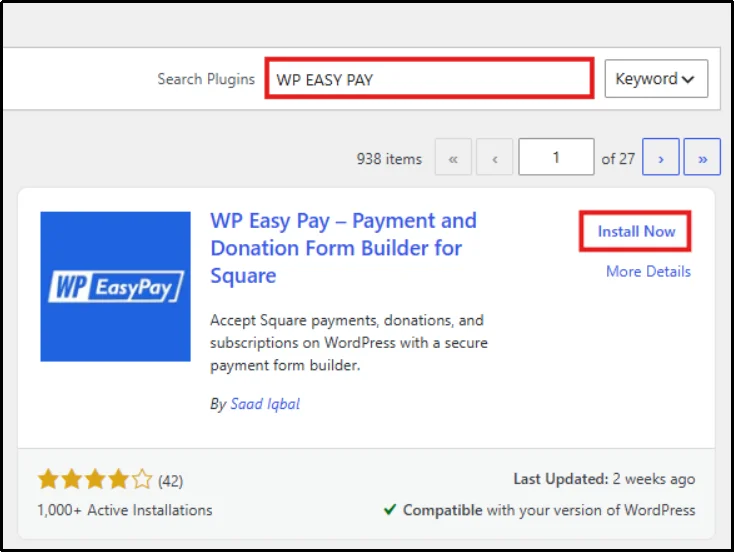
- Click Install Now, then Activate.
The plugin is now active on your site.
Step 2: Connect to Square Sandbox
Test your setup before going live. Most tutorials rush past this step, but it saves you from failed transactions later.
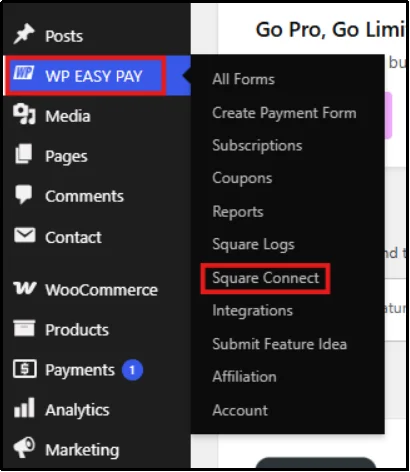
- Navigate to WP Easy Pay → Square Connect.
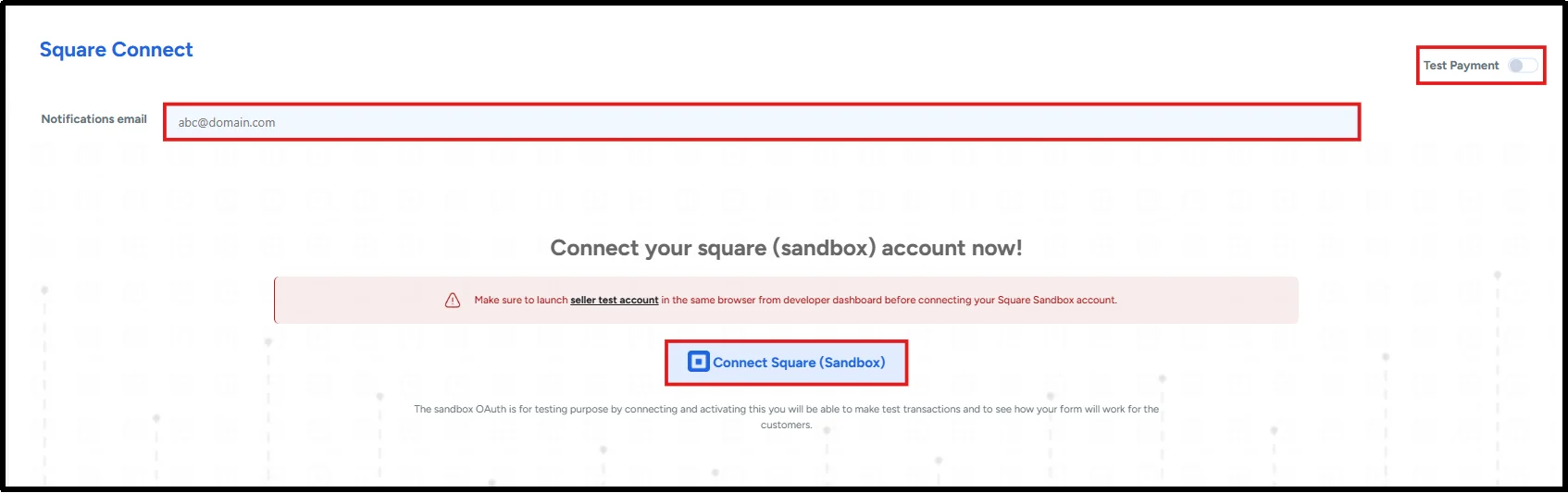
- Set the Payment Type toggle to Test Payment.
- Enter your Notification Email (where the system sends payment alerts).
- Click Connect Square (Sandbox).
- Sign in with your Square credentials when redirected.
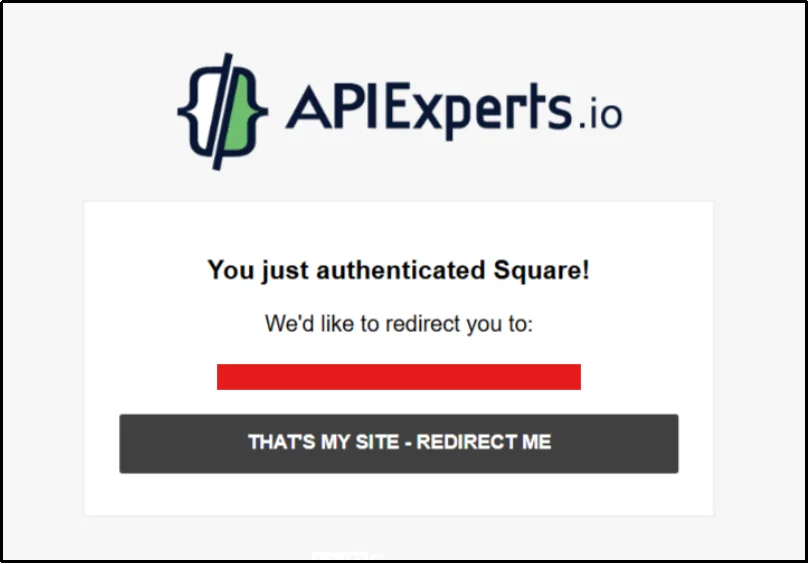
- On the confirmation screen, click “That’s My Site – Redirect Me” to return to WordPress.
- From the Location dropdown, choose Default Test Account.
- Click Save Settings.
Your Square Sandbox connection is now live. WP Easy Pay is ready for test transactions without processing real money.
Step 3: Create the Popup Payment Form
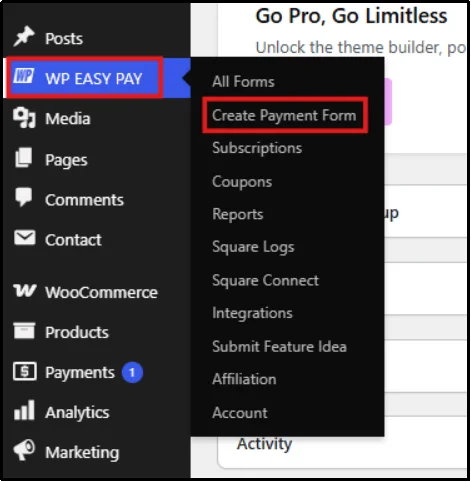
- Navigate to WP Easy Pay → Create Payment Form.
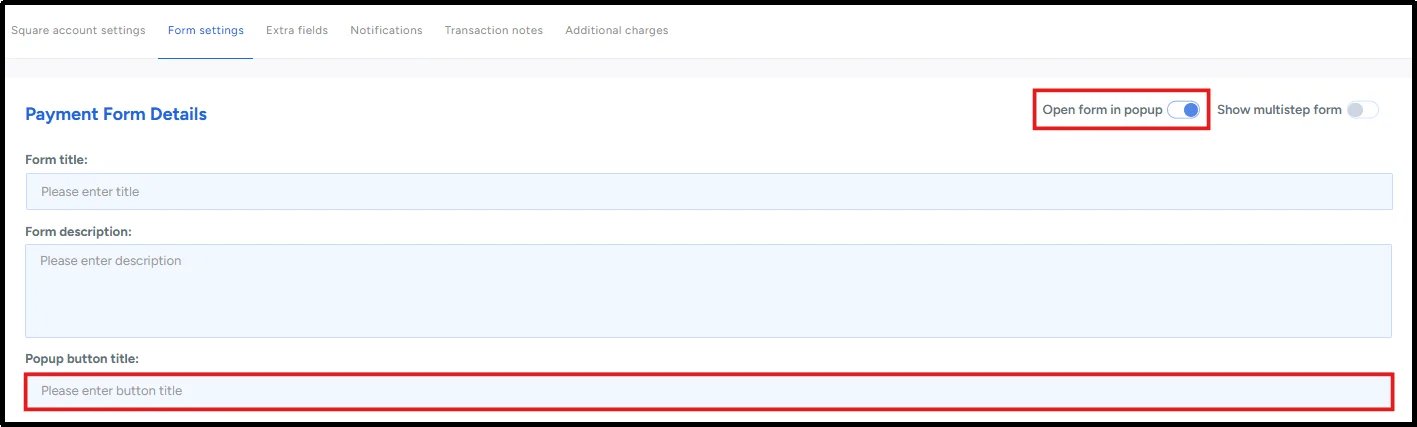
- Toggle the “Open form in popup” option. You will see an additional field under Form Description named Popup button title.
- Set a Form Title that matches your product, and add a short Form Description. Customize the popup button label to an action-oriented phrase like “Buy Now.”
- Under Payment Type, choose Simple Payment for a one-time transaction.
- Set the Amount Type. A fixed amount provides the cleanest setup for a classic Buy Now button.

If you want customers redirected after paying, enable Redirect on Success, then set a success message and an optional delay.
- Click Publish to make the Buy Now form live.
Step 4: Add the Shortcode to a Page
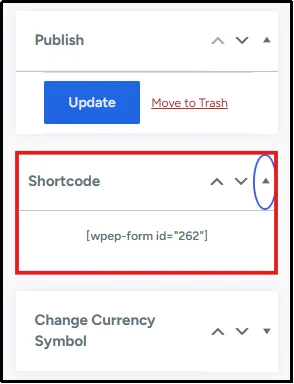
- On the form’s edit screen, find the Shortcode widget and copy the shortcode.
- Open the page or post where the button should appear.
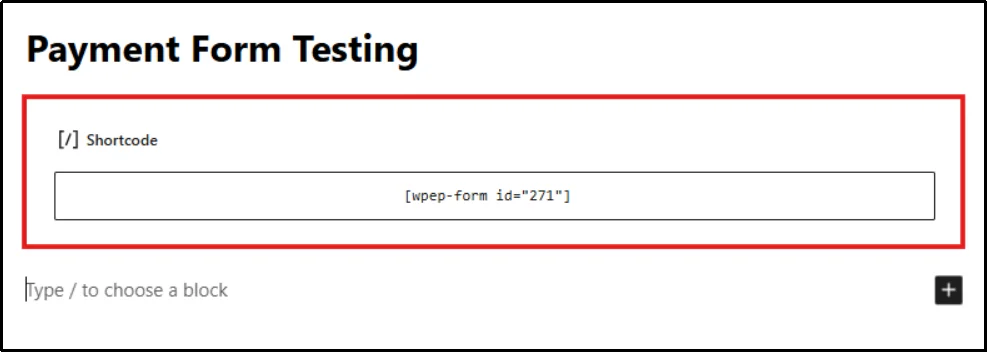
- Add a Shortcode block in the Gutenberg editor and paste it in.
OR
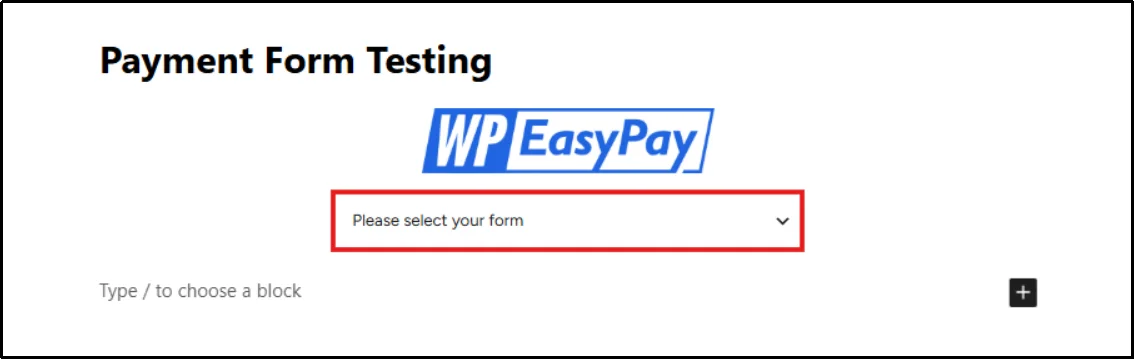
- Enter /WP Easy Pay in an empty block and select the correct form from the dropdown.
- Click on Publish to make the page with embedded form live.
On the front end, your button label appears exactly as set in Step 3.
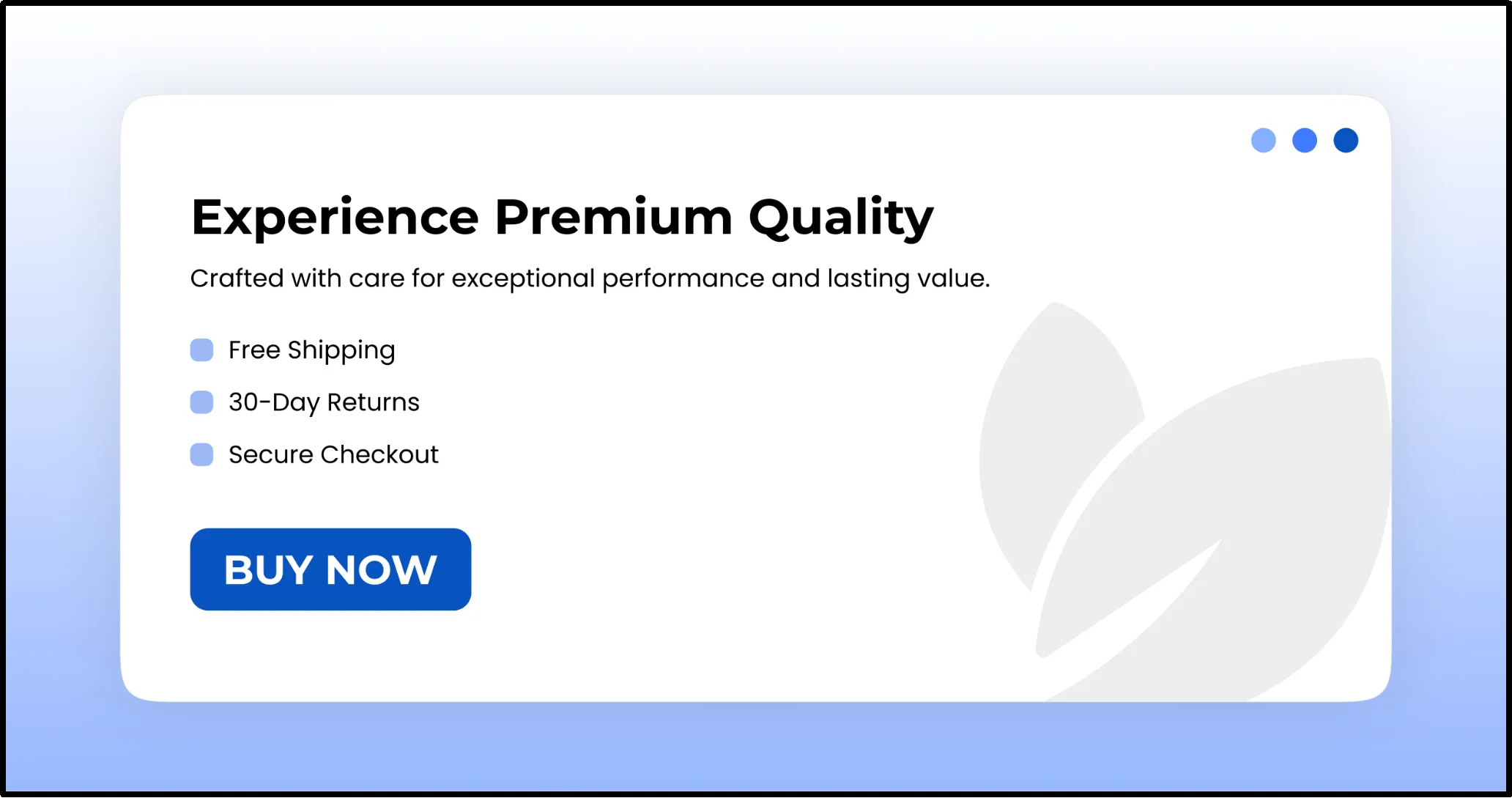
Click on Buy Now, and it will open the Square payment popup, right on your page.
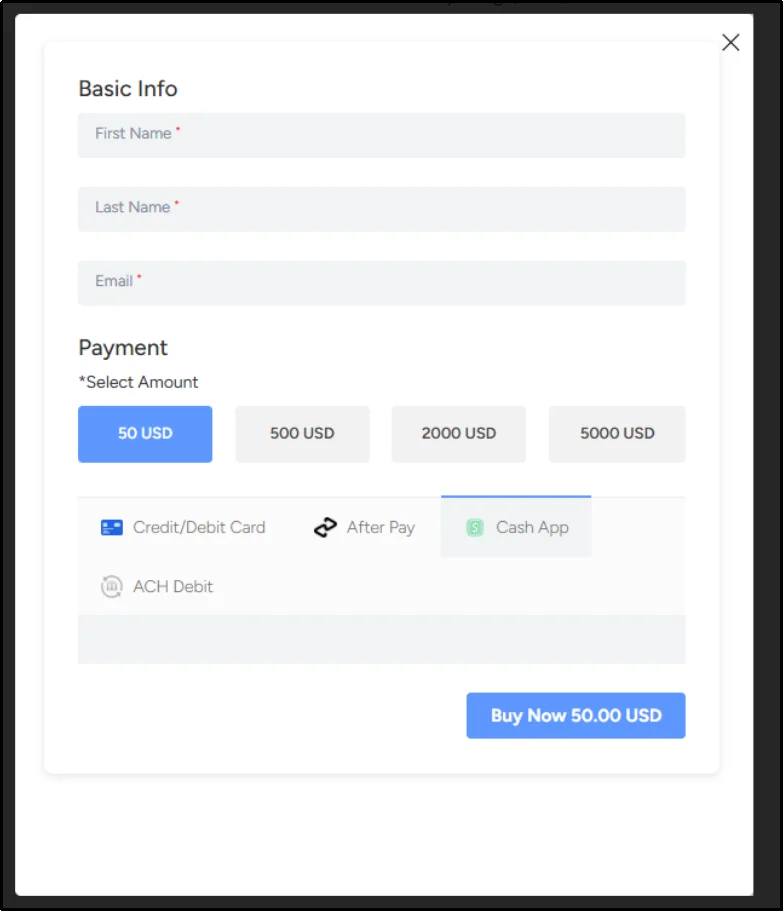
Crucial Note: Before accepting real payments, test your checkout using Square’s Sandbox test cards to ensure the entire payment flow functions correctly. Once confirmed, go to Square Connect, change the Payment Type from Sandbox to Live, and click Save Settings. Finally, complete a small real transaction to verify that live payments process successfully and that the payment confirmation email delivers as expected.
A successful implementation follows this exact sequence: button click → popup opens → customer enters card details → payment confirms → customer sees the success message → you receive a notification email. If any of these steps fail, start your troubleshooting there.
How to Test Your Button Before You Go Live
Untested payment flows are the most common reason a launch goes sideways. Run through this before sending real traffic:
- Sandbox test with Square’s test cards. Confirm the full flow works before switching to live mode.
- Mobile check. Open the page on a phone and confirm the popup fits the screen and the button is easy to tap.
- Email check. Run a sandbox transaction and confirm the notification email and any redirect-on-success message both fire correctly.
- Error-path check. Deliberately enter an incorrect card number and confirm the error message is clear and not confusing.
Best Practices of Using Buy Now Button
Implement these specific tactics once your button is functional:
- Placement: Position it above the fold on landing and product pages. Repeat it at the end of long descriptions or near testimonials.
- Copy: Use action verbs tied to the immediate outcome: “Buy Now,” “Get Instant Access,” or “Pay with Card.” Avoid generic labels like “Submit.”
- Honest Urgency: Limited stock or real deadlines nudge decisions. Fake countdowns and manufactured scarcity erode trust quickly, so only use genuine urgency.
- Social Proof: Place a review, rating, or testimonial next to the button to reduce hesitation at the exact moment of decision.
- Contrast: Ensure the button color stands out sharply from the page background, rather than just blending into your brand palette.
- Mobile Optimization: Confirm the popup renders cleanly on a phone before you launch. Mobile is where most checkout abandonment happens.
- Measurement: Track clicks and completions with a GA4 event, or use WP Easy Pay’s built-in reporting. To optimize further, test one variable at a time: button copy or color, never both simultaneously.
Start Accepting Payments with a Buy Now Button
Adding a Buy Now button is one of the simplest ways to create a faster checkout experience and reduce unnecessary steps for your customers. Whether you’re selling a single product, collecting donations, or running a full WooCommerce store, there’s a method that fits your setup.
If you want the most flexible solution, start with WP Easy Pay. It lets you create a Square-powered Buy Now button that opens a secure payment popup without redirecting visitors away from your website. You can test the entire checkout flow in Square’s Sandbox before switching to live payments so that you can launch with confidence.
Looking to learn more? Check out these guides next:
- How to Make a Payment Form in WordPress
- Payment Gateway Testing: What, Why, And How [Definitive Guide]
- How to Increase Donations on WordPress: 9 Proven Fundraising Strategies
Frequently Asked Questions
Is a Buy Now button better than an Add to Cart button?
It depends on whether your customers usually buy a single product or multiple products. However, omitting a Buy Now button on single-item pages can negatively impact your WordPress e-commerce conversion rate.
How do I add a Buy Now button in WordPress?
Install a payment form plugin such as WP Easy Pay (Square) or a Stripe-based alternative, create a payment button, and paste the generated shortcode into any page. Alternatively, generate a free PayPal button and embed it with a Custom HTML block, or use a WooCommerce plugin if you already run a store.
Can I add a Buy Now button in WordPress without WooCommerce?
Yes. Standalone payment form plugins do not require a product catalog or full store setup. You build a single form and drop its shortcode wherever you want the button to appear on any page or post.
How do I add a buy now button in WordPress for free?
Use a free-tier payment form plugin or a free PayPal button. Both let you fully build and sandbox-test a working button at no cost; fees only apply once you process a live payment.
What’s the best buy now button plugin for WordPress?
It depends on your existing gateway. If you use Square, then WP Easy Pay is built specifically for that buy now popup WordPress payment form workflow. If you’re already on Stripe, a Stripe-based form plugin is a better fit. If you run WooCommerce, a skip-cart plugin like WPC Buy Now Button plugs directly into your existing store.
How do I add a PayPal buy now button in WordPress?
Create a Buy Now button in your PayPal business account under Tools → PayPal Buttons, copy the generated HTML, and paste it into a Custom HTML block on your page. No plugin needed, though checkout happens on PayPal’s site.
How do I add a buy now button in WooCommerce?
Install a skip-cart plugin (WPC Buy Now Button, Quick Buy Now, or similar), then enable the Buy Now option and choose whether it replaces Add to Cart or sits next to it.
What is the best buy now button plugin for WordPress?
It depends on your gateway: WP Easy Pay for Square, a Stripe-based plugin if you’re on Stripe, or a WooCommerce-specific plugin if you already run a store.
Does Square work with WordPress?
Yes, through plugins like WP Easy Pay, which connects your Square account to a WordPress payment form. Square itself processes payments only for sellers based in the US, Canada, Australia, Japan, the UK, the Republic of Ireland, France, or Spain.