

Already have a Square account? Learn how to proceed.
Follow these steps to sign up for a Square account.
- Now your Square Account will sync Automatically.
- For this Create a Square Account if you don’t have one.
- Go to https://squareup.com/
- Go to the Sign In page and click on the Sign Up button to create a new account.
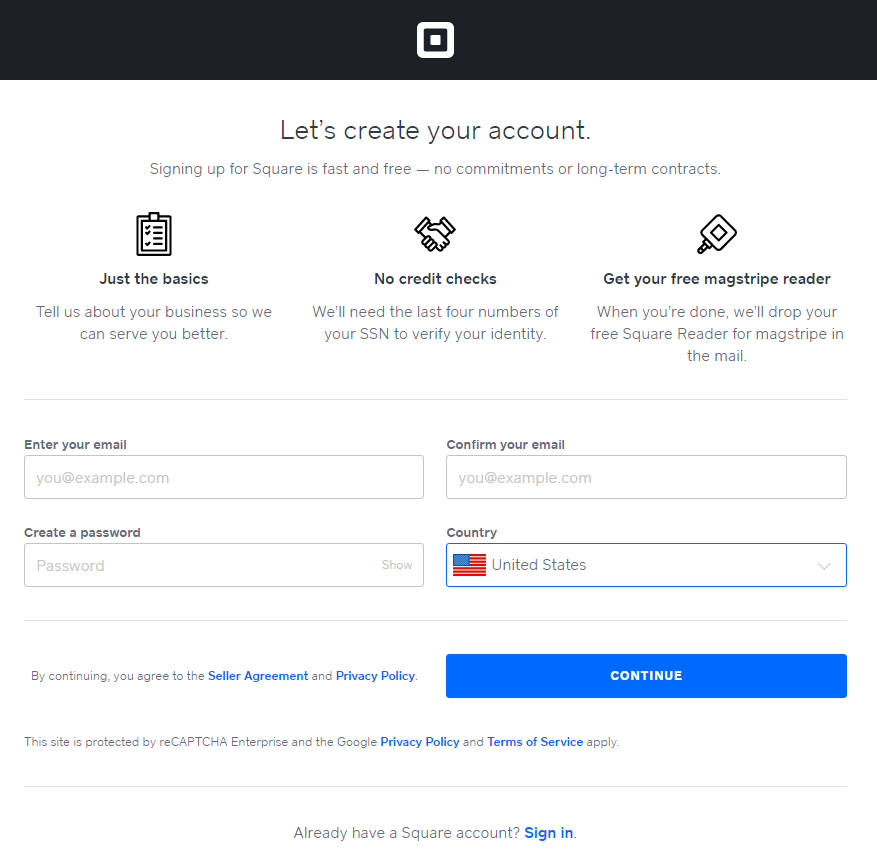
- Enter the required information and click on the Continue button.
- Review the details and click on the Agree checkbox to agree with the terms and conditions.
- Click on the Continue button again.
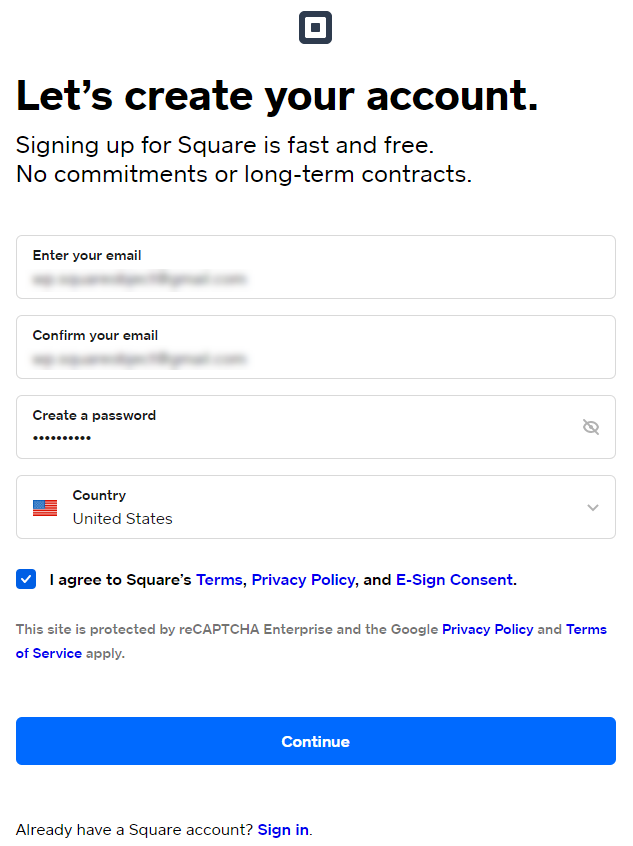
- Your account has been created successfully.
- Login to your Square account in your browser.
- In the new tab, navigate to the WordPress Admin Dashboard → WP EASY PAY→ Square Connect.

Connect Square (Sandbox) Account
- Open new tab in your browser and go to https://developer.squareup.com/
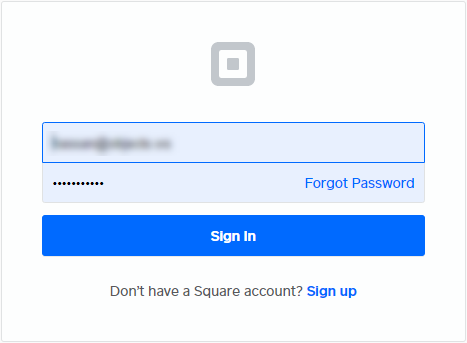
- Sign In to your Square account.
- In the Applications, click on the Open button in the Square Sandbox Test Accounts section.
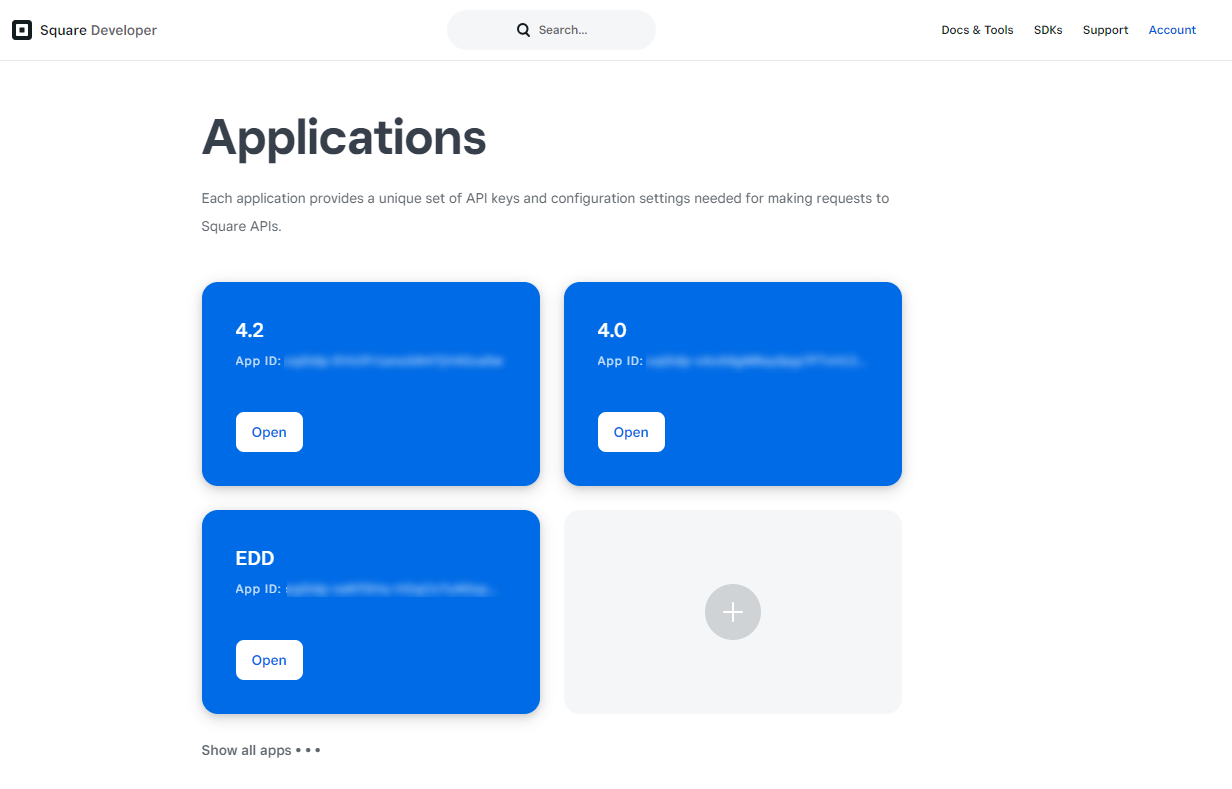
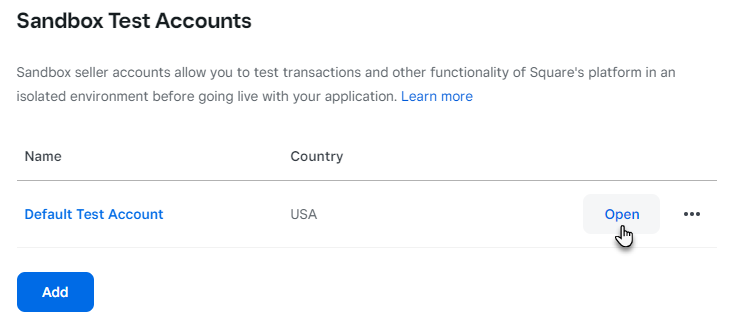
- Now, you are in the Square up Sandbox page.

- Now go to the WP Admin Dashboard in the new tab.
- Navigate to the WP EASY PAY→ Square Connect.
- For the test payment type, go to the toggle button and select Test Payment.
- Enter your Notification Email.
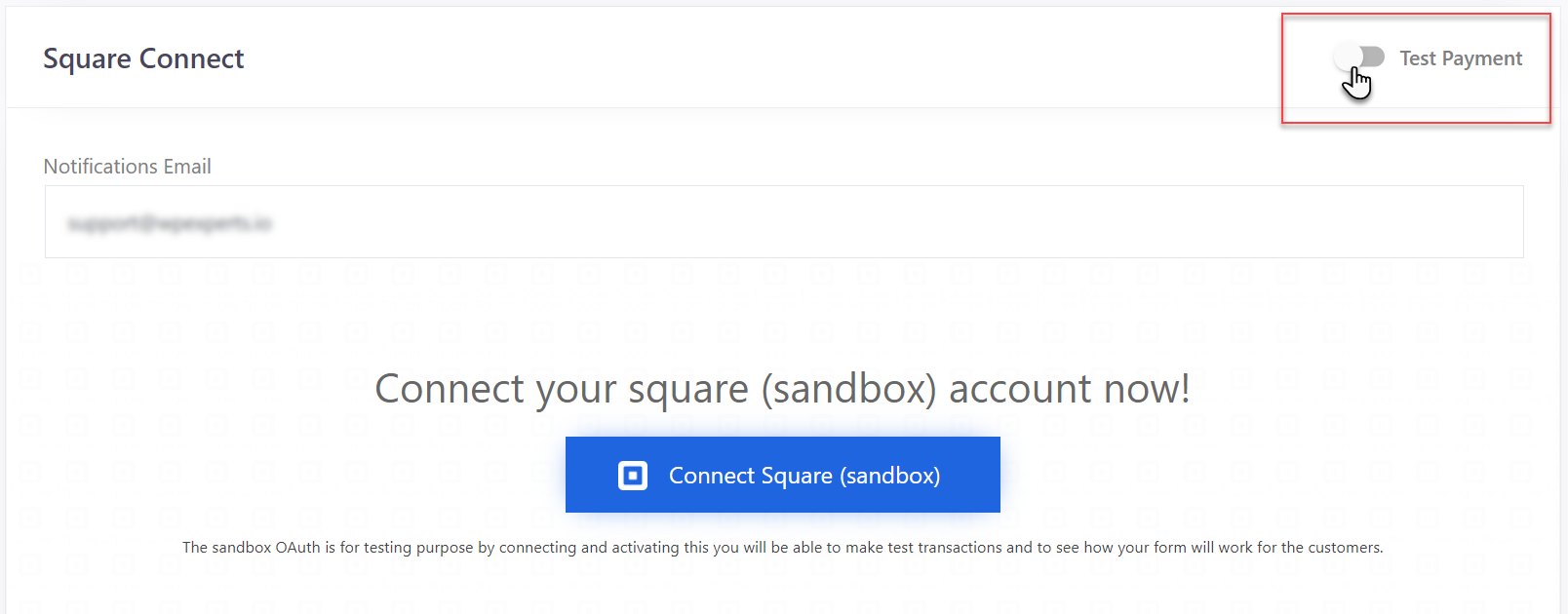
- Click on the Connect Square (sandbox) button.
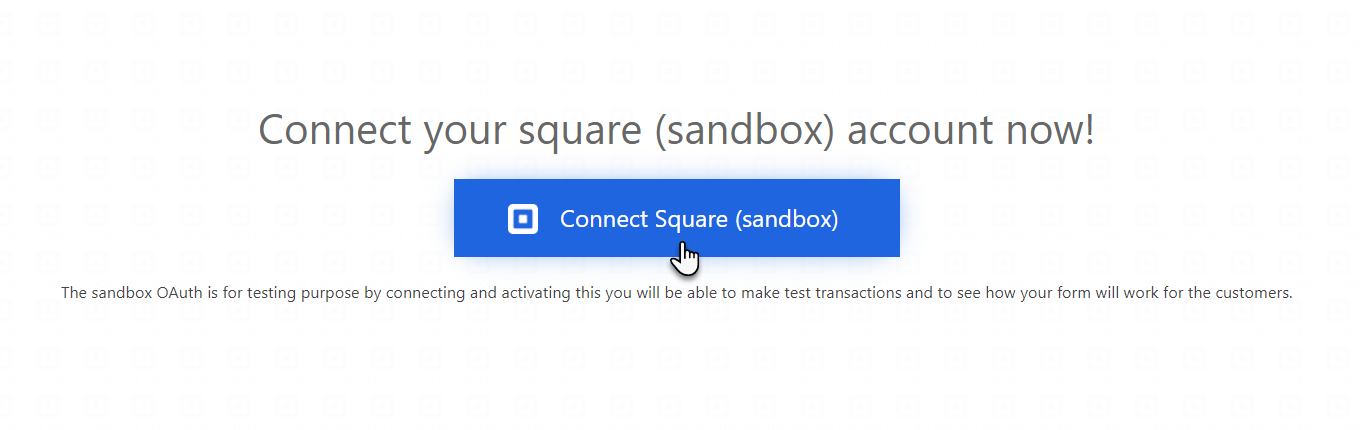
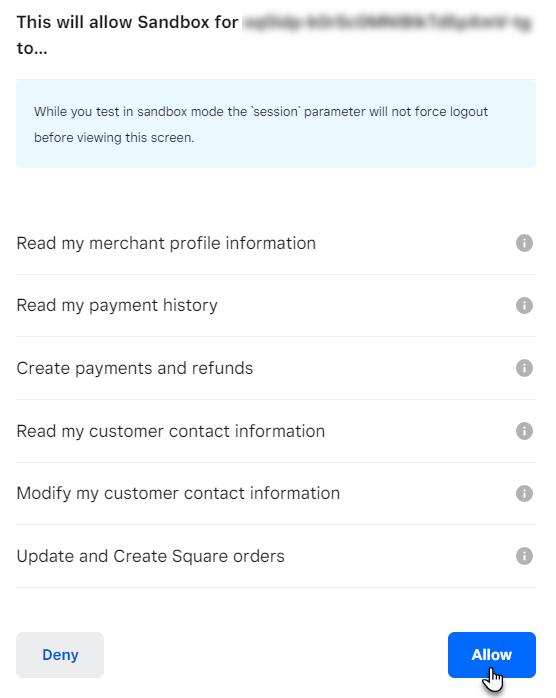
- You will be redirected to the Square OAuth Flow page.
- Click on the Allow button.
- Now, you will be redirected to the next page where you will be authenticated to square.
- Click on the Redirect button.
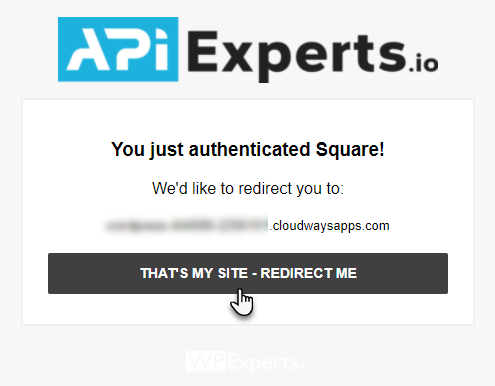
- You will be redirected back to your WP Admin Dashboard.
- Your Square Sandbox account is now connected.

- Select Default Test Account from the Location Drop Down menu.
- Click on the Save Settings button.

Connect Square (Live) Account
- Open new tab in your browser and go to https://squareup.com/
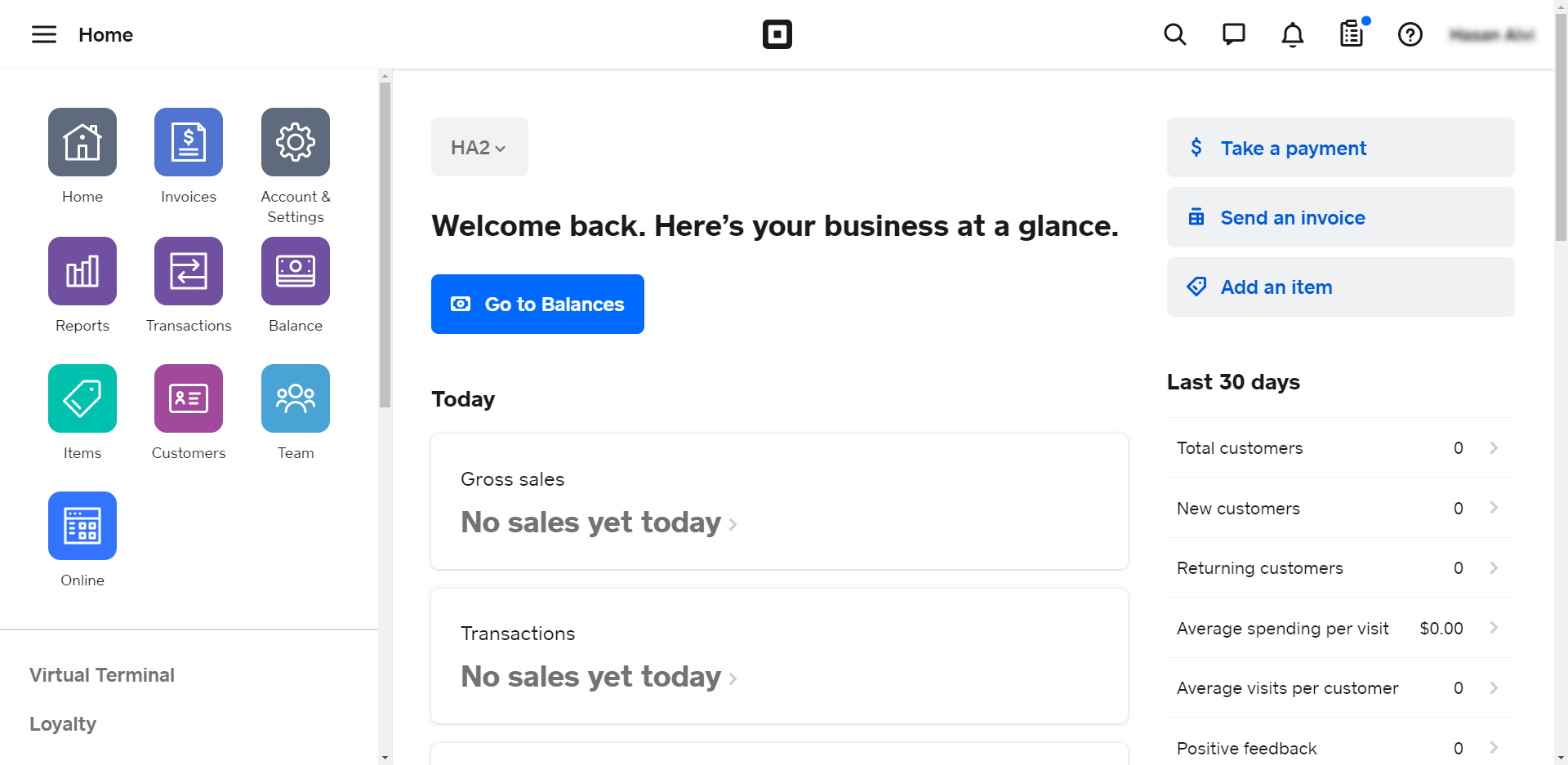
- Sign In to your Square account.
- Now, you are in the Square Up Dashboard.
- Now go to the WP Admin Dashboard in the new tab.
- Navigate to the WP EASY PAY→ Square Connect.
- For the test payment type, go to the toggle button and select Live Payment.
- Enter your Notification Email.
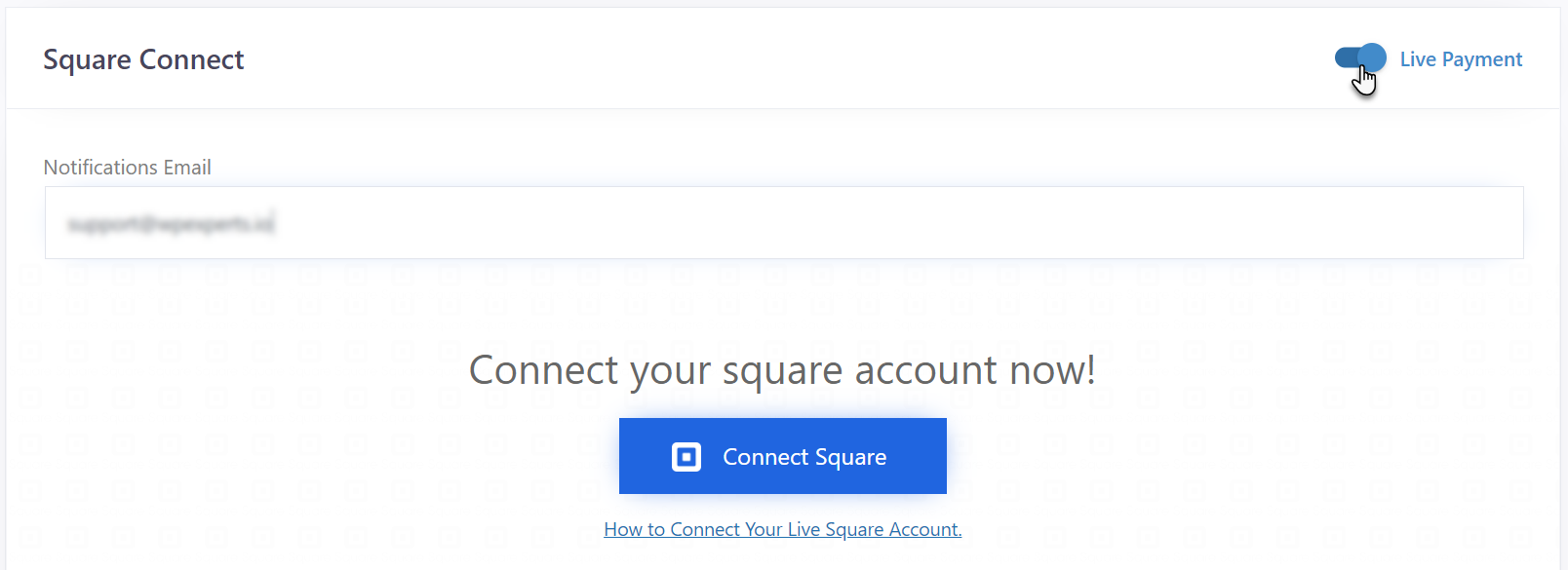
- Click on the Connect Square button.

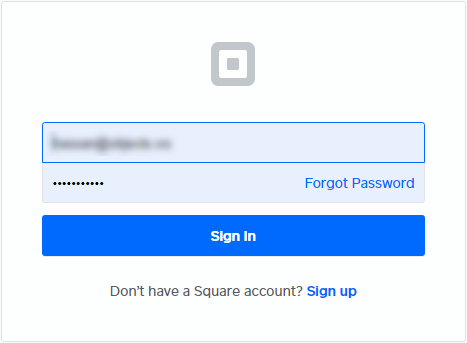
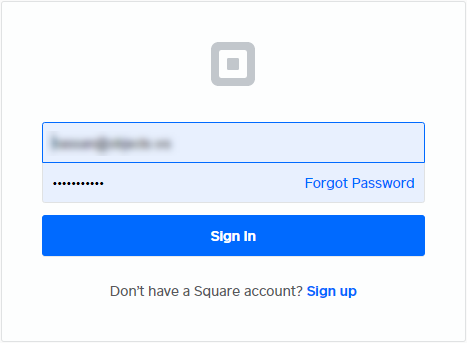
- You will be redirected to the Square Up login panel.
- It will ask for the square up credentials.
- Enter email address and password.
- Click on the Sign In button.
- Next, it will ask for the permissions.
- Click on the Allow button to proceed.
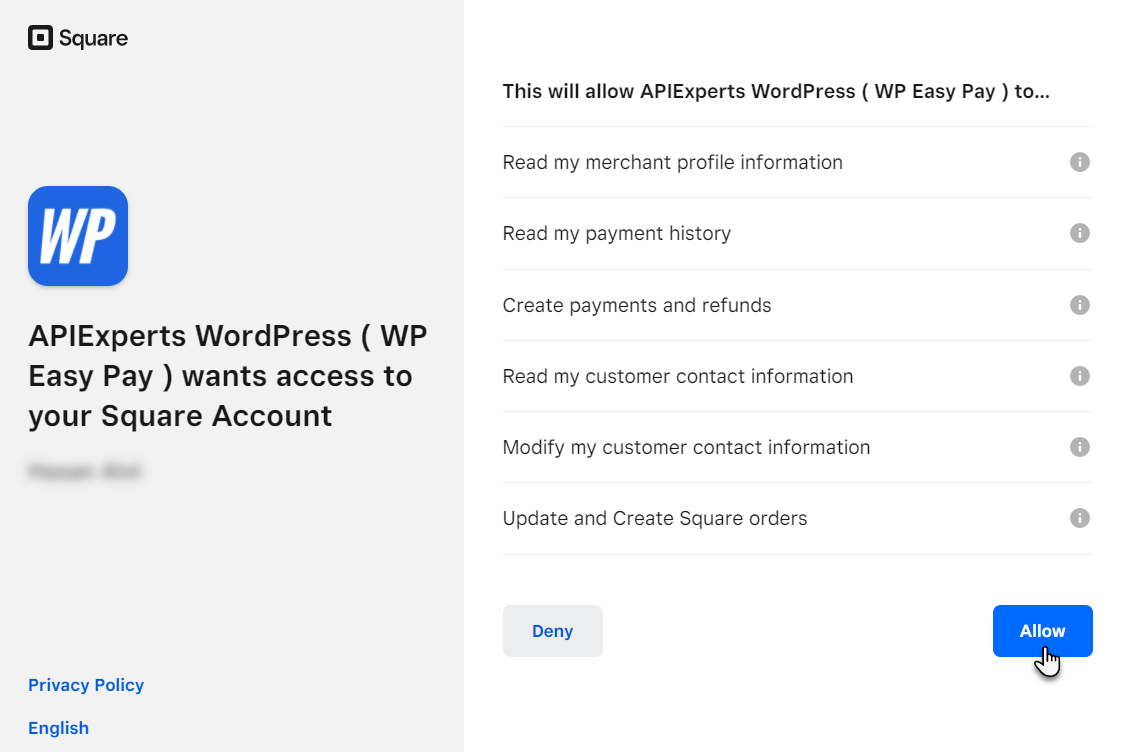
- Now, you will be redirected to the next page where you will be authenticated to square.
- Click on the Redirect button.

- You will be redirected back to your WP Admin Dashboard.
- Your Square account is now connected.
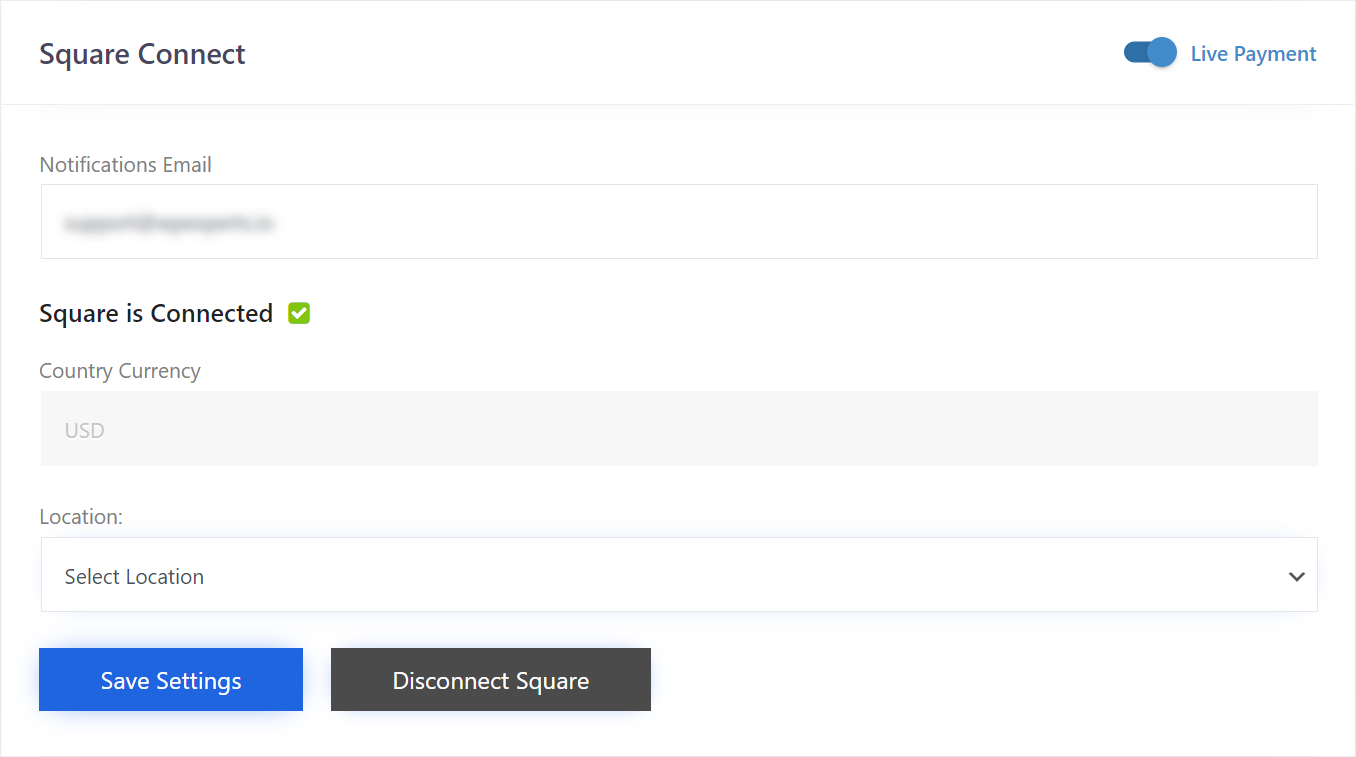
- Select your store location from the Location Drop Down menu.
- Click on the Save Settings button.