




Raising money for a cause once meant collecting cash in a piggy bank. Today, crowdfunding has made it easier than ever to raise money online.
If you own a WordPress website, you can easily tap into this growing trend. According to market research, the global crowdfunding market is projected to grow at a 17.6% CAGR between 2024 and 2030, reaching $5.53 billion, as more individuals and organizations turn to online fundraising.
Crowdfunding enables individuals, nonprofits, charities, startups, and community organizations to raise money by collecting small contributions from a large number of supporters. Instead of relying solely on major donors or conventional fundraising methods, you can launch a campaign directly from your WordPress website and manage donor contributions – all from one place.
In this guide, you’ll learn how to build a WordPress crowdfunding website using WP EasyPay and Square.
What is Crowdfunding?
Crowdfunding is a method of online fundraising that allows individuals, businesses, and nonprofits to raise money by collecting contributions from donors. You launch a crowdfunding campaign on a fundraising platform or your own website, where supporters can contribute toward a specific goal.
The most common types of crowdfunding include:
- Donation crowdfunding: Supporters donate money without expecting anything in return. It’s commonly used by charities, nonprofits, community projects, and personal causes.
- Reward crowdfunding: Backers receive a reward, such as a product, exclusive perk, or early access, in exchange for their contribution. This model is popular with startups and creative projects.
- Equity crowdfunding: Investors contribute funds in exchange for ownership shares in a business. It is commonly used by startups seeking investment capital.
- Peer-to-peer fundraising: Individuals create their own fundraising pages on behalf of a charity or cause, encouraging friends, family, and colleagues to donate.
- Nonprofit fundraising: Organizations use crowdfunding to support ongoing programs, emergency relief efforts, capital campaigns, or recurring donation initiatives.
With a WordPress website and the right WordPress donation plugin, you can create a crowdfunding campaign, accept secure online donations through a reliable payment gateway integration, track fundraising software metrics, and manage donor management data without relying on third-party online fundraising platforms.
Why Use Your Own WordPress Website for Crowdfunding?
Third-party crowdfunding platforms make it easy to launch a campaign, but that convenience often comes at a cost. Many charge a platform fee (often around 5%) in addition to payment processing, meaning less of every donation reaches your cause.
By hosting your campaign on your own WordPress website, you can:
- Avoid marketplace fees and keep more of every donation.
- Pay only Square’s standard processing fees instead of additional platform commissions.
- Raise funds directly without relying on third-party fundraising platforms.
Your website also becomes an extension of your campaign. Instead of sending supporters to a generic donation page, you can create a branded fundraising experience that inspires confidence and encourages more donations.
With your own website, you can:
- Customize donation forms to match your campaign and audience.
- Show real-time fundraising progress to motivate supporters.
- Maintain consistent branding with your logo, colours, and messaging.
- Build trust by collecting donations on your own domain.
Perhaps the biggest advantage is ownership. Every donor interaction happens on your website, giving you full control over your fundraising strategy instead of handing valuable data to a third-party platform.
That means you can:
- Own your donor data and contact list.
- Build long-term relationships with supporters.
- Run future crowdfunding campaigns without starting from scratch.
- Grow your nonprofit or business with a fundraising platform you fully control.
What You’ll Need Before Getting Started
Before diving into setup, make sure you have the following ready:
- A WordPress website
- An SSL certificate (for secure donation processing)
- A Square account
- The WP EasyPay plugin
- Your campaign details finalized
- A clear fundraising goal
- Images and a compelling campaign story
Why Choose WP EasyPay for Crowdfunding?
WP EasyPay operates as a premier WordPress donation plugin that simplifies secure, flexible charity fundraising without requiring a developer or a complicated setup process.
Here is what it offers:
- Accept Credit and Debit Cards: Process all major credit and debit card payments securely through your integrated payment gateway. This foundational feature ensures supporters can fund your online donation system using the world’s most popular payment methods.
- Digital Wallets & Square Gift Cards: Accept payments via Apple Pay, Google Pay, Cash App, Afterpay, and Square Gift Cards. These options give donors maximum flexibility and simplify mobile checkout.
- Custom & Fixed Donation Amounts: Allow donors to set their own payment amount or choose from fixed giving tiers. This flexibility lets contributors give exactly what they want while standardizing reward-based perks.
- Recurring Donations & Subscription Management: Set up subscription-based transactions for monthly giving or membership drives. The built-in subscription management tools let you monitor, adjust, and track recurring donor data efficiently.
- Page Builder & Gutenberg Integration: Embed payment forms directly inside Elementor, Beaver Builder, or the native Gutenberg editor. This seamless integration lets you design and place donation forms exactly where your visitors take action.
- In-Person Fundraising & Event Scheduling: Accept in-person payments at fundraising events using Square Terminal (POS) support, which syncs directly to your WordPress site. You can also integrate date and time selectors to schedule event registrations or book appointments.
- Sandbox Testing & Advanced Security: Test your forms in a secure sandbox environment before going live. The plugin enforces PCI and SCA compliance through Square and utilizes Google reCAPTCHA to block bots and prevent spam.
- Donor Appreciation & Automated Receipts: Send detailed transaction receipts automatically to donors and admins. You can also redirect supporters to a custom thank-you page or upsell page to show appreciation and improve the user experience.
- Responsive & Flexible Form Layouts: Design fully mobile-friendly forms with layouts such as dropdowns, radio buttons, pop-ups, and embedded fields. The responsive design ensures a fast, frictionless checkout experience on any device.
Check out the complete feature list here.
Step-by-Step Guide to Set Up Crowdfunding in WordPress
Setting up a crowdfunding campaign in WordPress might sound complicated, but with the right tools, it’s straightforward and highly effective. Using WP EasyPay, you can create a secure, fully customizable donation form, track campaign goals in real time, and provide your donors with a seamless giving experience.
Here’s how you can start raising funds for your cause quickly and confidently.
Step 1: Install and Activate WP EasyPay Pro
- Go to the WP Easy Pay Pricing page. Select the plan you want (Annual or Lifetime).

- Enter your personal details and card information. Click Review Order, then Complete Purchase.
- Check your inbox for the confirmation email. If you received it, click Got it. If not, click Resend Email.
In your email, you will find:
- The Pro Plugin ZIP file, and
- Your License Key
- Now head to your WordPress dashboard, go to Plugins → Add New Plugin.
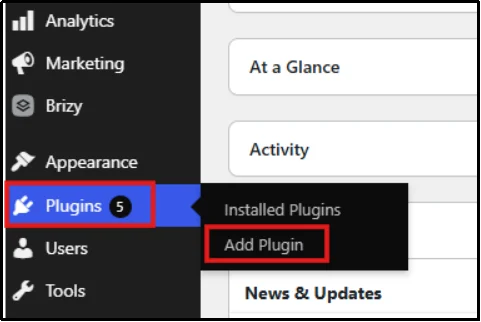
- Select Upload Plugin, click Choose File, select the WP Easy Pay Pro ZIP file, then click Install Now.

- After installation, you will be prompted to Activate License.
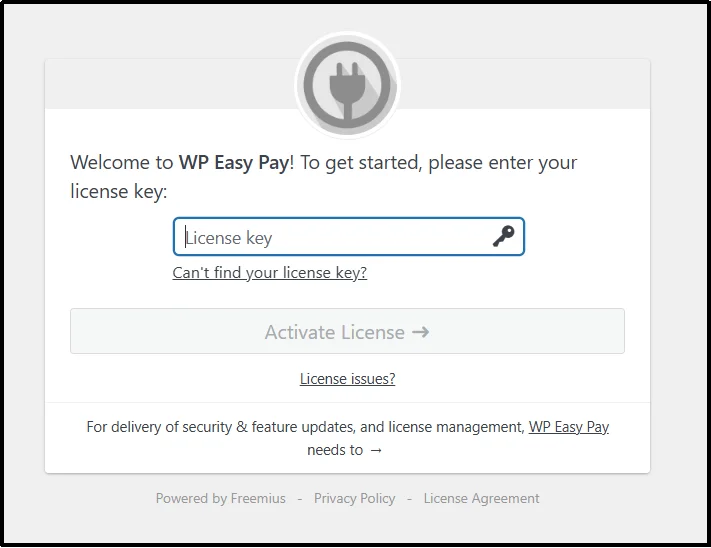
- Paste your License Key into the field. Click Agree & Activate License.
Once activated, WP EasyPay will appear as a menu item in your admin panel.
Step 2: Connect Your Square Account
- Open your WordPress Admin Dashboard in a new tab. Navigate to the WP EasyPay menu and go to Square Connect.
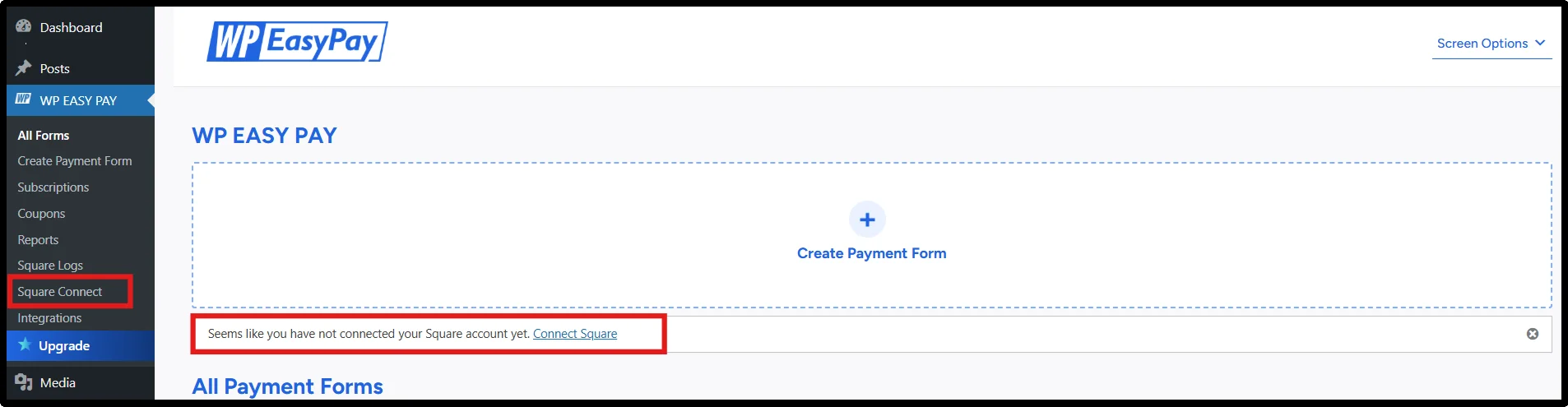
- Switch the Payment Type toggle to Live Payment. Enter your Notification Email and click Connect Square.
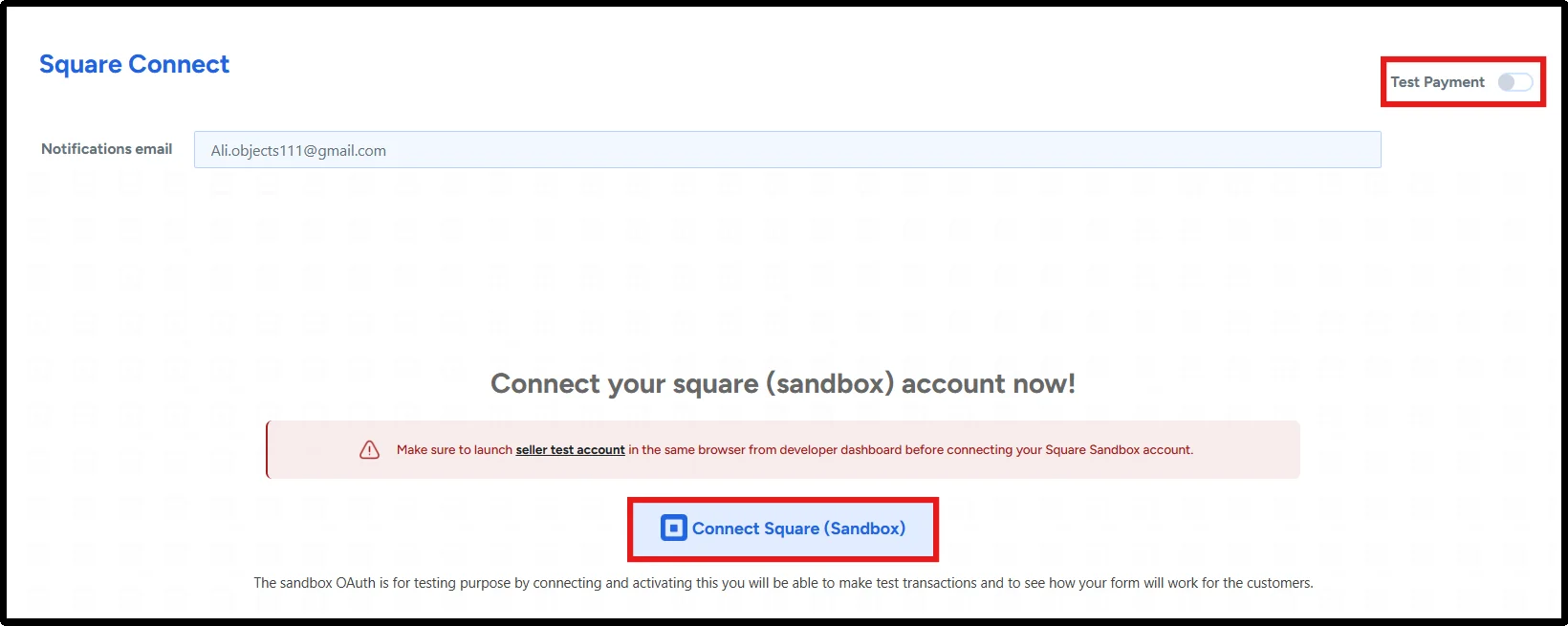
- You will be redirected to the Square login panel. Enter your email and password, then click Sign In.
- On the next screen, click “That’s My Site – Redirect Me” to complete the connection.

Your Square account is now successfully connected and ready to process real donations.
Step 3: Create a Donation Form
Once your Square account is connected, you can create a dedicated crowdfunding form for your campaign.
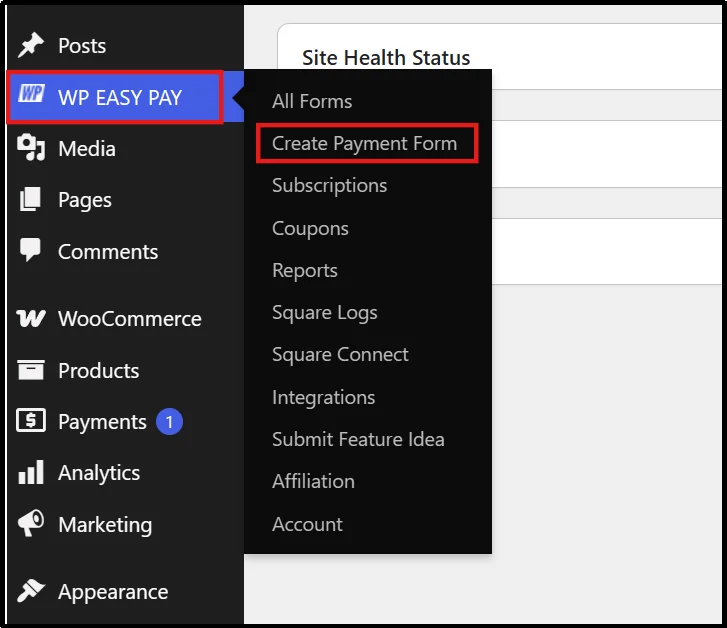
- In your WordPress Admin Dashboard, navigate to WP Easy Pay. Select Create Payment Form.
- Select the Form Settings tab.
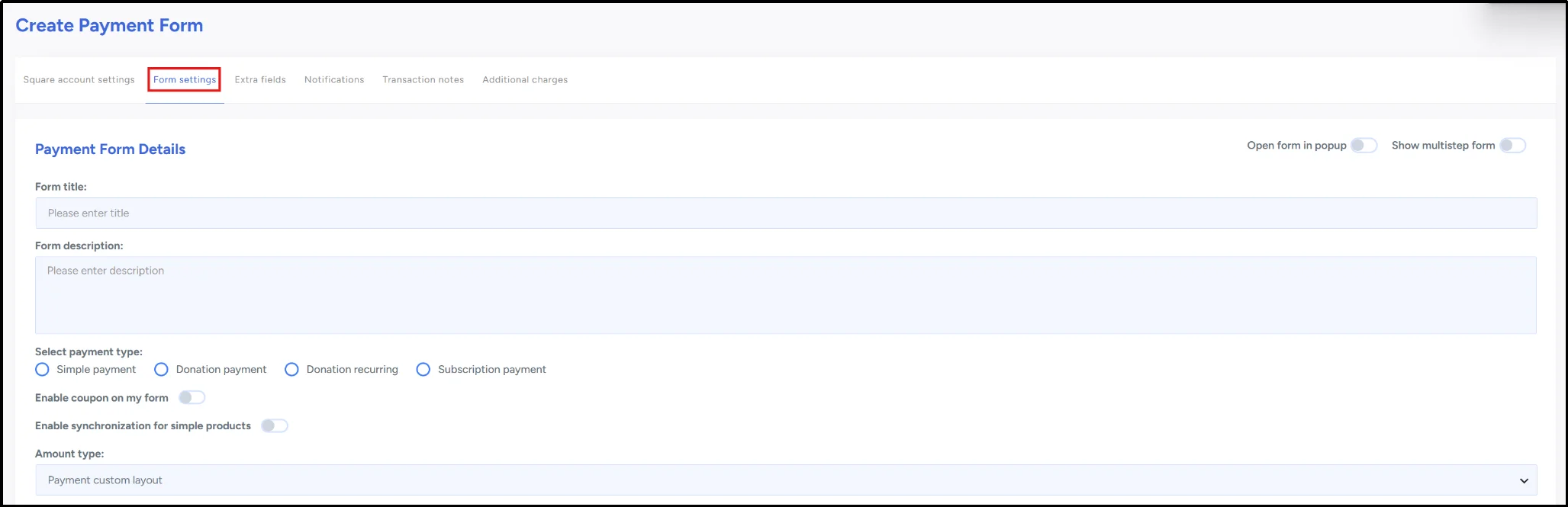
- In the Payment Form Details section, enter the core information for your crowdfunding form.
- Form Title: Enter the name of your campaign
Example: “Help Build Our School” - Form Description: Add a short, compelling summary of your cause.
- From the Select Payment Type, choose Donation Payment. This option unlocks additional fields specifically designed for crowdfunding campaigns in WordPress.
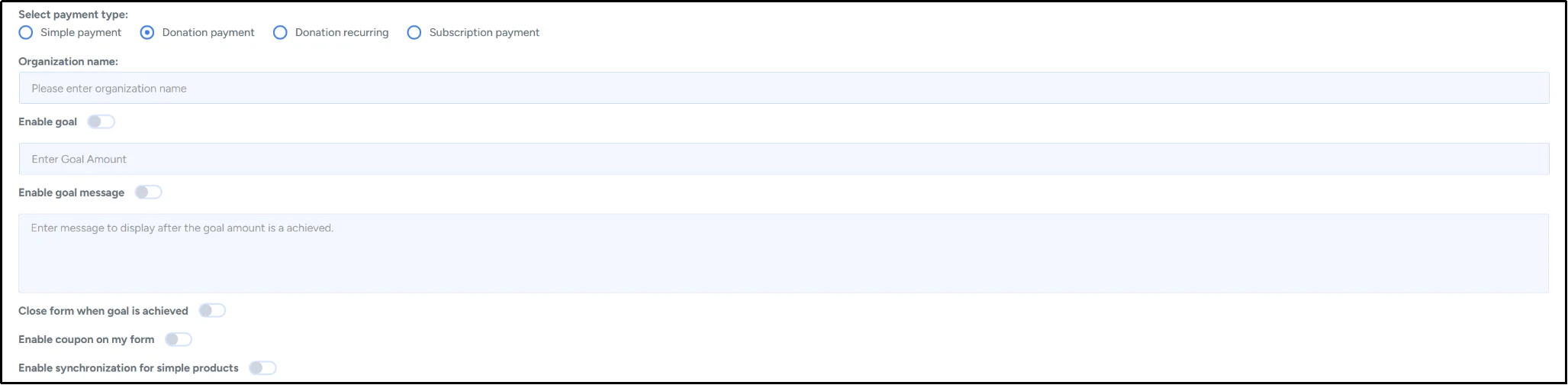
- After choosing Donation Payment, new donation-related settings will appear.
- Enter your Organization Name or campaign title (e.g., Hope Foundation).
- Check the Goal box. This allows donors to see real-time progress as contributions come in.
- Enter your Goal Amount (e.g., 200,000 BDT)
- Add a Goal Message. This message will display when the fundraising target is reached.

- In the Amount / Amount Type section:
- Add one or more preset amounts such as 500, 1000, 5000, etc.
- Optionally enable Other Amount, allowing donors to enter any custom donation value.
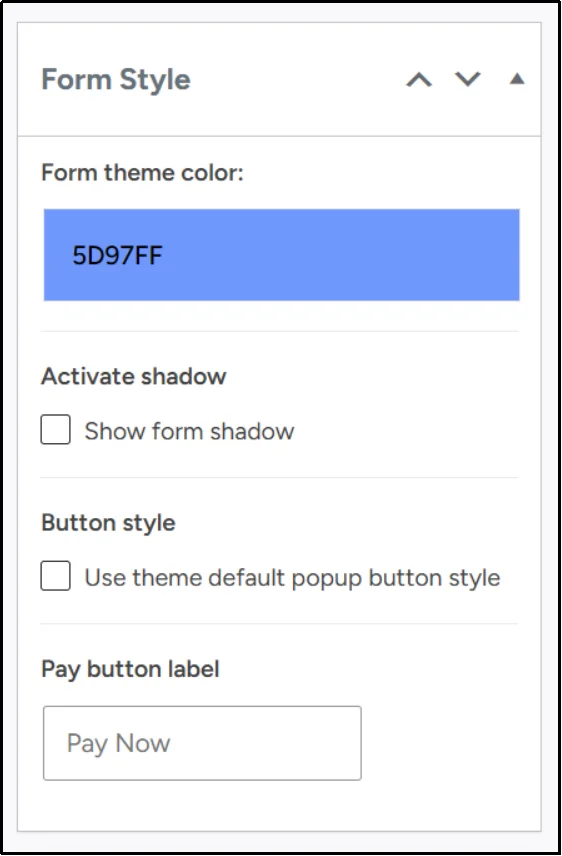
- WP EasyPay allows you to style your crowdfunding form to match your campaign page:
- Adjust labels, fields, and colors.
- Choose between inline or modal form layouts.
- Align the form with your website’s design for a cohesive donor experience.
- Next, click Publish to save your donation form.
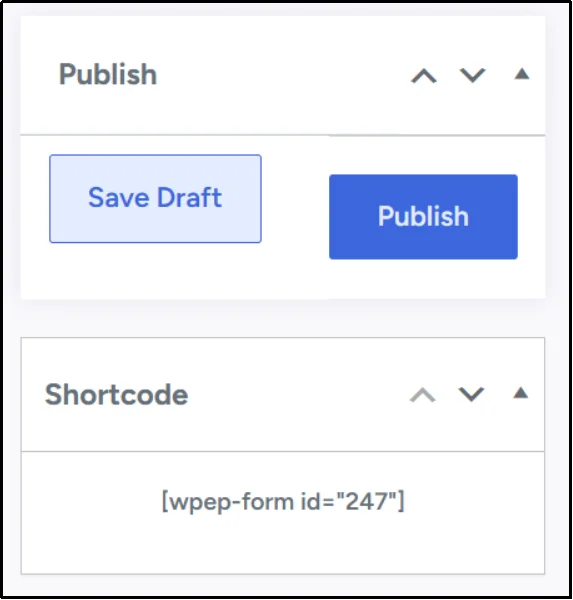
- A Shortcode will appear on the right side of the form editor. Copy this shortcode and paste it into a dedicated Donate Now page or any section of your homepage or landing page.
Your crowdfunding form is now ready to accept donations.
Step 4: Publish Your Crowdfunding Form
You built the crowdfunding form, but you must display it properly to collect funds. All you need to do now is create a new page and add your WP EasyPay form shortcode.
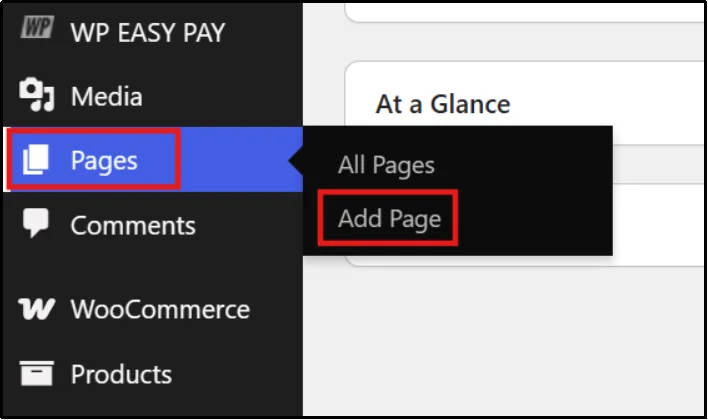
- From the left menu bar of your WP Dashboard, click Pages and then Add Page.
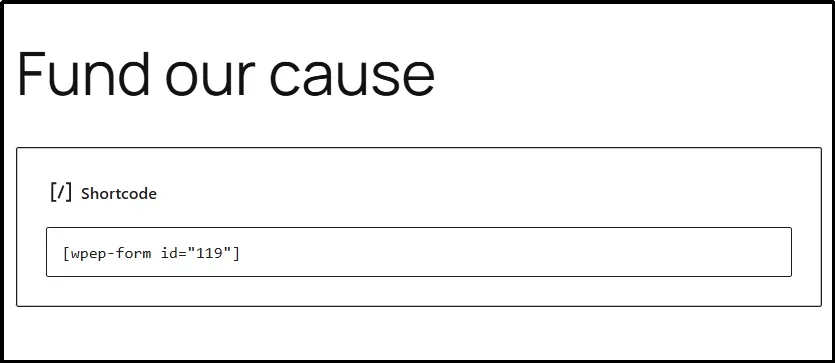
- A new screen opens. Enter your page title and then paste the shortcode in the first block after the title.
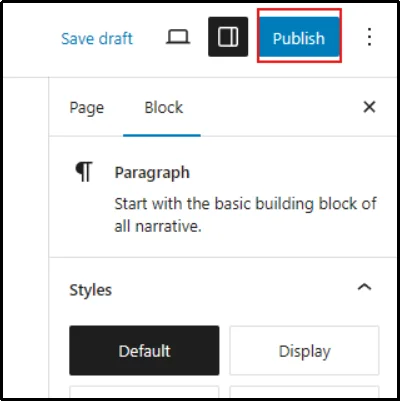
- In the top-right corner, click the Publish button. When the system publishes the page, you see a new widget with the link to your page.
- Copy the link and paste it in a new tab to view your form. However, hitting the “View Page” button offers a much easier way to see your new page.
Your form is now ready for action.
Here is a short list of things you need to check:
- The payment processes successfully and redirects users to the correct thank-you page.
- The campaign goal, progress bar, or total raised updates immediately after the donation.
- The system delivers all confirmation emails or notifications as expected.
- The contribution shows in the WP EasyPay dashboard.
This ensures a smooth experience for real donors.
Tips for Successful Crowdfunding in WordPress
Launching a crowdfunding campaign in WordPress is only the first step. The real success comes from how well you promote, communicate, and track your progress. Here are key strategies to maximize donations and keep your campaign growing.
Strategy 1: Encourage Sharing and Make Your Campaign Easy to Spread
Crowdfunding thrives on visibility. The more people who see your campaign, the more support you gain. Make sharing effortless by:
- Adding social share buttons near your donation form
- Creating shareable graphics or posters for Facebook, Instagram, and WhatsApp
- Writing short and compelling messages that supporters can copy and share
- Posting updates that inspire donors to spread the word
When donors share your campaign, you unlock new networks of potential supporters.
Strategy 2: Optimize for Mobile Donations
A large percentage of online donations now come from mobile devices. If your campaign isn’t mobile-friendly, you could be losing donors without realizing it.
Make sure:
- Your donation form loads quickly
- Buttons and fields are easy to tap
- The progress bar appears clearly on smaller screens
- Images and text are well-organized and readable
- WP EasyPay’s responsive layout options are enabled
A smooth mobile experience increases conversions and encourages impulse giving.
Strategy 3: Use Clear Messaging and Strong Campaign Goals
Donors act when they clearly understand:
- What the campaign is about
- Who benefits from the donations
- How much money is needed
- How their contribution makes an impact
Keep your storytelling simple, specific, and emotional.
Also, ensure your campaign displays:
- A realistic fundraising goal
- A visible progress bar
- A short goal message that motivates donors
WP EasyPay’s goal and progress features make transparency effortless, helping build trust and credibility.
Strategy 4: Monitor Donations and Adjust Your Strategy
Tracking your incoming donations helps you understand what’s working and what isn’t.
Inside your WP EasyPay dashboard, you can:
- View total donations
- Track individual contributions
- Identify donation spikes
- See which pages convert best
- Spot failed or incomplete payments
Use these insights to refine your messaging, post timely updates, or reach out to your community when momentum slows.
Launch Your Crowdfunding Campaign in WordPress with WP EasyPay Today
Crowdfunding has transformed the way individuals, nonprofits, and community groups raise funds, turning small contributions into meaningful, collective impact. With WordPress as your platform, you gain full control over your storytelling, branding, and donor journey without relying on expensive third-party fundraising sites.
When it comes to accepting secure online donations, tracking campaign goals, and offering donors a smooth payment experience, WP EasyPay serves as the ideal solution. Its Square integration, built-in fundraising features, responsive design, and easy setup make it perfect for any crowdfunding campaign in WordPress, whether you support a community project, run a charity appeal, or organize a personal fundraiser.
If you are ready to launch your next campaign with confidence, transparency, and professional-grade donation tools, WP EasyPay serves as the plugin to use. Start today and turn your WordPress site into a powerful platform for meaningful change.
Frequently Asked Questions
Can I run multiple crowdfunding campaigns on one WordPress website?
Yes. WP EasyPay lets you create multiple donation forms, making it easy to manage separate fundraising campaigns from the same WordPress site.
Can I customize the donation amounts for each crowdfunding campaign?
Yes. You can offer preset donation amounts, allow custom donations, or combine both to give supporters more flexibility.
Is crowdfunding on WordPress secure?
Yes. When you use SSL encryption, a trusted payment processor like Square, and a secure donation plugin such as WP EasyPay, you can safely accept online donations.
Do I need coding knowledge to build a crowdfunding website in WordPress?
No. WP EasyPay lets you create and publish donation forms through a user-friendly interface without writing any code.
Can businesses use WP EasyPay for crowdfunding?
Yes. While many nonprofits use crowdfunding, businesses, startups, schools, community groups, and individuals can also use WP EasyPay to raise funds for projects and initiatives.